Creative Teams: Quarterly Audits Stop Client Access Permissions Drift
Creative Teams: Quarterly Audits Stop Client Access Permissions Drift

Use scoped role based access controls and the principle of least privilege to manage client access permissions. Give every client and team member the narrowest role that lets them do their job, review the assignment on a set schedule, and verify what people can actually reach with a non-admin test account. Platforms built for production work, including Posthive, now bake scoped reviewer roles directly into project settings so this isn’t a manual chore.
TL;DR:
- Most platforms support role-based access control, with scoped, project-specific roles that prevent permission sprawl and reduce risk in client management.
- Assign permissions to groups rather than individuals, and always scope client access to their specific project or collaboration group for tighter control.
- Regularly test effective access with non-owner accounts and perform quarterly audits of permissions to catch drift or unintended elevation before breaches occur.
- Document all roles, including purpose, current holders, and reasons for grants, to simplify audits and maintain clear compliance records.
- Use platform tools like bulk role updates, activity reports, and version control features to automate permission management and minimize manual errors.
Table of Contents
- What Are Client Access Permissions, and Which Model Fits Your Team?
- Where to Find and Edit Client Access Permissions in Most Platforms
- Scoping and Client Access Groups: Keeping Permissions Narrow by Design
- Verify and Audit: Catching Permission Drift Before It Becomes a Breach
- Documenting Access Permissions for Compliance and Audit Purposes
- Handling Permission Changes During Client Onboarding and Offboarding
- Permission Escalation Vectors and How to Mitigate Them
- Tools and Features That Make Permission Management Less Manual
- What Creative Teams Get Wrong About Client Permissions
- Posthive: Built for the Way Client Permissions Actually Work
- Quick Reference: Authoritative Docs Worth Bookmarking
- Sources
- FAQ
What Are Client Access Permissions, and Which Model Fits Your Team?
Three access control models cover almost every platform you’ll touch: Discretionary Access Control (DAC), Role Based Access Control (RBAC), and Attribute or Scope Based Access Control (ABAC/SBAC), according to WorkOS. Each answers a different question about who gets to touch what.
- DAC lets the resource owner decide, case by case, who gets access. It’s flexible but hard to audit at scale because permissions live in someone’s memory, not a policy.
- RBAC assigns permissions to a role (Editor, Reviewer, Producer) rather than a person. Add someone to a role and they inherit everything attached to it.
- ABAC/SBAC grants access based on attributes or conditions, such as project ID, client account, or file sensitivity, so a rule can say “reviewers only see assets tagged to their client.”
For creative and production teams, RBAC with scoped, project level roles handles the everyday case: an editor role, a client reviewer role, a producer role. Reach for ABAC/SBAC when access needs to follow data itself, like restricting a raw footage folder to whoever is tagged on that specific shoot, regardless of their general role.
Where to Find and Edit Client Access Permissions in Most Platforms
Almost every serious SaaS product hides permissions in the same general spot: Settings → Admin or User Management → Roles and Permissions. Once you’re there, the workflow rarely changes across platforms, according to OpenAI’s own permissions documentation.
- Open the admin console and locate the Roles or Permissions tab.
- Review existing roles before creating new ones. Duplicate roles are the fastest way to lose track of who has what.
- Create a custom role scoped to a single function (reviewer, uploader, approver) rather than copying an existing broad role and trimming it slightly.
- Assign the role to a user or, better, to a group.
- Attach that group to the specific project or client account it should touch, not the whole workspace.
Groups matter more than individual assignments once you pass a handful of clients. Assigning permissions person by person means every offboarding becomes a manual hunt. Assigning to a group means removing one membership closes every door at once.
Pro Tip: Before you hand out a role, ask what the worst-case action is if that account gets compromised. If the answer is “delete a client’s entire project,” the role is too broad, no matter how convenient it feels today.
Most platforms discourage handing out Full Admin except to a small number of trusted owners, and that’s the right instinct: scoped, project level roles should cover routine work for everyone else, per the same OpenAI guidance.
Scoping and Client Access Groups: Keeping Permissions Narrow by Design
Think of scoping in three layers: organization, project or client, and individual object (a file, a folder, a single deliverable). Most permission mistakes happen because someone grants access at the top layer when the request only needed the bottom one.
Client access groups solve this cleanly. Instead of adding a client contact to your whole workspace, you create a group scoped to their project, attach the client’s reviewers to that group, and the group’s permissions never touch any other account’s work. When the project wraps, you archive one group instead of chasing down five individual removals.
Delegation gets trickier. Many teams want a “semi-admin” who can manage their own client’s users without touching global settings. This is where fine-grained permission scopes come in. Keycloak, for example, exposes distinct scopes like view, manage, and map-roles-client-scope so an admin can hand over exactly one management action without granting the whole admin panel, according to Keycloak’s own permission evaluator documentation.
- Bind delegated scopes to a specific resource, never to “all resources of this type.”
- Document every custom scope the moment you create it, because policy sprawl is what makes these systems hard to audit later.
- Watch for scope combinations that quietly grant more than intended. Keycloak’s own issue tracker has documented cases where fine-grained delegation setups introduced unexpected elevation paths.
Verify and Audit: Catching Permission Drift Before It Becomes a Breach
Authorization, not authentication, is the control that actually decides what someone can do once they’re logged in. OWASP’s access control guidance makes this distinction explicit: verifying identity is only half the job, and skipping the second half is how over-permissioned accounts pile up.
The single most useful habit here is testing effective access with a non-owner account. Log in as that account, or a close proxy, and try the actions you assume are blocked. Permissions from multiple roles and group memberships combine into a union, so a user can retain access through a second role even after you’ve removed the first one, according to OpenAI’s role based access guide. That’s the trap: removing one role feels like revoking access, but it often isn’t.
Set a recurring audit cadence, quarterly for active client rosters, and pull a permissions report rather than trusting memory. Default every new account to no access or read only, then grant write or manage scopes only at the specific project level required, following OWASP’s own security principles. Time-box any elevated access you do grant, and never leave a “temporary” admin role active past the task it was created for.
Documenting Access Permissions for Compliance and Audit Purposes
A permissions system nobody wrote down is a permissions system nobody can defend during an audit. Document three things for every role: what it can do, who currently holds it, and why it was granted.
Keep a simple access register, a spreadsheet works fine at small scale, with columns for role name, scope (organization, project, or object level), assigned users or groups, date granted, and the business reason for the grant. When a client asks why their freelance colorist can see a rough cut but not the final master, you want an answer in seconds, not a scramble through admin logs.
Build the register around the permission hierarchy itself: global roles at the top, group-level grants in the middle, object-level overrides at the bottom. Snowflake’s access control documentation describes this kind of hierarchy well, showing how role inheritance and ownership reduce the number of one-off exceptions you need to track. Reserve object-level overrides for genuine exceptions and flag each one with a note explaining why the standard role didn’t cover the case. Undocumented overrides are what turn a routine audit into a multi-day investigation.
Review the register on the same schedule as your permission audits. A document that’s accurate once but stale six months later is worse than no document, because it gives a false sense of control. If your platform generates permission or activity reports natively, export them into the register instead of rebuilding it by hand every quarter.
Handling Permission Changes During Client Onboarding and Offboarding
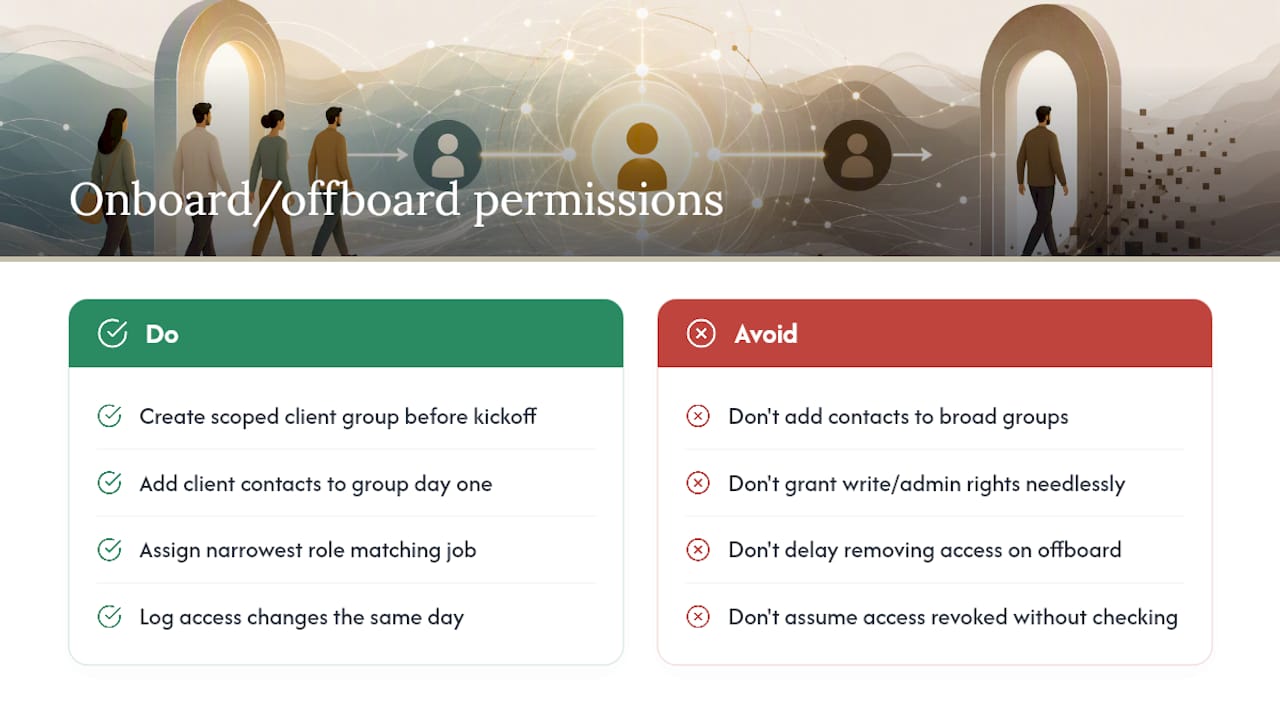
Onboarding is where scope creep starts. A new client contact asks for “access to the project,” and it’s tempting to add them to a broad group that already exists rather than build a scoped one. Resist that. Create the client’s access group before the kickoff call, scope it to their project only, and add contacts to that group from day one.
Assign the narrowest role that matches the client’s actual job: reviewer if they’re approving cuts, commenter if they’re giving notes, uploader if they’re supplying raw materials. Very few client contacts need write access to project structure, delivery settings, or billing, and granting it “just in case” is how a two-person client team ends up with de facto admin rights nobody remembers approving.
Offboarding needs the same discipline in reverse, and it’s the step most teams skip. When a project closes or a client contact changes, remove the group membership immediately rather than waiting for a cleanup pass. Because permissions combine across roles and groups, check whether that person holds any other role in your workspace before assuming their access is fully closed. A former client stakeholder who still has a lingering “general reviewer” role from an old project is a live liability, not a formality.
Set a standing rule: access changes get logged the same day they happen, tied to the onboarding or offboarding event that triggered them. That single habit closes most of the gap between “we meant to revoke access” and “access is actually revoked.”
Permission Escalation Vectors and How to Mitigate Them
Escalation rarely looks dramatic. It looks like a convenience decision that quietly expands what someone can reach.
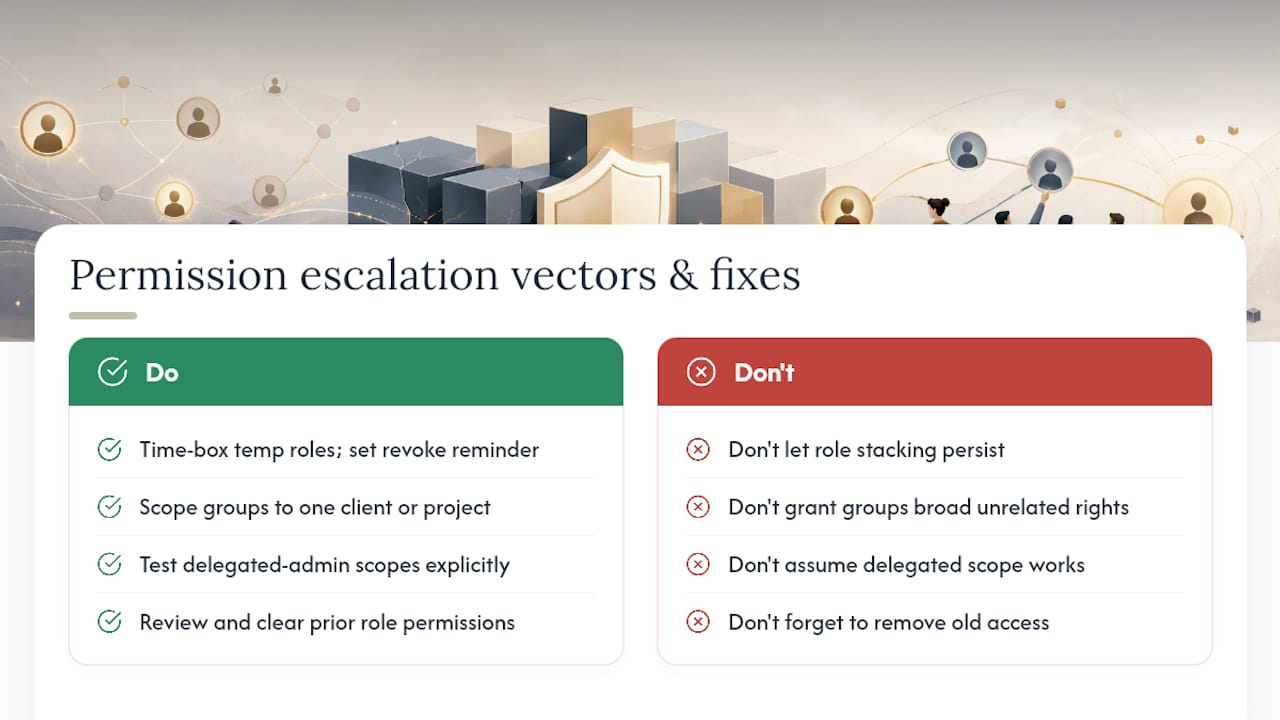
The most common vector is role stacking: a user picks up a second role for a temporary task, and nobody removes it once the task ends. Months later, that stacked role combines with their primary one to grant access nobody individually approved. Mitigate it by treating every temporary role grant as time-boxed from the start, with a calendar reminder to revoke it.
A second vector is group inheritance drift. Someone gets added to a group for one reason (say, access to a shared asset library), but that group also carries permissions to a dozen unrelated client projects because the group was never scoped tightly. The fix is the same scoping discipline covered earlier: one group, one purpose, one client or project.
A third vector shows up in delegated admin setups. Giving a “semi-admin” the ability to manage users within their own client group sounds contained, but if the underlying permission scope isn’t bound tightly to that specific resource, the delegated admin can sometimes manage users outside their intended scope. Keycloak’s own community has flagged exactly this kind of unexpected elevation in fine-grained delegation configurations, per its public issue tracker. Treat any delegated management scope as something to test explicitly, not assume works as labeled.
The fourth vector is simply forgotten access from past roles. Someone moves from freelancer to full-time, or from one client account to another, and their old permissions never get cleared. Pair every role change with an explicit review of what the person previously held, not just what they’re gaining.
Tools and Features That Make Permission Management Less Manual
Bulk permission changes are where most teams either save hours or create a mess, depending on how they’re done. A few features consistently make the difference between the two outcomes.
Group-based assignment is the first lever: change a group’s permissions once and every member inherits the update instantly, instead of editing accounts one by one. Custom role templates come next, letting an admin clone a proven scope (say, “client reviewer, project A pattern”) instead of rebuilding similar roles from scratch for every new engagement.
Permission or activity reports are the third piece, and the most underused. A report that lists every user’s effective access across roles and groups is what makes an audit take twenty minutes instead of a full afternoon of clicking through individual accounts. Look for platforms that export this data rather than requiring you to reconstruct it manually.
For version-heavy production work specifically, permission changes tend to track project lifecycle stages: locking down write access once a cut goes to final approval, or opening reviewer access the moment a client account gets set up, using AI YouTube Tools for Faceless Creators that help streamline creative workflows. Tools built around video version control workflows tend to tie permission states to those stages automatically, which removes a step admins otherwise handle by hand for every single project.
What Creative Teams Get Wrong About Client Permissions
Most production teams treat client permissions as an afterthought, something you configure once during setup and never touch again. That’s backwards. Client rosters change constantly: a producer leaves, a client swaps their reviewer, a freelance colorist finishes their contract. Every one of those events is a permission event, and treating it as anything less is how access sprawl happens.
The pattern that actually holds up in media production is scoped reviewer roles tied to a single project, with unlimited team seats so nobody hesitates to bring in a client stakeholder for fear of hitting a per-seat cost. That combination, project-level scoping plus version control that preserves client ownership of deliverables, does more to prevent accidental exposure than any single security setting. Review your media file security posture the same way you’d review a client roster: on a schedule, not when something already went wrong.
— Lorenz
Posthive: Built for the Way Client Permissions Actually Work
Some platforms offer unlimited free seats on every plan, so clients and reviewers get real access without your team paying per editor just to loop someone in. That structure matters because scoped permissions only work if adding a client reviewer is free and instant, not a budgeting decision.
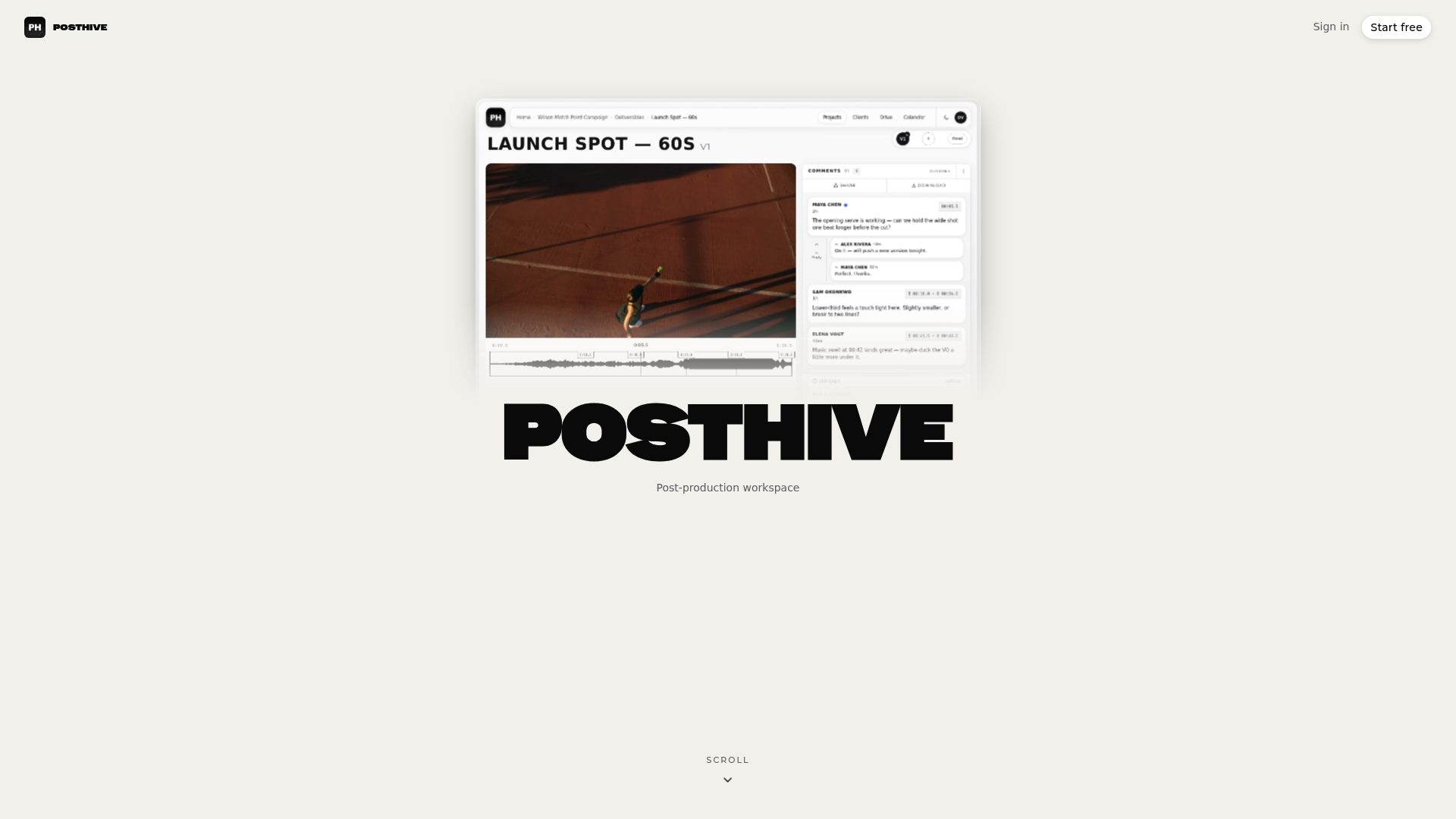
Project-level roles in such platforms let you set exactly what a client can see and approve without exposing the rest of your workspace, while built-in version control helps keep clients owning their deliverables through every round of revisions. Combined with secure media delivery and calendar integration for deadline visibility, these scoping patterns can stop being manual admin work and become part of how a platform is structured. If you’re managing client rosters across multiple productions, a specialized workspace can support the reviewer-role setup to simplify management instead of rebuilding it every time.
Check the Pro and Enterprise plans to see which tier fits your team’s project volume, and start scoping your next client review with a role built for exactly that job.
Quick Reference: Authoritative Docs Worth Bookmarking
- OWASP access control and authorization guidance
- WorkOS on access control models (DAC, RBAC, ABAC/SBAC)
Consult your platform’s own admin documentation for exact menu paths, since interface labels vary even when the underlying model doesn’t.
Sources
- OWASP: Access control and authorization
- Access control models explained | WorkOS blog
- Manage permissions in the OpenAI platform
FAQ
What Are the Three Types of Permissions?
Most platforms build on three access control models: Discretionary Access Control (DAC), where the resource owner decides access case by case; Role Based Access Control (RBAC), where permissions attach to a role rather than a person; and Attribute or Scope Based Access Control (ABAC/SBAC), where access depends on conditions like project or client tags, according to WorkOS. Most creative and production teams get the best results from RBAC for everyday roles and ABAC/SBAC for data-sensitive exceptions.
How Do I Turn on Access Permissions for a Client?
Go to your platform’s admin console, usually under Settings → Admin or User Management, find Roles and Permissions, and assign a scoped role, like client reviewer, to the client’s account or group rather than a broad admin role, per standard platform guidance. In Posthive, this means adding the client to a project-level role that controls exactly what they can view and approve.
What Access Permissions Should I Not Allow a Client?
Avoid giving any client account Full Admin, billing access, or the ability to manage other users’ roles unless that specific person is the account owner. Scoped roles limited to reviewing, commenting, or approving deliverables cover nearly every legitimate client need without exposing project structure or other clients’ work.
How Do I Find My Current Permissions?
Check the Roles or Permissions section of your platform’s admin panel, where most systems list your assigned role and its scope directly. If you’re unsure whether your visible role matches your actual access, log in with a non-owner test account and try the specific action in question, since effective permissions are the union of every role and group you belong to, according to OpenAI’s role based access documentation.