Producers: Use One Click Links to Make Video Email Approvals Count
Producers: Use One Click Links to Make Video Email Approvals Count

Yes, approve links in an email can create a valid sign-off, but only when the link triggers a recorded approve action that names the version, the reviewer, and the timestamp. Without that logged action, the email itself proves nothing. The fallback: have the reviewer paste a short written confirmation into a shared workspace, or route the sign-off through a different system entirely.
TL;DR:
- Email approval links are valid only if they trigger a logged approval action that records the version, reviewer, and timestamp; otherwise, they prove nothing.
- It is safer to require a hosted approval or written confirmation for projects involving legal, compliance, or multiple stakeholders to prevent disputes.
- Approval email templates must specify version numbers, exact timecodes, and clear scope statements to avoid confusion and ensure precise communication.
- Approval records should include version, reviewer name and role, timestamp, and explicit scope; verify these elements exist before publishing.
- Automating approvals with one-click links, guest review, or webhook triggers improves record accuracy but must retain frame-accurate comments and exportable logs.
Table of Contents
- How Do You Approve a Video From an Email Notification?
- When Is an Email Approval Actually Safe to Use?
- What Should a Video Approval Email Actually Say?
- What Counts as a Real Approval Record?
- How Do You Automate Email Approvals Without Losing the Record?
- Why Email-Only Reviews Eventually Break Down
- Ready to Centralize Your Approvals?
- Sources
How Do You Approve a Video From an Email Notification?
Most approval emails follow the same basic pattern: a notification lands in your inbox, you click through to a hosted page, and you take an action there rather than in the email itself. Vendor documentation on approving from an email notification shows this exact flow, and it’s worth following in order the first time you do it.
- Check the version name or number and confirm it matches what’s supposed to go live before you even press play.
- Open the review link or secure playback page the email provides. Don’t act on a raw video file attached directly to the email; there’s no way to log an approval against a static attachment.
- Note any frame-specific notes with exact timecodes before you approve, especially if you’re flagging something for the editor to fix later.
- Click the formal approve button inside that hosted page, not a reply to the email. Add a short scope note if the system allows it (e.g., “audio and pacing approved, graphics pending”).
- Confirm the approval registered by checking the workspace log or the confirmation email that follows, which should name the reviewer, the version, and the time.
Pro Tip: If you can’t find a visible “Approve” button anywhere in the linked page, that’s a signal the email is a plain notification with no recorded action behind it. Treat that project as unapproved until someone logs a real decision.
When Is an Email Approval Actually Safe to Use?
Email-based approval works fine for low-stakes situations: single-stakeholder sign-off, internal drafts, or cases where the email link opens a system that logs the decision automatically, the way institutional platforms handle a folder approval workflow tied to a publisher role.
It gets risky fast once legal, compliance, or multiple stakeholders enter the picture, or when the project needs frame-accurate comments tied to specific timecodes.
Watch for these common failure points:
- Missing version identifiers, so nobody’s sure which cut got approved.
- No timestamps, which makes “when did this happen” impossible to answer later.
- Feedback scattered across separate reply threads instead of one record.
- Approvals buried three replies deep in a chain nobody rereads.
The triage rule is simple: for anything above low risk, require a hosted approve action or a written confirmation logged in your workspace instead of trusting a reply chain.
What Should a Video Approval Email Actually Say?
Vague wording is where most approval workflows fall apart. A video review and approval process needs language specific enough that anyone reading the thread months later understands exactly what happened.
Three templates cover most situations:
- Request for review: state the version number, the intended platform, the deadline, the reviewer’s role, and give one example timecode format you want used (e.g., “01:24:03”).
- Fast approve: a single line naming version and scope. “Approve visuals and audio for version v2.1. Publish allowed.” No ambiguity, no guessing.
- Changes requested: cite exact timecodes, describe what needs fixing at each one, and state the next deadline.
A few small metadata habits prevent a lot of confusion. Keep subject lines formatted consistently, something like “Approval Needed: [Project] v2.1, due Friday.” Ask reviewers to paste timecodes directly into their notes rather than describing moments vaguely (“near the end”). And label every version the same way across the project, not “final,” then “final_v2,” then “FINAL FINAL.”
Pro Tip: Ask reviewers to copy their approval line back into the project’s comment thread even after they click approve in a hosted tool. It costs them ten seconds and gives you a second, human-readable record if the system log ever glitches.
What Counts as a Real Approval Record?
An approval that would hold up under scrutiny needs four fields, no exceptions: the version number, the reviewer’s name and role, a timestamp in a standard format, and an explicit statement of scope (what exactly was approved, not just “looks good”).
Before pushing anything to publish, verify those four fields exist somewhere concrete, whether that’s a workspace approval log, a confirmation email, or an exported report. A formal approve action that records reviewer, version, and date is what prevents the “I never approved that” conversation from happening after a client complaint.
Bigger organizations layer on additional controls: retention policies for how long approval records get kept, a named person who signs off on final release, and a clear path for surfacing legal or licensing approvals separately from creative ones. One study on video version control practices found that teams tracking approvals against a specific version number cut down disputes over which cut actually shipped.
Run this checklist before final export:
- Version number matches what’s in the export queue.
- Reviewer name, role, and timestamp are all present somewhere retrievable.
- Scope statement exists (not just a thumbs-up).
- Legal or licensing items, if any, are approved as separate line items.
How Do You Automate Email Approvals Without Losing the Record?
A handful of integration patterns show up again and again across production teams, and each solves a slightly different problem.
- One-click approve links that open a hosted action and log identity automatically, the pattern you’ll see in most modern review tools.
- Guest review via email for external stakeholders who won’t create an account; the link still writes a record even without a login, a compromise ApproveThis’s video integration is built around.
- Webhook-triggered auto-publish, where an approval action fires a webhook that pushes the file straight to its destination platform.
On top of those, automated reminders keep slow reviewers from stalling a schedule, conditional escalation routes a stuck approval to a backup reviewer after a set window, and auto-archiving closes out the project folder once every required sign-off lands.
Whatever tool sits behind these patterns, insist on three capabilities: frame-accurate comments tied to timecodes, an exportable approval log you can hand to a client or a legal team, and guest links that still create a real record instead of a dead end. A workspace like Posthive is built around exactly that combination.
Why Email-Only Reviews Eventually Break Down
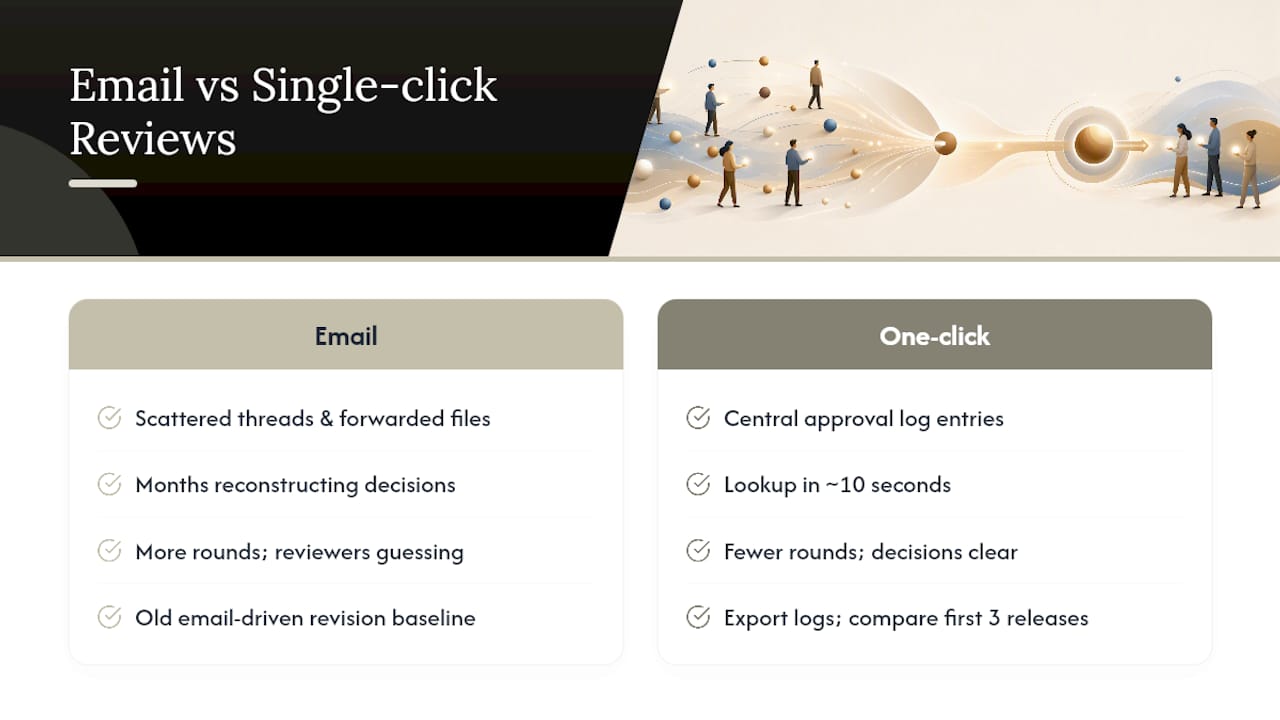
Most teams don’t abandon email approvals because of one disaster. They abandon them because six months of “wait, which version did the client actually approve” adds up to real lost time. I’ve come to think of it as inbox archaeology: someone has to dig through three reply chains and a forwarded attachment to reconstruct a decision that should have taken ten seconds to look up.
The transition doesn’t need to be dramatic. Pilot one show or campaign, require single-click approve actions instead of reply-based sign-off, and export approval logs for the first three releases so you can compare revision counts against your old email-driven baseline. Teams that make this switch tend to see fewer rounds of feedback, not because reviewers got faster, but because nobody’s guessing anymore about what was already decided. For more on keeping versions straight during that transition, the Posthive blog covers version control and secure sharing in more detail.
— Lorenz
Ready to Centralize Your Approvals?
A workspace can give your team one place where every approval carries its version number, reviewer name, and timestamp automatically, so nobody has to reconstruct a decision from a forwarded email thread three weeks later, as explained in this Agency case study and perspective on managing high-visibility creative approvals.
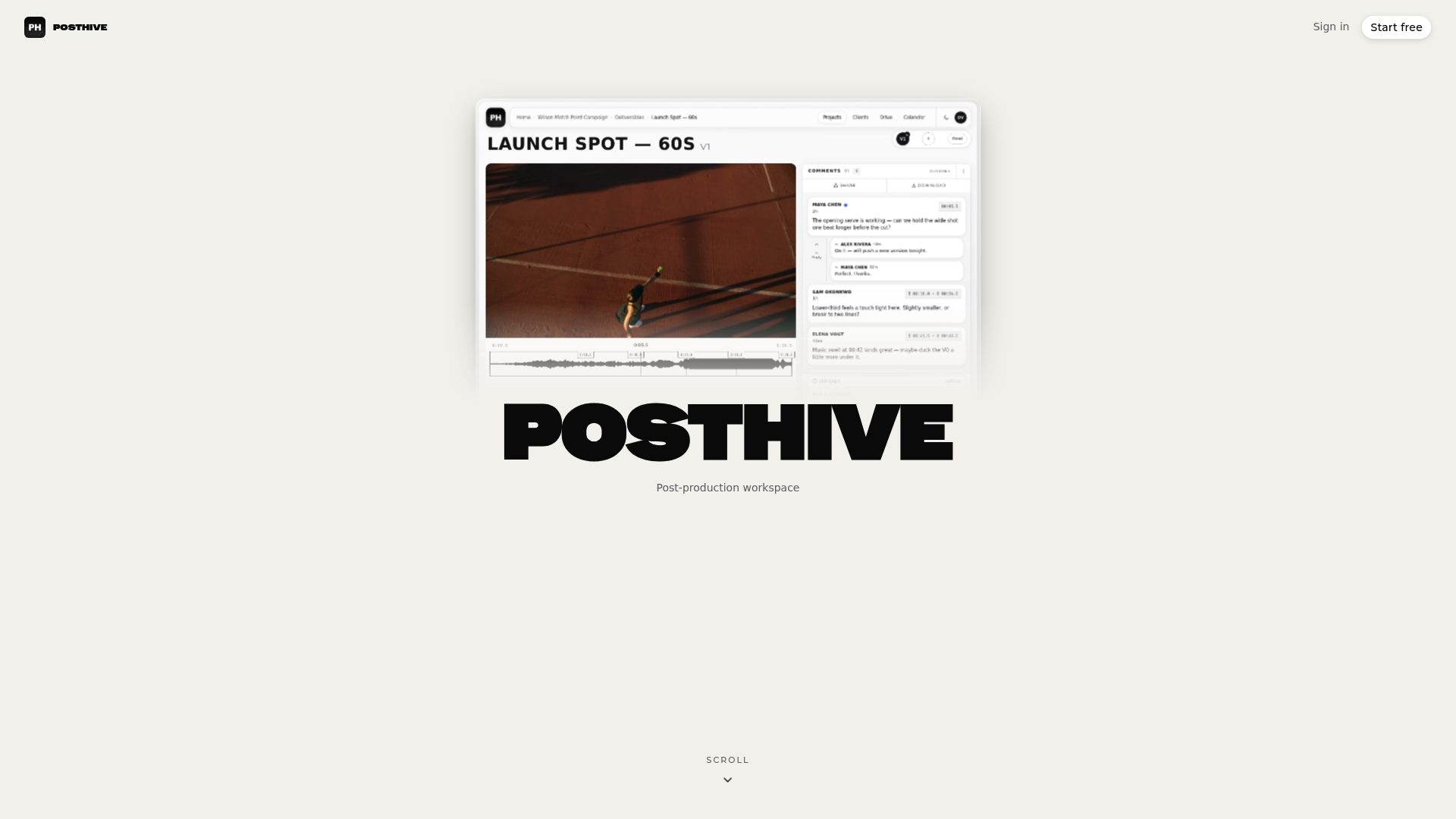
If you’re still relying on reply chains for sign-off, the gap shows up the first time a client disputes a released cut. A workspace built for post-production keeps that argument from happening in the first place: every version stays tied to its own comments, its own approval log, and its own reviewer record. Pair that with guidance on sharing review links securely when external stakeholders need guest access without a login. Visit the Posthive landing page to see how the setup works, or start a trial and run your next project’s approvals through it before your current email chain gets any longer.
Sources
- Video review and approval for media and publishing teams
- How to Publish Videos Using the Approval Workflow
- Video: How to approve from the email notification