Restore 200 GB Projects Faster: Project First 3-2-1 Backup for Editors
Restore 200 GB Projects Faster: Project First 3-2-1 Backup for Editors
For reliable protection of your edits, adopt an automated, project-aware 3-2-1 backup posture with checksum verification. Start now: point a folder-watch tool at your active project directory, add a second local drive on a different media, and get one copy offsite today. That single move closes most of the gap between “I have a backup” and “I have a backup I can actually restore.”
TL;DR:
- Restoring from local offsite drives typically takes less time and costs less than cloud recovery, especially for large projects.
- Automating backup with checksum verification ensures bit-for-bit accuracy and avoids silent data corruption during the process.
- Proper workflow sequencing involves ingesting to multiple destinations before reformatting and continuously monitoring project folders for changes.
- Use the 3-2-1 rule by keeping three data copies, on two different media types, with one offsite, to secure against drive failure and location loss.
- Combining file-level backup systems with version control platforms like Posthive clarifies project status and reduces time spent searching for the current master.
Table of Contents
- What Exactly to Back Up (and What You Can Skip)
- The 3-2-1 Rule, Adapted for Editing Workflows
- How Do You Set Up a Reliable Backup Workflow?
- Choosing Storage: Drives, NAS, Cloud, or Tape
- Organizing Files So Restores Take Minutes, Not Days
- How Posthive Fits Into Your Backup and Version Strategy
- Why Automation Beats Discipline Every Time
- Try Posthive for Version Control You Can Actually See
- Sources
- FAQ
What Exactly to Back Up (and What You Can Skip)
Not every file in your project deserves the same protection. Camera originals and project files are irreplaceable; render caches are not.
Back these up without exception:
- Camera originals — the raw footage you cannot reshoot
- Project files — your NLE’s database or library file (the .prproj, .drp, or .fcpbundle)
- Exports and masters — delivered files and final renders, especially client-approved versions
- Selects and essential assets — music beds, graphics, LUTs, and fonts tied to the project
- Sidecar metadata — XML, ALE, or EDL files that preserve color and sync data
Skip these, or back them up only conditionally:
- Render caches and preview files — regenerated automatically on relink
- Temporary proxies — unless you’re offline-editing on proxies you can’t easily recreate
- Local application caches — Media Cache Files, thumbnail databases, and similar junk
That distinction matters for restore speed. A 200 GB project restored over a typical 100 Mbps connection takes roughly four to five hours if you’re pulling from cloud storage, and cloud providers often charge egress fees on top of storage costs when you pull large volumes back down. Restoring from a local offsite drive, by contrast, is limited only by drive speed, often taking significantly less time than a cloud restore for the same project size over USB-C or Thunderbolt. That gap is why most working editors keep at least one fast local backup even when cloud plays a role in the mix.
The 3-2-1 Rule, Adapted for Editing Workflows
The 3-2-1 rule breaks down to three copies of your data, on two different media types, with one of those copies offsite. It sounds simple because it is, but most editors apply it inconsistently, treating a second folder on the same drive as a “backup.”
Mapped onto an actual editing workflow, the three copies look like this:
- Working copy — your active project on a fast local drive (NVMe or SSD) where you edit day to day
- Local backup — a separate physical drive, ideally a different medium than your working drive, following the OWC guidance on the 3-2-1 rule for video projects specifically
- Offsite copy — cloud storage, a drive rotated to another location, or an archive system entirely disconnected from your studio
Bandwidth or budget constraints don’t excuse you from the offsite leg. A NAS with nearline storage works for teams sharing a network; a drive-rotation system, where you physically swap an offsite drive weekly, works for solo editors without reliable upload speeds. Long-term projects that need to survive a decade or more belong on LTO tape rather than spinning disks.
Pro Tip: A copy only counts as a backup once it’s automated and verified. Manually dragging files to a drive once a month isn’t a 3-2-1 system, it’s a habit you’ll eventually skip during a deadline crunch.
How Do You Set Up a Reliable Backup Workflow?
The workflow matters as much as the storage. Get the sequence wrong and you can lose footage even with three copies sitting on three drives.
Ingest first, format never. Copy camera cards to at least two destinations before you reformat anything, and verify the copy before you trust it. Project-aware ingest tools handle this by writing to multiple destinations simultaneously and running verification automatically, a workflow Tusk’s backup guide for filmmakers lays out in detail for Mac-based edit suites.
Watch your project folder continuously. Your project file changes every few minutes while you’re editing, autosaves fire in the background, and exports pile up. A folder-watch backup tool picks up every change without you remembering to trigger anything, and throttles itself during heavy renders so it doesn’t fight your system for CPU and I/O resources.
Verify with checksums, not eyeballs. A file copy is not a backup until it’s verified. Checksums like BLAKE3 or MD5 generate a unique fingerprint for a file, and comparing that fingerprint between source and destination confirms the copy is bit-for-bit identical, catching silent corruption that a visual file-size check would miss entirely.
For DaVinci Resolve users specifically, project backups can run as often as every minute, storing each as a separate restore point rather than overwriting the last one. That means you can roll back to a specific point in time, not just the most recent save, a feature worth configuring deliberately rather than leaving on defaults.
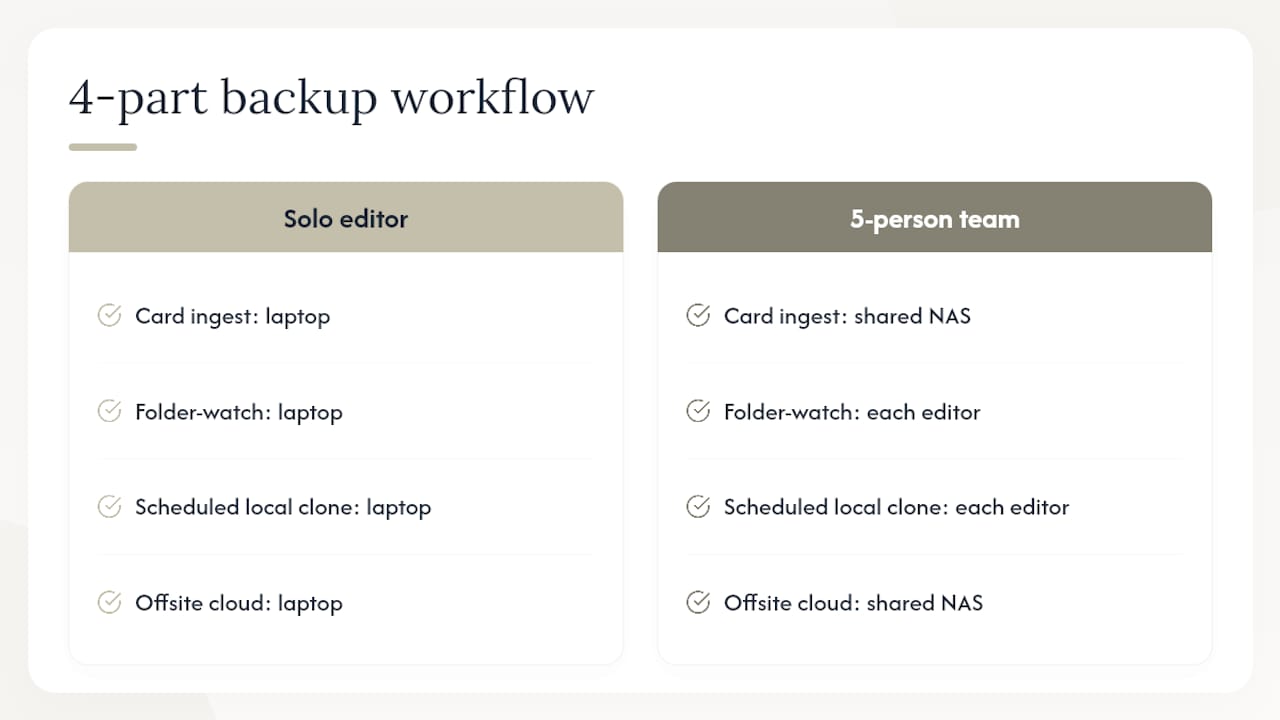
Match the tool to the job: ingest apps for the card-to-drive stage, folder-watch software for continuous project protection, scheduled clone utilities for nightly local mirrors, and cloud backup for the offsite leg. A solo editor might run all four from one laptop; a five-person team usually splits ingest and cloud sync onto a shared NAS while individual editors handle their own local mirrors.
Choosing Storage: Drives, NAS, Cloud, or Tape
Every storage tier trades speed against durability against cost, and no single tier covers all three well.
Active work drives should be NVMe or SSD, fast enough to scrub 4K timelines without dropping frames. Work from one well-labeled working copy rather than juggling duplicates across drives; confusion about which copy is current is how editors lose hours re-doing work that already existed somewhere.
Local backup options split three ways:
- Single external drives are cheap and simple, but a single point of failure if that’s your only backup
- RAID systems protect against one drive failing mid-project, but RAID is redundancy, not backup. A RAID array reformatted or stolen loses everything at once, so treat it as insurance against drive failure, never as your offsite leg
- NAS suits teams who need shared access, with the tradeoff of slower rebuild times after a drive failure and a higher upfront cost
Cloud and offsite storage work well for the “one offsite copy” requirement, but general-purpose services like consumer cloud drives typically lack the transcoding, granular permissions, and media-specific controls that dedicated video platforms offer. For most freelancers and small teams, that gap doesn’t matter, you just need bits stored safely somewhere else. For agencies handling client-sensitive footage, role-based access becomes a real requirement, and that’s worth checking against a partner’s privacy and access controls before committing.
LTO tape remains the strongest option for long-term archives. Cost per terabyte drops well below spinning disk or cloud storage at scale, and tape’s shelf life outlasts most hard drives sitting unused in a drawer. The tradeoff is restore speed: pulling a project off tape takes longer than pulling it off a NAS, so tape suits projects you’re archiving, not projects you might need back next week.
Organizing Files So Restores Take Minutes, Not Days
A backup you can’t navigate under deadline pressure isn’t much better than no backup at all. Naming and structure decide how fast you find what you need.
Use a consistent folder pattern across every project (client, project name, date, then subfolders for footage, project files, exports, and assets), and keep a simple manifest file listing what’s in each backup tier. That manifest turns a frantic drive search into a five-minute lookup.
Lean on your NLE’s non-destructive versioning rather than manually duplicating project files. Snapshot your project weekly during active editing and after any major structural change, like a picture lock or a client-approved cut. That gives you rollback points without cluttering your drive with dozens of near-identical copies.
Retention doesn’t need to be uniform across a project’s life:
- Active tier — live projects, backed up continuously, kept on fast local storage
- Short-term archive — wrapped projects kept for a few months in case of revision requests
- Long-term archive — client masters and deliverables kept for years on LTO or low-cost cold storage
Pro Tip: Build your exclusion rules once and reuse them across every project. Exclude render caches and proxies by default, include only originals and project files, and you’ll cut backup volume dramatically without losing anything that matters.
Only delete local working files once every file shows a confirmed, verified copy on an offsite destination. Skipping that check to free up drive space during a deadline is how footage disappears for good.
How Posthive Fits Into Your Backup and Version Strategy
Backup solves file loss. Version confusion is a separate problem, and it can cost editors significant time day to day: which cut is current, who touched it last, where the approved master actually lives.
Some platforms address that gap directly through project management, version control, task tracking, and cloud connectivity built around how post-production teams actually work. Instead of a shared drive where everyone guesses which file is “final_v3_ACTUAL,” these platforms give every file and version a clear owner and a visible status.
Such structure matters for backup workflows specifically:
- Per-file visibility can show which assets are current, in review, or approved, so you’re never backing up (or restoring) the wrong version
- Version ownership means clients and team members can keep control over deliverables instead of losing track in a folder of duplicates
- Centralized status across drives helps teams working across multiple local and cloud locations know exactly where the authoritative copy sits at any moment
For teams already running solid file-level backups, Posthive layers project and version visibility on top, closing the “which version is real” gap that checksums and RAID arrays were never designed to solve. Deeper setup guides on version tracking live on the Posthive Blog.
Why Automation Beats Discipline Every Time
Most editors know they should back up their work. Almost none of them do it consistently, and that’s not a character flaw, it’s a workflow problem. Manual backup habits survive exactly until the first deadline crunch, and deadline crunches are precisely when you’re generating the most irreplaceable work.
The editors who never lose a project aren’t more disciplined than everyone else. They’ve just removed themselves from the process. Folder-watch tools, checksum verification, and scheduled clones don’t care whether you’re exhausted at 2 AM trying to hit a delivery window. They run anyway.
If you take one thing from this, make it this: automate the backup, then verify it actually worked. Skip either half and you’ve built a system that fails exactly when you need it most.
Quick checklist:
- Turn on folder-watch backup for your active project directory
- Verify every transfer with a checksum, don’t trust a file-size match
- Confirm you have one offsite copy that isn’t in the same building as your working drive
— Lorenz
Try Posthive for Version Control You Can Actually See
A solid 3-2-1 backup protects your files from drive failure. It doesn’t tell you which version is the approved one, who last touched it, or where the client-facing master lives once three people have downloaded copies to three different laptops. That’s a separate problem, and it’s the one that eats the most time on deadline day.
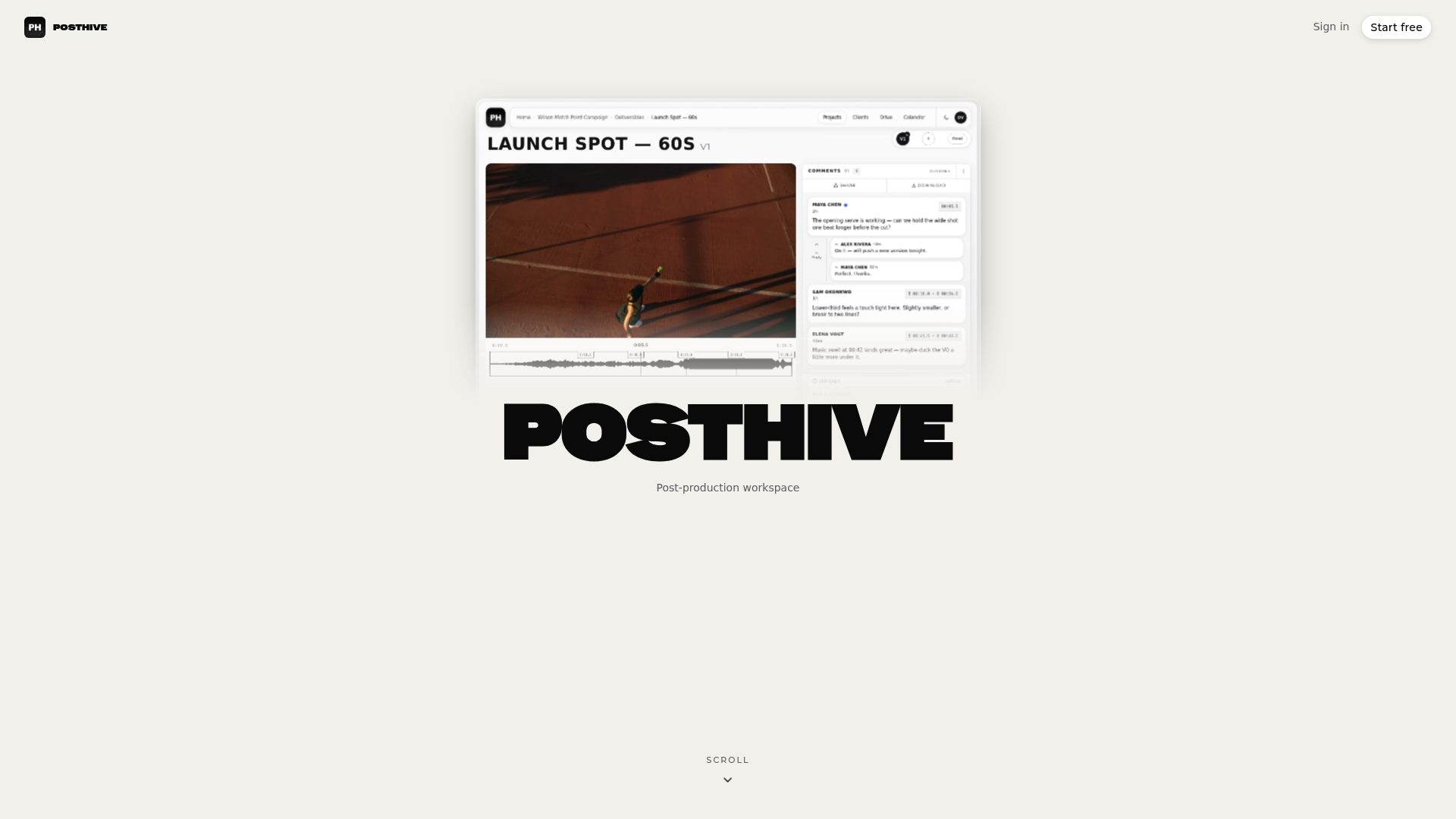
Some platforms give creative teams and freelancers a single place to track versions, tasks, and deliverables alongside existing storage and backup setups. Every file can get an owner and a status, so nobody’s asking “is this the current cut?” in a group chat at midnight. They layer on top of whatever backup system is already built rather than replacing it, allowing users to keep checksums and offsite drives while adding the visibility those systems weren’t designed to provide. If your team is losing time to version confusion more than storage risk, visit the Posthive landing page to start a trial and see how version tracking fits your current workflow.
Sources
- Managing projects in DaVinci Resolve — backups, exports and archives
- Backup workflow for filmmakers on Mac — Tusk
- Transfer media the right way: checksums
- Best ways to backup & archive your video projects
FAQ
What Is the 3-2-1 Rule for Backing Up Video?
Keep three copies of your data across two different media types, with at least one copy stored offsite. For editors, that typically means a working drive, a separate local backup drive, and a cloud or physically offsite copy.
What Does the 80/20 Rule Mean in Video Editing?
Outside of backup, editors sometimes use a loose rule to describe spending most editing time on a small portion of footage that carries the story. It’s not a formal backup or storage rule, and definitions vary depending on who’s using it.
Where Can I Find My Backup Videos?
Check your NLE’s project settings for the configured backup location, typically a separate folder or drive specified during setup, and check your folder-watch or cloud backup tool’s dashboard for a full file location log. Tools that offer per-file location tracking make this lookup far faster than searching drives manually.
What App Can I Use to Back Up Videos?
Use a combination of an ingest app for card-to-drive transfers, a folder-watch tool for continuous project backup, and a cloud service for your offsite copy. For version tracking on top of file backup, a workspace like Posthive adds visibility into which cut is current across your team.
How Long Does It Take to Restore Lost Video Edits?
Restoring from a local offsite drive, by contrast, is limited only by drive speed, often taking significantly less time than a cloud restore for the same project size over USB-C or Thunderbolt. A 200 GB project restored over a typical 100 Mbps connection takes roughly four to five hours if you’re pulling from cloud storage, and cloud providers often charge egress fees on top of storage costs when you pull large volumes back down.