Auto Captions for Video: A Fast, Accurate Workflow
Auto Captions for Video: A Fast, Accurate Workflow

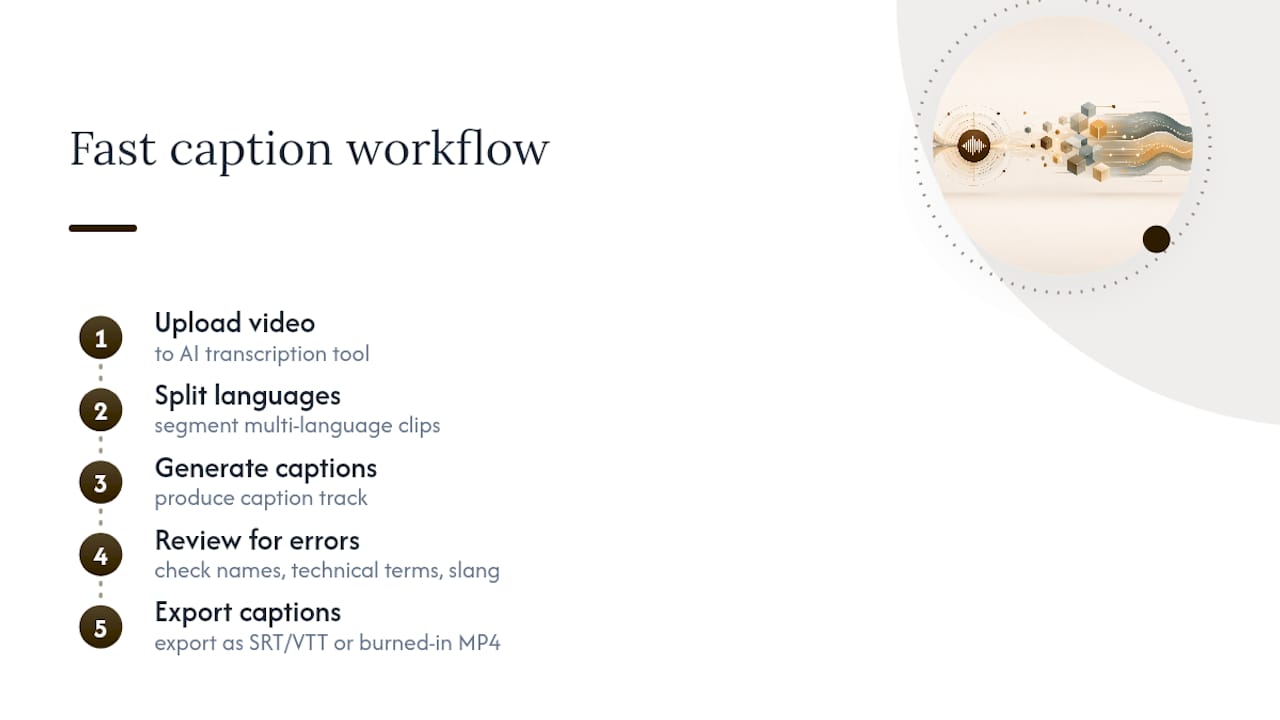
Getting auto captions for video takes four steps: upload your file or paste a link, let an AI transcription engine generate the caption track, review and edit that transcript for accuracy, then export it as SRT, VTT, or a burned-in MP4. Most tools finish generating captions in a fraction of the video’s runtime, so a ten-minute clip often comes back with a full transcript in under a minute. The catch is that speed doesn’t equal perfection.
- Upload the video or paste a URL into your captioning tool.
- Run the auto-generation engine to produce a timecoded transcript.
- Review and edit the text for names, jargon, and awkward line breaks.
- Export as SRT/VTT for platforms that support toggleable captions, or burn them into the video for silent-scroll platforms like TikTok and Instagram Reels.
Quick fact: Forbes reported that a majority of viewers watch video with the sound off, which is exactly why that fourth step (export in the right format) matters as much as generating the text in the first place. Even the best AI transcription models still stumble on proper nouns, brand names, and regional slang, so plan on a short human pass before you publish anything client-facing or public.
Key Takeaways
Accurate auto captions require clean source audio, an AI-generated first draft, a human review pass for names and jargon, and export in the format your platform actually needs.
| Point | Details |
|---|---|
| Clean audio first | Run noise reduction and normalization before transcription to cut manual editing time later. |
| Never skip human review | Auto-generated transcripts still miss names, jargon, and slang; always proofread before publishing. |
| Match format to platform | Use SRT/VTT for YouTube and Vimeo, burned-in captions for TikTok and Reels. |
| Set language correctly | Choose the right dialect and split multi-language clips for accurate transcription. |
| Centralize team review | Posthive tracks caption versions and assigns review tasks so teams avoid overwritten edits. |
Table of Contents
- How Do You Generate Auto Captions for a Video?
- What Are Auto Captions and Why Should You Add Them?
- How Accurate Are Auto Captions, and How Do You Get Publish-Ready Results?
- Which Export Format Should You Use for Each Platform?
- What Does Auto Caption Pricing Actually Look Like?
- How Does a Post-Production Workspace Handle Caption Review?
- What Mistakes Should You Avoid With Auto Captions?
- How Do Auto Captions Work Across YouTube, Vimeo, and TikTok?
- How Do You Compare Leading Auto Caption Tools?
- How Do You Handle Multiple Languages and Dialects in Auto Captions?
- What Legal Requirements Apply to Captions Across Different Regions?
- When Should You Trust AI Captions Versus Full Human Transcription?
- How Can Posthive Help Your Team Ship Captions Faster?
- Frequently Asked Questions
- Sources
How Do You Generate Auto Captions for a Video?
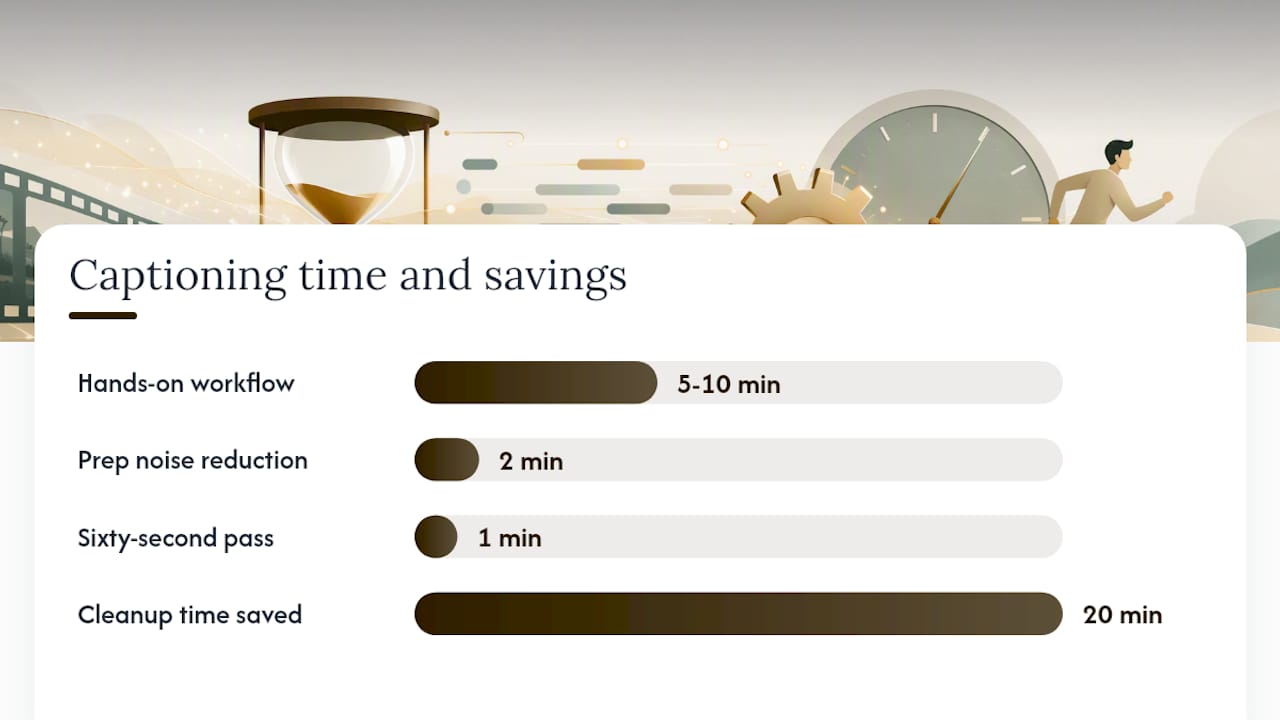
The full workflow takes about five to ten minutes of hands-on time for a typical short-form video, once you know where to look for the friction points.
- Prepare your audio. Trim dead air, boost dialogue levels, and remove obvious background hum if you can. Clean audio is the single biggest lever you control before transcription even starts.
- Upload or link the file. Most tools accept direct uploads or a pasted YouTube/Vimeo URL.
- Choose your language and dialect setting. Don’t default to “English” if your speaker uses British or Australian English, or if the video mixes languages mid-clip.
- Run the AI captioning engine. This produces a word-level or phrase-level transcript with timecodes attached.
- Review the transcript on screen, correcting misheard words as you go.
- Adjust timing where captions lag behind speech or cut off before a sentence finishes.
- Export in the format your target platform expects.
Before you get to step 4, spend two minutes on noise reduction and volume normalization. University of Edinburgh’s accessibility guidance notes that clean audio input measurably improves both timing accuracy and word recognition, which means less time spent manually retiming lines later.
Pro Tip: Run a quick noise-reduction pass in your editor before uploading for transcription. It takes sixty seconds and can save you twenty minutes of manual caption cleanup on a noisy interview clip.
One decision point matters more than people expect: soft versus hardcoded captions. YouTube and Vimeo let viewers toggle captions on or off, so an SRT or VTT file works fine. TikTok, Instagram Reels, and LinkedIn video often get watched with captions baked directly into the frame, since many viewers never discover the toggle. Match the format to where the video will actually live.
What Are Auto Captions and Why Should You Add Them?
Auto captions are AI-generated transcripts with timecodes attached to each line, saved as a standalone file (SRT, VTT) or burned directly into the video frame. The underlying technology is speech-to-text: an AI model listens to the audio track, converts speech into text, and aligns each word or phrase with the exact moment it was spoken.
The case for adding them isn’t theoretical. Forbes reported on Verizon Media research showing that a majority of consumers, in some measurements as high as 69%, watch video with the sound off entirely. If your video relies on dialogue or narration to land its point and has no captions, a large chunk of your audience is watching a silent film.
Captions do more than rescue silent viewers, though:
- They make content accessible to Deaf and hard-of-hearing viewers, which isn’t a nice add-on, it’s the baseline for reaching your full audience.
- Search engines and social platforms can index the text, which helps discoverability for keyword-rich content.
- Viewers retain information better when reading along, especially for dense or technical explainer content.
- Captions let viewers watch in sound-sensitive environments, like offices, transit, or a sleeping household.
How Accurate Are Auto Captions, and How Do You Get Publish-Ready Results?
AI transcription handles clean, single-speaker audio quite well, but no tool gets everything right the first time. The gap almost always shows up in the same places: brand names, technical jargon, homophones, and regional slang. That’s not a knock on any specific engine, it’s a structural limitation of how speech recognition models guess at unfamiliar words.
Accessibility guidance from Ithaca College recommends a human review pass after any AI transcription, specifically to catch proper nouns and specialized vocabulary that a general-purpose model wasn’t trained to recognize. That advice holds whether you’re captioning a product demo or a client testimonial video.
Before you hit export, run through this checklist:
- Confirm the audio was cleaned (noise reduction, normalization) prior to transcription.
- Check speaker labels if the video has more than one voice.
- Verify timing so captions appear and disappear in sync with speech.
- Fix punctuation. AI transcripts often run sentences together without periods or commas.
- Trim line length. Two lines of roughly 32–42 characters each reads far easier than one long line.
- Run a final spellcheck pass.
For the actual editing, a few techniques save real time. Use find-and-replace across the whole transcript when a name or term gets consistently misheard. Retime individual lines by dragging their in and out points rather than retyping. Split a caption when one line covers two distinct thoughts, or merge two short fragments into one readable line.
Pro Tip: If your AI tool keeps mishearing the same brand name or technical term, don’t fix it line by line. Use batch find-and-replace once across the full transcript, then spot-check the results.
Which Export Format Should You Use for Each Platform?
Export format depends entirely on where the video is going and whether viewers can toggle captions on and off.
| Format | Type | Typical Use Case |
|---|---|---|
| SRT | Soft (toggleable) | YouTube uploads, Vimeo, most learning management systems |
| VTT | Soft (toggleable) | Web video players, HTML5 embeds, streaming platforms |
| Burned-in MP4 | Hard (always visible) | TikTok, Instagram Reels, LinkedIn native video |
| TXT | Transcript only | Blog repurposing, show notes, SEO content, accessibility archives |
Kapwing’s subtitle tool exports SRT, VTT, TXT, or embedded captions directly, and shorter clips process in a matter of seconds. Vimeo’s automatic captioning feature supports bulk caption generation across many languages, which matters if you’re managing a large back catalog rather than a single upload.
A quick rule of thumb: if the platform gives viewers a caption toggle button, export soft captions. If it doesn’t, or if your data shows most viewers scroll with sound off and never touch settings, burn the captions in.
What Does Auto Caption Pricing Actually Look Like?
Most captioning tools follow one of three pricing shapes: a free tier with a strict minute cap, pay-as-you-go credits, or a monthly subscription that unlocks higher minute allowances plus extras like translation or auto-dubbing. Free tiers are genuinely useful for testing a tool, but they’re rarely built for anyone captioning video on a weekly basis.
Watch for these trade-offs before you commit to a plan:
- Monthly minute caps that reset before you’ve used your quota, forcing an upgrade mid-project.
- Watermarks stamped onto exported video on free tiers.
- Export limits that restrict you to burned-in captions only, with no downloadable SRT or VTT.
- Limited language or translation support outside a handful of major languages.
- Slower processing on longer files, sometimes with queue times during peak hours.
Run a short checklist before choosing: How many minutes do you actually process per month? Do you need soft captions, translation, or both? Does the free tier watermark your exports? Can you download an editable transcript, or only a finished video? Answering those four questions upfront saves you from switching tools mid-project.
How Does a Post-Production Workspace Handle Caption Review?
Generating a caption file is the easy part. The harder part, especially for teams, is managing versions, assigning review, and making sure the right export format reaches the right platform without three people editing the same transcript in parallel and overwriting each other’s fixes.
That’s the gap a workspace like Posthive is built to close. Instead of a transcript floating in a shared drive folder with filenames like “captions_v2_final_FINAL,” Posthive centralizes transcript editing, tracks every version, and assigns review tasks to a specific team member with a deadline attached.
- Centralized transcript editing keeps one canonical version instead of scattered copies across email and chat.
- Version control preserves a history of caption edits, so nobody accidentally reverts a corrected transcript to an earlier draft.
- Task assignment lets a producer hand off caption review to an editor or client with a clear deadline.
- Multi-format export management keeps SRT, VTT, and burned-in versions organized under one project instead of four separate downloads.
A typical workflow looks like this: ingest the video, run auto-transcription, assign a reviewer to check names and jargon, finalize the corrected captions, then export SRT for YouTube and a burned-in MP4 for TikTok, all tracked inside one project. Posthive’s post-production workspace maps version history and task tracking directly onto that pipeline, which matters most once a team scales past one or two people touching the same files.
Version control for caption files and a task-based review workflow prevent overwrites and keep accountability clear. That distinction becomes critical the moment more than one person touches the same transcript.
Pro Tip: If two team members are editing the same caption file in separate apps, you will eventually lose someone’s corrections. Centralize the transcript in one workspace before the project grows past a single editor.
Scattered tools work fine for a solo creator captioning one video a week. Once a team is shipping multiple videos across multiple platforms simultaneously, an integrated workspace stops being a convenience and becomes the only way to avoid losing work.
What Mistakes Should You Avoid With Auto Captions?
A few recurring mistakes account for most of the caption complaints creators run into after publishing:
- Skipping audio cleanup entirely and letting background noise degrade transcription accuracy from the start.
- Publishing the raw AI transcript without a human review pass, typos and all.
- Leaving the language or dialect setting on a generic default when the speaker uses a regional variant.
- Ignoring timing so captions lag noticeably behind speech or vanish mid-sentence.
- Cramming too much text onto one line, making captions unreadable on a phone screen.
When you’re evaluating a captioning tool itself, a few red flags should make you pause before subscribing:
- Pricing pages that hide minute limits or watermark policies until after signup.
- No option to export a soft caption file, only a burned-in video with no editable text underneath.
- Thin language support that covers only a handful of major languages.
- No editable transcript interface, forcing you to fix errors inside the video timeline instead of in text.
- No version history, meaning one accidental overwrite erases hours of review work.
Before you publish anything, do a fast verification pass: play the first thirty seconds with captions on, check that timing matches speech, and scan for any obviously wrong words in the first sentence. Catching an error there usually predicts whether the rest of the transcript needs a careful pass or a light one.
How Do Auto Captions Work Across YouTube, Vimeo, and TikTok?
Each major platform treats captions a little differently, and knowing the difference saves you from uploading the wrong file type.
YouTube generates its own automatic captions on upload, but creators can also upload a corrected SRT file to override YouTube’s auto-generated version, which is worth doing whenever accuracy matters. Vimeo’s automatic captioning feature supports bulk caption jobs across many languages, useful for anyone managing a large library of existing uploads rather than one video at a time. TikTok leans hard toward burned-in, always-visible captions since so much of its audience scrolls with sound off and rarely touches the caption toggle, even when one exists.
The practical takeaway: export soft captions (SRT/VTT) for YouTube and Vimeo where viewers control the toggle, and default to burned-in captions for TikTok, Reels, and other short-form vertical video where the caption needs to be visible without any viewer action at all.
How Do You Compare Leading Auto Caption Tools?
Rather than ranking specific vendors, it helps to compare tools by the features that actually determine whether they’ll fit your workflow. Look at four dimensions: transcription accuracy on your specific type of audio, editing experience (word-level versus phrase-level correction), export flexibility (soft and hard captions both available), and language coverage.
Transcript-first tools like Descript tie caption timing directly to the written transcript, so editing text automatically updates the caption timing rather than requiring a separate retiming pass. Word-level timing tools, such as the approach ElevenLabs uses, let you correct individual words without disturbing the rest of the sentence’s timing. If your team edits transcripts heavily before export, a transcript-first tool saves noticeably more time than one built purely for quick auto-generation.
The right pick depends on your actual workload. A solo creator posting weekly needs speed and a generous free tier. A production team handling client deliverables needs editable transcripts, exportable soft captions, and a way to track who reviewed what, which is exactly where a dedicated workspace earns its keep over a standalone caption tool.
How Do You Handle Multiple Languages and Dialects in Auto Captions?
Language settings trip up more creators than any other captioning step, mostly because “English” isn’t one setting. Azure’s Speech Service documentation lists distinct support for regional variants, since American, British, and Australian English carry different accents, vocabulary, and pronunciation patterns that affect transcription accuracy.
If your video mixes languages mid-clip, such as an interview that switches between English and Spanish, most auto-caption tools will default to whichever language is set globally and mishandle the other segments entirely. In that case, either split the video by language segment before transcribing, or use a tool that explicitly supports multi-language detection within one file.
For dialect-heavy content, a strong regional accent, fast-paced slang, or code-switching between languages will lower accuracy regardless of which tool you use. That’s not a limitation of one specific vendor, it’s a consistent pattern across speech-to-text technology generally. Budget extra review time for these clips rather than assuming the same accuracy you’d get from a single, clearly-enunciated English speaker.
What Legal Requirements Apply to Captions Across Different Regions?
Caption requirements vary significantly by country and by context, and there’s no single global standard. In the United States, the Americans with Disabilities Act and FCC rules require captions on broadcast television and, in many cases, on video published by public-facing organizations, though exact thresholds depend on the type of content and distributor. The European Union’s Web Accessibility Directive sets captioning expectations for public sector websites across member states, and individual EU countries layer additional national rules on top.
If your video supports a legal proceeding, falls under broadcast regulation, or needs to meet a specific accessibility compliance standard, treat AI-generated captions as a first draft only, not a final deliverable. This is general information, not legal advice. Confirm the specific requirements that apply to your project and jurisdiction with a qualified professional or the relevant regulatory body before publishing content where captioning is a legal obligation rather than a best practice.
When Should You Trust AI Captions Versus Full Human Transcription?
AI-generated captions are the right call for the vast majority of marketing videos, social content, internal training clips, and podcast repurposing. A quick human review pass to catch names and jargon closes the accuracy gap fast enough for these use cases, and the turnaround stays measured in minutes rather than days.
Full human transcription earns its higher cost and longer turnaround in a narrower set of situations: legal depositions, court proceedings, broadcast content bound by strict regulatory caption standards, and any video where accessibility compliance is a legal requirement rather than a courtesy. In those cases, the cost of an error, a misquoted deposition line, a caption that fails an accessibility audit, outweighs the time saved by skipping professional transcription entirely. The trade-off comes down to how much an error would actually cost you. For most content, that number is low. For a small but important category, it isn’t.
How Can Posthive Help Your Team Ship Captions Faster?
Posthive gives creative teams one place to manage the messy middle of captioning: the review, the versioning, and the exports, instead of chasing transcript edits across email threads and shared drives. If your team is generating captions individually and then scrambling to reconcile whose edits are correct, that friction is exactly what an integrated workspace removes.
- Assign caption review to a specific teammate with a deadline, instead of an open-ended “someone check this” message.
- Track every transcript version automatically, so a reverted edit or lost correction never happens silently.
- Manage SRT, VTT, and burned-in exports for the same project without hunting through separate download folders.
- Keep clients and freelancers in the loop through shared task tracking rather than status update calls.
If your team ships more than one captioned video a week, try Posthive and see how much time a centralized workflow actually saves compared to piecing tools together manually.
Frequently Asked Questions
What is the fastest way to add auto captions to a video? Upload your video to an AI transcription tool, generate the caption track, review it for errors, and export it as SRT, VTT, or a burned-in MP4 depending on your platform. Most clips process in well under the length of the video itself.
Do auto captions work for multiple languages in one video? Many tools support dozens of languages individually, but few handle mid-clip language switching well by default. Split multi-language segments before transcribing for better accuracy.
Are free auto caption tools good enough for professional use? Free tiers work for testing or occasional use, but watch for minute caps, watermarks, and limited export options. Teams publishing regularly usually need a paid plan with soft caption exports and higher minute allowances.
Do I need a human to review AI-generated captions? Yes, for any video where accuracy matters. AI transcription handles clean single-speaker audio well but still misreads names, technical terms, and slang, so a quick review pass before publishing is standard practice.
What’s the difference between SRT, VTT, and burned-in captions? SRT and VTT are soft caption files viewers can toggle on or off, ideal for YouTube and Vimeo. Burned-in captions are permanently part of the video frame, better suited to TikTok, Reels, and other platforms where viewers rarely use a caption toggle.
Sources
- Verizon Media says 69 percent of consumers watching video with sound off — Forbes
- Captioning 101 — Post-production captioning (Ithaca College accessibility services)
- Tips for captioning — University of Edinburgh
- Speech service language support — Azure Cognitive Services