
Burned-In vs Soft Subtitles: Which to Deliver and When

Burned-in (hard) subtitles are part of the picture: they are always visible, look identical on every device, and can only be changed by re-rendering the video. Soft subtitles are a separate track or file: viewers can switch them on and off, you can fix or add languages without touching the video, but what viewers see depends on the player. Choose soft when the platform supports separate tracks. Choose burned-in when the destination is a simple player, a social feed, or a screen where nobody can press a caption button. Most production teams end up delivering both, from one editable master.
TL;DR
- Burned-in subtitles are rendered into the video pixels. They cannot be turned off, keep your exact styling, and play everywhere, but any fix means a new render.
- Soft subtitles (SRT, VTT, TTML or a muxed track) stay separate. They can be toggled, corrected and translated cheaply, but styling and availability depend on the player and container.
- Rule of thumb: soft for platforms with capable players and for multi-language work; burned-in for social posts, public displays and file deliveries where the viewer has no controls.
- Keep one editable master of the subtitle text and generate both versions from it, so a late correction never forces a scramble.
Table of Contents
- What the two terms actually mean
- Burned-in vs soft subtitles at a glance
- Viewer control, editing and appearance
- Compatibility: where soft subtitles quietly fail
- How to choose: a decision by delivery
- Subtitles, closed captions and open captions
- A workflow that avoids re-renders
- Our perspective
- Run subtitle versions in one workspace
- FAQ
- Sources
What the two terms actually mean
The vocabulary is messy, so it helps to pin it down. “Hard subs,” “hardcoded,” “burned-in” and “open” subtitles all describe the same thing: text drawn into the video image during export. Per the Aegisub documentation, hard subtitles are rendered into the picture and cannot be switched off, while soft subtitles stay separate and are combined with the video by a compatible playback device.
HandBrake’s documentation draws the same line from the encoding side. A hard burn permanently writes the subtitles onto the image. A soft subtitle is a separate, selectable track that compatible playback software enables or disables. The University of York’s media accessibility guide puts it plainly: burned-in text is part of the video image and impossible to remove, whereas separate caption files can be turned on or off in supported players.
You will also see “soft subs” used for sidecar files such as SRT and for tracks muxed into a container such as MKV or MP4. Those are two flavors of the same idea. A sidecar travels next to the video. A muxed track travels inside the file. Either way, the video frames are untouched.
Burned-in vs soft subtitles at a glance
| Question | Burned-in (hard) | Soft (SRT, VTT, TTML, muxed track) |
|---|---|---|
| Can the viewer turn it off? | No | Yes, where the player supports it |
| Does styling look the same everywhere? | Yes, it is part of the image | No, the player may restyle or ignore it |
| Works on any player? | Yes | Only where the format and container are supported |
| Fixing a typo | Re-render the video | Edit the text file and replace it |
| Adding a language | Needs a new render per language | Add another track or file |
| Effect on the video file | Re-encodes the picture | Video can stay untouched |
| Best for | Social feeds, public screens, simple players | Streaming platforms, multi-language, review cycles |
The rest of this article unpacks each row and tells you where it goes wrong in practice.
Viewer control, editing and appearance
Control belongs to the viewer or to you
The core trade-off is who decides. With soft subtitles, the viewer decides. AbilityNet advises toggleable captions when viewers control the player, as on YouTube or Vimeo, because people can switch them on or off and often adjust presentation. It recommends open (burned-in) captions for public displays, live presentations and file deliveries where viewers have no such control.
With burned-in subtitles, you decide, and every viewer gets the same thing. That is a feature when the video plays silently on a lobby screen. It is a problem when part of your audience finds the text distracting or needs larger type than you chose.
Appearance: exact versus adaptable
Because the text is part of the image, burned-in subtitles keep your font, position, outline and color across devices, as the Aegisub guide notes. That matters for brand work, for stylized titles, and for any deliverable where the on-screen look is part of the approval.
Soft subtitles hand some of that to the player. The Broadcast Bridge overview of timed text describes soft subtitles as timed-text data that the player can style and position, in contrast with hard subtitles, which are rendered and uneditable. Good for a viewer with low vision who wants bigger text. Less good if your approval sheet says “white, 42 pt, lower third.” If styling consistency matters for soft tracks, write it down as a team rule; our subtitle styling guidelines and subtitle style guide cover what to standardize.
Editing: the cost of a typo
This is where the two approaches diverge most in daily work. A corrected soft subtitle is a text edit and a file swap. A corrected burned-in subtitle means going back to the project, changing the text and rendering again. Evensen’s Resolve subtitle guide makes the same point for delivery: separate files make language versions and last-minute corrections much smaller jobs than re-rendering a full package.
Languages follow the same logic. Amara’s guide to burning subtitles notes that with burned-in subtitles you can only show one language per video, and adding translations later is harder. If you expect Spanish, French or German versions, a soft master saves you from a pile of near-identical renders. For a structured approach, see our two-pass subtitle translation workflow.
Compatibility: where soft subtitles quietly fail
The weak point of soft subtitles is not the text, it is the chain between your file and the viewer’s screen. Check these before you promise a soft track.

The container. HandBrake’s documentation states that soft-subtitle support depends on the output container and player, and that soft subtitles are unsupported in WebM. If your delivery spec says WebM, burned-in is the only way to get text on screen from that file.
The character encoding. For MP4, HandBrake warns that the character encoding of a subtitle file must be correct. A wrong character code can produce no subtitle track at all or cause playback problems. Accented names and non-Latin scripts are where this bites first, so open the file in a plain text editor and confirm it reads correctly before you mux.
The platform. The University of York notes that burning captions may be necessary for social media when the video player does not support closed captions, while richer players such as YouTube, Google Drive and Panopto support separate caption files. Social platforms change their features often, so look at the platform’s current upload help page rather than relying on memory.
The format. SRT is the common denominator, but line breaks and styling do not always survive an export. Evensen warns that automatic line breaks in Resolve may not survive an SRT export, while TTML preserves inserted breaks. If you are choosing between formats, our guides on SRT vs VTT and subtitle file formats for delivery show which fits which destination.
For a deeper walk through creating and uploading a sidecar file, this piece on SRT captions for a music video covers both selectable tracks and permanent captions.
How to choose: a decision by delivery
Start from where the video will be watched, not from your editing preference.
Streaming and video-hosting platforms
Use soft subtitles. The player gives viewers a caption button, accepts SRT or VTT, and lets you replace a file without re-uploading the video. Streaming platforms commonly expect separate SRT or TTML files anyway, according to the Evensen guide, so burning text in can even conflict with a platform’s requirements.
Social posts and short vertical video
Use burned-in. Many feeds autoplay silently and may not offer your caption track, so the text has to be in the picture. Export at high quality settings: burning captions re-renders the project, as No Film School’s Premiere walkthrough points out, and a low-bitrate render will soften small text.
Events, kiosks, trade-show loops and screenings
Use burned-in. Nobody can reach for a caption menu, and AbilityNet specifically lists public displays and live presentations as open-caption territory.
Client review files
This one depends on what is being reviewed. If the client is approving wording and timing, share the text as a separate track or file so they can comment, and so the next revision is a text change. If the client is approving the look of the finished picture, show a burned-in proof, then approve the final.
Multi-language releases and long shelf life
Use soft subtitles as the master and burn in only for the destinations that need it. Corrections, new languages and re-timing all stay cheap.
Archives and masters
Keep a clean, subtitle-free master plus the subtitle files. A burned-in copy is a derivative, not a master.
Subtitles, closed captions and open captions
Two separate questions get tangled here: whether text is toggleable, and what the text contains.
On content, subtitles generally translate or transcribe dialogue and assume the viewer can hear the audio. Closed captions are meant to give access to the audio for people who cannot hear it, so they include dialogue plus relevant sounds such as music and effects. The Anthology accessibility guide describes “closed” as optional and user-controlled, and “open” as permanently visible in the video.
That means a burned-in translation subtitle is not automatically an accessibility solution. The W3C’s technique for providing closed captions favors captions the user can request, containing dialogue and important sounds. If accessibility is a requirement, plan on a soft caption track with sound cues, and burn in a separate version only where the destination demands it. Our explainer on closed captions vs subtitles goes through the differences in more detail.

A workflow that avoids re-renders
The teams that rarely get burned by this choice treat subtitles as data first and pixels last.
- Start from a transcript. Get a time-coded transcript before you design anything. An automatic first pass is fine as long as a person reviews it; see our auto captions workflow.
- Fix the text before the style. Proofread names, numbers and line breaks in the text file. Every error you catch here is one you will not have to re-render later.
- Save the editable master. Keep the approved SRT, VTT or TTML as the source of truth, with a version number.
- Export the soft deliverables. Mux a track into MKV or MP4 where the player supports it, or ship sidecar files. Muxing does not re-encode the picture, so the video quality is unchanged.
- Burn in only what needs it. Create burned-in versions for the social cut, the event loop or the simple player, from the same approved text. Use high-quality export settings.
- Label every file. Name files so nobody confuses the burned-in copy with the clean one: language, subtitle type and version in the filename.
- Re-check after any text change. When a correction comes in, edit the master, regenerate the soft files, and re-render only the burned-in versions that are affected.
The weak spot is almost never the export. It is version confusion: a client approves one wording, someone burns in an older one. That is why a single place for versions, comments and approvals matters more than the export button.
Our perspective
Most subtitle disasters we hear about are not caused by choosing the wrong type. They are caused by not knowing which version of the text was approved. Someone burns in a draft, a client changes one line, and three renders later nobody is sure which file is final.
That is why we think of subtitles as a versioned asset, not an export option. The text lives in one approved master, the soft tracks and burned-in cuts are outputs, and every output traces back to a version and an approval. When a client owns the deliverables and the versions in the same workspace as the review comments, the question “is this the final text?” has an answer.
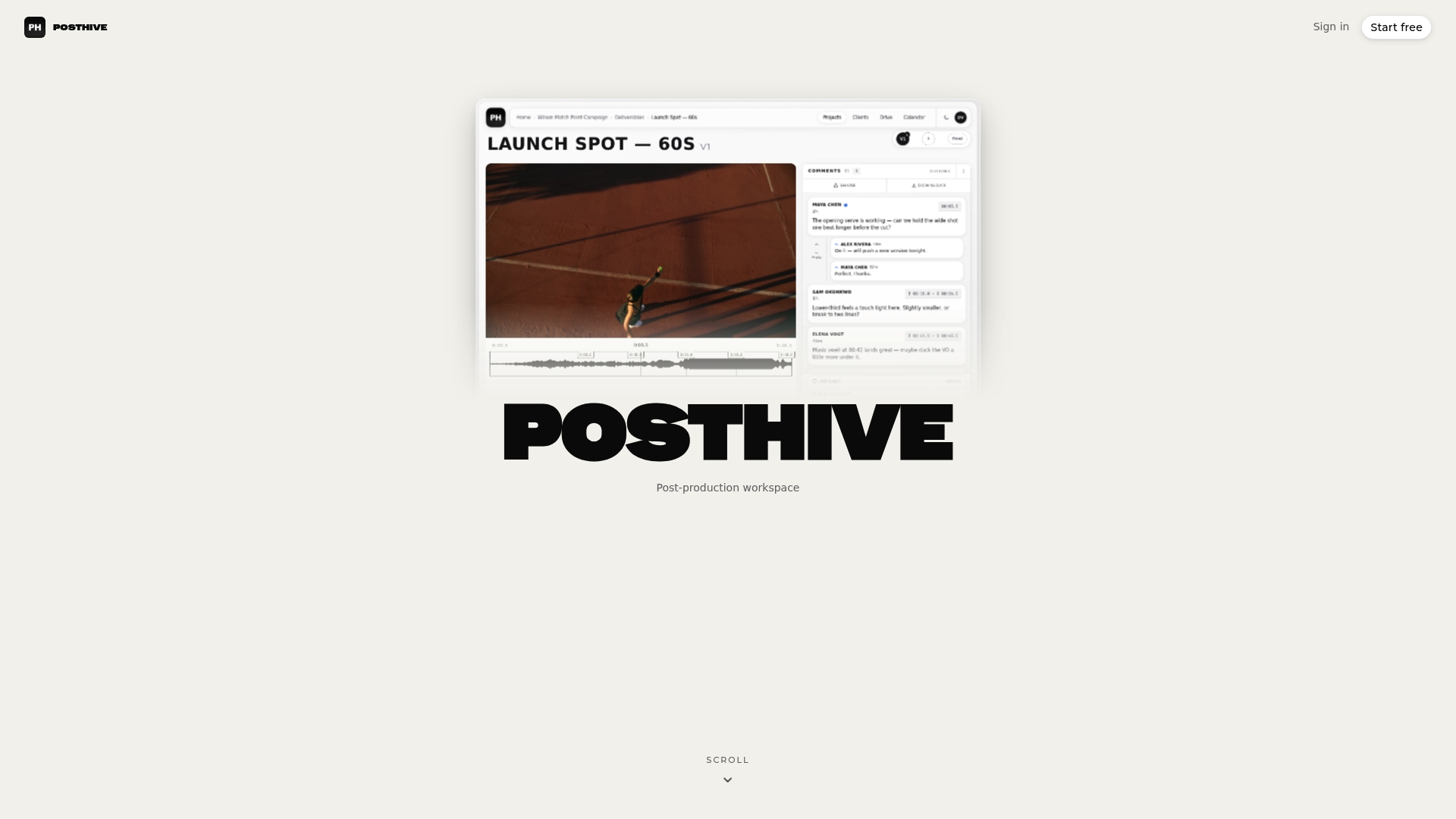
Posthive was built around that idea: version management, task and deadline tracking, client feedback and approval tracking, transcription and translation workflows, and secure media delivery on one platform. It is also why every plan includes unlimited free seats, so the editor, the translator, the producer and the client can all sit in the same project without anyone counting licenses.
Lorenz
Run subtitle versions in one workspace
If your team ships both burned-in and soft deliverables, the hard part is keeping text, versions and approvals in sync. Posthive is a cloud post-production workspace that combines version control, review and approval tracking, transcription and translation workflows, Google Calendar integration, NLE plugins and secure media delivery. Every plan includes unlimited free seats, so clients and collaborators can join without per-editor fees. Paid plans are Pro at $49 per month and Enterprise at $99 per month, and you can see how the workspace fits your pipeline on the Posthive site.
For handing finished files to clients, our guide to a preview-to-master delivery workflow shows how burned-in proofs and clean masters fit together.
FAQ
Are burned-in subtitles better than soft subtitles?
Neither wins everywhere. Burned-in subtitles are better when you need guaranteed visibility and exact styling on any device, such as social feeds or public screens. Soft subtitles are better when viewers control the player, when you need several languages, or when corrections are likely.
Can I turn off burned-in subtitles?
No. Burned-in subtitles are part of the video image, so no player setting can remove them. If you need a version without text, go back to the project or the clean master and export again without the subtitle layer.
Can an SRT file be burned into a video?
Yes. An SRT is a text file, and tools such as HandBrake can import it and either attach it as a selectable track or burn it into the picture. Attaching it does not touch the video frames, while burning it re-encodes them, so keep the SRT as your editable master either way.
Why do my soft subtitles not show up?
Usually the container, the player or the encoding is the cause. WebM does not support soft subtitles, some players ignore certain formats, and a wrong character encoding can produce an empty or broken track in MP4. Check the container and open the subtitle file in a text editor to confirm the characters are correct.
Are subtitles the same as closed captions?
Not quite. Subtitles usually carry dialogue for viewers who can hear the audio, while closed captions also describe relevant sounds for people who cannot hear it, and viewers can switch them on or off. A burned-in subtitle track does not meet that definition automatically.
Sources
- Applying Subtitles, Aegisub documentation
- HandBrake Documentation: Subtitles (1.9.0)
- HandBrake Documentation: Subtitles (latest)
- Subtitles & transcripts, University of York
- Accessible video captioning, AbilityNet
- Standards: Part 24, Timed-text & Subtitles Overview, The Broadcast Bridge
- How to hardcode or burn subtitles into a video, Amara
- Burn-In Captions: How to Import, Edit, & Export Subtitles, No Film School
- Using SRT/TTML Subtitles in Resolve, Knut Erik Evensen
- Caption Video Content, Anthology
- G87: Providing closed captions, W3C WAI