Calendar Integration Workflow: A Practical Setup Guide
Calendar Integration Workflow: A Practical Setup Guide

A calendar integration workflow turns calendar events into triggers and targets for automation, so scheduling drives notifications, resource blocking, and downstream updates without anyone touching a keyboard twice. Success looks specific: events that create and update reliably, free/busy checks that catch conflicts before they happen, time zones handled without guesswork, and event IDs you can trace when something breaks. Get those four right, whether you’re working through Google Calendar, OAuth authentication, or a service account, and the rest of the automation tends to hold together.
Key Takeaways
A calendar integration workflow succeeds when event creation is reliable, free/busy checks prevent conflicts, time zones are normalized, and every event ID gets stored for tracking.
| Point | Details |
|---|---|
| Use a service account for production | Individual OAuth tokens break when staff leave; service accounts don’t. |
| Always check free/busy first | Querying availability before creating events is the main defense against double-booking. |
| Store every event ID | Without the returned ID, you cannot update, delete, or audit an event later. |
| Test edge cases before launch | Daylight saving shifts and recurring exceptions cause more bugs than any other scenario. |
| Posthive ties calendars to deliverables | Its two-way sync connects project calendars directly to versioned files for production teams. |
Where to Go Next for Technical Details
- Google’s shared calendar documentation for permission scopes and setup
- Indite’s Google Calendar action block docs for the full action and field list
- Make’s Google Calendar integration page for prebuilt scenario templates
- Microsoft Power Automate for connector-heavy enterprise setups
- n8n’s Google Calendar integration for high-volume, execution-based pricing
Table of Contents
- How Do You Connect and Authenticate a Calendar Integration Workflow?
- What Actions Can You Automate With Calendar APIs?
- Which Calendar Workflow Recipes Deliver the Most Value?
- What Mistakes Cause Calendar Automations to Fail?
- What Belongs on Your Calendar Integration Checklist?
- How Does an Automated Appointment Booking Flow Work Step by Step?
- How Does Posthive Handle Calendar-Driven Workflows?
- Ready for a Calendar Workflow Built for Production Teams?
- Frequently Asked Questions
- Sources
How Do You Connect and Authenticate a Calendar Integration Workflow?
Connecting a calendar sounds trivial until you pick the wrong auth method for the job. Individual OAuth works fine for personal automations, one person, one calendar, one login screen to click through. Production workflows need something sturdier: a service account with domain-wide delegation, so the automation doesn’t die the day someone changes their password or leaves the company.
The connection flow generally runs like this:
- Choose the calendar account: your primary calendar for personal automations, or a shared project calendar for team workflows.
- Select the permission scope, read-only or free/busy access for conflict checks, full event management for anything that creates or edits events.
- Authorize through the consent screen and confirm the token refreshes automatically rather than expiring silently.
- Run a test event creation and deletion to confirm the connection actually holds before wiring it into production logic.
Shared or project-specific calendars let team milestones layer on top of personal schedules without merging anyone’s private events, which is worth setting up early rather than retrofitting later, per Google’s own guidance on shared calendars.
Pro Tip: Use a dedicated integration or service account for anything running in production. A domain-wide delegated service account survives staff turnover; a personal OAuth token does not.

What Actions Can You Automate With Calendar APIs?
Most calendar workflow tools expose the same core action set: create, update, delete, and get events, plus free/busy queries and calendar listing. A Google Calendar action block typically handles all of these, including recurring event rules, attendee invitations, and reminders, and it returns an event ID and meeting link you can pass downstream.
The fields worth mapping into your workflow variables:
- Start and end times, plus the time zone identifier
- Attendee emails and RSVP status
- Recurrence rules for repeating events
- Description, location, and attachments
- Conference link (Meet, Zoom) and event status (tentative, confirmed, canceled)
Two-way sync deserves special attention. Make’s Google Calendar integration supports scenarios where changes in your calendar update your project tool and vice versa, which matters once multiple systems claim to be the source of truth.
| Calendar field | Typical workflow variable |
|---|---|
| event.start | start_time |
| event.end | end_time |
| event.attendees | attendee_list |
| event.id | event_id |
| event.hangoutLink | meeting_url |
| event.status | event_status |
Which Calendar Workflow Recipes Deliver the Most Value?
A handful of patterns cover most real-world needs. Pick one, build it, then expand.
- Appointment booking: a form submission triggers a free/busy check, creates the event with the client as an attendee, and fires a confirmation email. Works for client calls, intake sessions, or consultations.
- Interview scheduling: candidate picks a slot, the workflow checks the hiring team’s combined availability, books the event, and adds a reminder 24 hours out.
- Deep work blocking: a recurring rule auto-creates focus blocks on someone’s calendar each week, using the create action with a fixed recurrence pattern.
- Deadline reminders: an editorial or production deadline in a task tracker generates a calendar event with escalating reminders as the date approaches.
- Meeting notes automation: creating the event also generates a linked notes doc, attached directly to the calendar entry, which avoids the meeting notes bottleneck teams hit when action items live in someone’s inbox instead of a shared file.
Each recipe uses the same building blocks: check availability, create or update the event, write results back to wherever your team tracks work.
What Mistakes Cause Calendar Automations to Fail?
Reliable calendar automation comes down to a few disciplined habits. Check before you create, an idempotent workflow that queries for an existing event before making a new one avoids duplicate bookings when a trigger fires twice. Always run a free/busy query before booking, since skipping that step is the single most common cause of double-booked calendars in automated systems. Store every event ID your workflow generates; without it, you cannot reliably update or delete that event later, and you lose your audit trail entirely.
Common pitfalls worth naming directly:
- Running production automations on a personal account instead of a service account
- Skipping tests on recurring event rules until a real recurrence breaks in the field
- Ignoring time zone normalization, which causes meetings to land an hour off after daylight saving shifts
- Failing to distinguish tentative from confirmed status, so unconfirmed bookings trigger the same notifications as confirmed ones
- Sending an update notification for every minor field change, which trains attendees to ignore your calendar alerts
Pro Tip: Simulate daylight saving transitions and recurring-event exceptions during test runs, not after launch. These edge cases are the ones happy-path testing never catches.
What Belongs on Your Calendar Integration Checklist?
Before you write a single line of automation logic, settle these six decisions:
- Which calendar account or shared calendar the workflow will use
- Which auth model fits: individual OAuth or service account
- How calendar fields map to your workflow’s internal variables
- How time zones get normalized across all connected systems
- How you’ll test booking flows before going live
- What monitoring and alerting catches failed API calls
| Calendar field | Workflow variable | Format note |
|---|---|---|
| start.dateTime | start_time | ISO 8601, include time zone offset |
| end.dateTime | end_time | ISO 8601, include time zone offset |
| id | event_id | Store immediately after creation |
| attendees[].responseStatus | rsvp_status | One entry per attendee |
| recurrence | recurrence_rule | Standard calendar data format |
Testing should include a sandbox calendar, a test user separate from any real staff account, and confirmation that every created event returns a usable event ID. Writing that ID back into your source system, whether that’s a CRM or a task tracker, is what keeps the automation auditable instead of a black box you have to debug by clicking through the calendar UI.
How Does an Automated Appointment Booking Flow Work Step by Step?
Here’s the whole pattern in five steps, using appointment booking as the concrete case:
- Receive the booking request from a form, chatbot, or CRM trigger with the requested time and client email.
- Query free/busy for the target calendar to confirm the slot is actually open before touching anything.
- Create the event, passing attendee email, reminder settings, and a short description as input fields.
- Write the returned event ID back to the CRM, tagged against the client record for future reference.
- Send the confirmation email or SMS, pulling the meeting link and start time from the create action’s response.
To confirm it worked, check that the event ID exists, the attendee’s RSVP shows in the response, and the event appears correctly in the calendar UI at the right time, in the right time zone.
How Does Posthive Handle Calendar-Driven Workflows?
Posthive’s calendar integration ties events directly to versioned deliverables, so a scheduled client review or delivery milestone isn’t just a line on a calendar, it’s connected to the actual files under review. Two-way sync keeps project calendars current when a deadline shifts in either direction, and attaching deliverables to events means reviewers open the right version without hunting for it.
This fits post-production teams particularly well:
- Milestone-driven delivery schedules tied to version history
- Client review sessions booked directly against project timelines
- Task assignments that inherit deadlines from linked calendar events
Full details live on the Posthive product page.
Field Notes on Scaling Calendar Workflows
Centralize calendars once more than two or three people share dependencies; individual calendars work fine solo but create blind spots the moment resources overlap. Modular setups (calendar here, tasks there) stay flexible, but they don’t do automatic resource leveling, someone still has to notice when two projects claim the same editor. Use scheduled syncs for low-stakes reporting and event-driven triggers for anything time-sensitive.

Manual tracking works until it doesn’t. Past a certain team size, you need monitoring, not memory.
Ready for a Calendar Workflow Built for Production Teams?
If you’ve read this far, you already know the difference between a calendar automation that survives contact with a real production schedule and one that breaks the first time someone reschedules a shoot. Posthive builds calendar integration around versioned deliverables instead of treating the calendar as a separate tool bolted onto your project management.
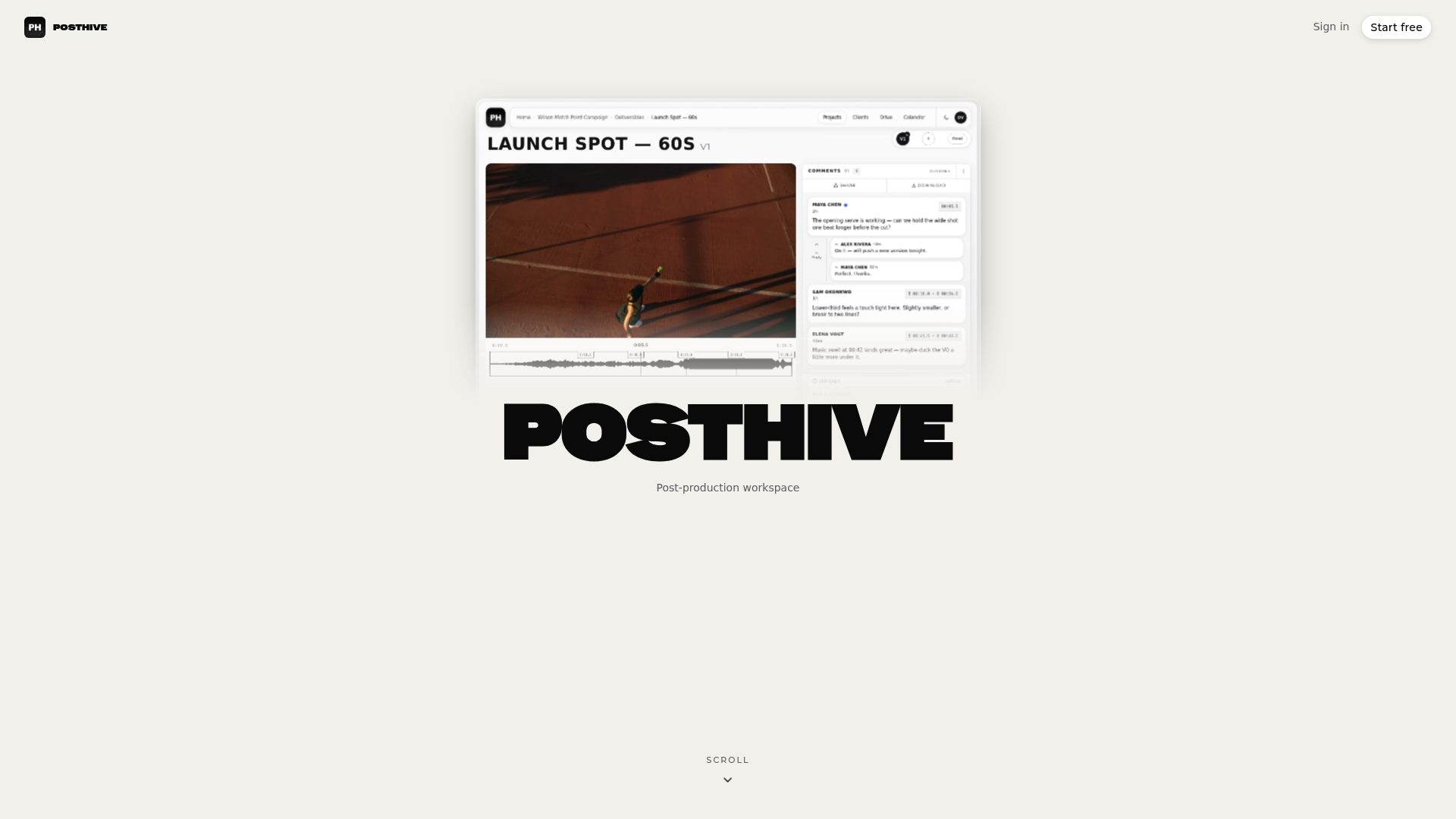
Two-way sync keeps project calendars and file versions aligned, project calendars attach directly to deliverables, notification controls stop attendee spam from every minor update, and every event carries an ID you can trace back through the system. For teams running client reviews, editorial deadlines, or milestone-based delivery, that combination replaces a patchwork of calendar app plus task tracker plus shared drive. If your team runs content or publishing calendars alongside production schedules, MyContentLab’s content scheduling tools pair well for teams managing both pipelines at once.
Start a trial on the Posthive landing page and connect your first project calendar today.
Frequently Asked Questions
What is the difference between OAuth and a service account for calendar integration? OAuth authenticates as an individual user and depends on that person’s ongoing access. A service account with domain-wide delegation runs independently of any single person, which is why production calendar integration workflows generally favor it.
Can a calendar integration workflow handle recurring events? Yes. Most calendar APIs, including Google Calendar, support recurrence rules on creation and updates, but recurring exceptions (a single instance moved or canceled) are a common source of bugs and deserve dedicated testing.
How do you prevent double-booked calendars in an automated workflow? Run a free/busy query before every create action. Skipping that check is one of the most frequent causes of scheduling conflicts in automated systems.
What should you do if a calendar workflow fails silently? Monitor for failed API calls, track rate limit errors, and confirm every successful action returns and stores an event ID. Without that ID, failures are hard to trace back to a specific event.
Is Google Calendar the only option for calendar integration workflows? No, but it’s the most commonly integrated calendar across workflow tools like Make, n8n, Workato, and Power Automate, which is why most integration documentation and examples center on it.
Sources
- Share calendars with others
- Google Calendar Action Block — Indite Docs
- Google Calendar Integration | Make
- Google Calendar integrations | n8n