
Metadata for Video Assets: A Practical Schema and Workflow

Metadata for video assets is the structured information that travels with or points to a video file: what it is, who made it, which version it is, who owns the rights and where it can be used. The most reliable way to manage it is to decide on a short, fixed schema before the first shoot, capture it at ingest, and keep it in the same workspace where your team reviews, versions and delivers the work. This guide gives you that schema, the order to build it in and the mistakes that make metadata useless six months later.
TL;DR
- Video metadata has three layers: technical (codec, frame rate, timecode), descriptive (title, subject, people, shot type) and administrative (rights, version, status, approvals).
- Start with 12 to 15 fields, not 60. A field nobody fills in is worse than no field.
- Embed what must survive a file copy, and keep what changes (status, feedback, approval) in the project workspace.
- Use controlled values (dropdowns, fixed spellings) and a file naming rule so search actually works.
- Use an existing standard as your backbone rather than inventing field names.
Table of Contents
- What metadata for video assets actually includes
- Technical, descriptive and administrative fields: what to capture
- Build on a standard instead of inventing field names
- Where metadata lives: embedded, sidecar or workspace
- Step-by-step: how to add metadata to video files
- Keep values consistent with controlled vocabularies
- Metadata for a multi-project team versus a solo creator
- Privacy and personal data in video metadata
- Why metadata belongs in the workspace, not a spreadsheet
- Perspective
- Using Posthive for video asset metadata
- Common metadata mistakes to avoid
- A one-page checklist for your schema
- FAQ
- Sources
What metadata for video assets actually includes
A video file carries more information than most teams realize, and most of it was never typed by a person. Cameras and encoders write technical metadata automatically: container, codec, resolution, frame rate, duration, audio channels, color space and embedded timecode. Editing software adds its own traces, such as the application that last wrote the file and creation and modification times.
The second layer is descriptive. It is what a person would type or a transcription workflow would produce: title, description, keywords, speakers, location, language, shot type, scene and take.
The third layer is administrative, and it is the one that decides whether an asset can be used safely: copyright holder, license terms, usage restrictions, release status, project, version number, approval status and retention date.
Teams that only think about the first layer end up with files they can play but not find. Teams that only think about the second end up with a well-tagged library they cannot legally publish from. A working schema covers all three.
Technical, descriptive and administrative fields: what to capture
Below is a starting schema for post-production teams, agencies and freelancers. It is deliberately small. Every field has a reason, an owner and a rule for how it is filled.
| Layer | Field | Example value | Filled by |
|---|---|---|---|
| Technical | Codec and container | ProRes 422 HQ, MOV | Automatic |
| Technical | Resolution and frame rate | 3840x2160, 23.976 fps | Automatic |
| Technical | Start timecode | 01:00:00:00 | Automatic |
| Technical | Audio layout | Stereo, 48 kHz | Automatic |
| Descriptive | Title | Spring Campaign Hero Cut | Editor |
| Descriptive | Description | 30-second hero spot, product on white set | Editor or producer |
| Descriptive | Keywords | product, studio, hero | Editor |
| Descriptive | People and speakers | Dana Ruiz (CEO) | Producer |
| Descriptive | Language | en-US | Producer |
| Descriptive | Shot or asset type | Interview, B-roll, master, social cutdown | Editor |
| Administrative | Project and client | Acme / Spring 2026 | Producer |
| Administrative | Version | v07 | System or editor |
| Administrative | Status | In review, approved, delivered | System or lead |
| Administrative | Rights holder and license | Client-owned, unlimited web use | Producer |
| Administrative | Release on file | Talent release signed: yes or no | Producer |
| Administrative | Retention or archive date | Archive after delivery plus 12 months | Lead |
Notice what is not on the list: dozens of camera settings, lens data or editorial notes. Those exist in the file already or belong in comments. The schema should hold what people will actually search or filter by.
Build on a standard instead of inventing field names
You do not need to design a vocabulary from scratch. Several public standards already name the fields you need, and using them keeps your metadata readable by other tools and partners.
- The IPTC Video Metadata Hub maps descriptive and rights properties across the formats video tools use, which makes it a good reference for what to call a field.
- The EBU Core metadata set is a broadcast-oriented description set, useful when your deliverables go to television or archives.
- The Dublin Core terms are a general-purpose list (title, creator, date, rights and so on) that works as a minimal common denominator.
For most creative teams the practical move is simple: take the field names from one of these, keep only the ones in the table above, and write a one-page definition of each. If you ever need to exchange metadata with a broadcaster, a stock library or an archive, the mapping will be short because your names already align.
Where metadata lives: embedded, sidecar or workspace
There are three places metadata can sit, and each has a job.
Embedded in the file. Container formats can hold titles, descriptions, copyright notes and timecode inside the file itself. Embedded values travel with a copy, which is why they suit rights, ownership and identification. The weakness is that they are hard to edit in bulk and many platforms strip or rewrite them on upload.
Sidecar files. A separate small file (commonly XML, such as Adobe’s XMP format) sits next to the video and carries descriptive fields. It is easy to read and edit, but it breaks the moment someone moves the video without the sidecar.
The project workspace. Anything that changes during production belongs here: status, version, comments, approvals, deadlines, who is responsible. These values are alive. Burning them into the file means they are stale by the next export.
A clean rule: embed what is true forever (owner, copyright, title, original timecode), and keep what is true right now (status, review notes, approval) in the workspace linked to that file. That split removes most of the confusion about which copy is the real one.

Step-by-step: how to add metadata to video files
This is the routine, from the first day of a project to delivery.

1. Write the schema and the naming rule before ingest
Pick your fields, define allowed values and decide the file name pattern. A common pattern puts project code, asset type, short description, version and date in a fixed order, with no spaces. A practical file naming guide shows how much a consistent pattern helps when files are shared outside the team. The point of the name is that a person who sees only the name, in an email or an export dialog, can still identify the file.
Where it goes wrong: names that carry information the metadata also carries, but in a different spelling. Pick one place per fact.
2. Capture technical metadata automatically at ingest
Do not type anything the file can tell you. Read codec, resolution, frame rate and timecode from the file and store them. Typed technical metadata is almost always wrong by a frame rate or a digit.
3. Add the descriptive fields while context is fresh
The person who knows who is in a clip is the person who shot or logged it, and that knowledge fades quickly. Set a rule: no clip leaves ingest without a type, a language and a one-line description. For spoken content, a transcript turns the whole file into searchable text and supplies keywords and speakers almost for free. If you deliver in several languages, track each language version as its own asset with its own language field.
4. Record rights and releases at the same moment
Rights are the field most often left for later and the one that causes the most expensive problems. Record the rights holder, the license scope and whether releases are on file when the asset enters the project, not when someone wants to publish it.
5. Attach versions and status as the work moves
Every export gets a version identifier and a status. The link between a version and the feedback it received is the most valuable metadata in post-production, because it answers the question that always arrives late in a project: which cut did the client actually approve? If you want the deeper mechanics, our guides to video version control for creative teams and to avoiding lost video versions cover the setup.
6. Lock the final values at delivery
At delivery, embed the permanent values (title, rights, owner) into the master, freeze the record, and store the approval trail with it. This is also the moment to check that your archive copies carry the same identification, as described in our archiving checklist.
Keep values consistent with controlled vocabularies
Metadata fails quietly. Nobody notices when one editor types “B-roll”, another “broll” and a third “b roll”, until a search for the asset returns a third of what exists.
Three habits prevent it:
- Dropdowns for anything repeatable. Asset type, status, language and rights category should be picked from a list, not typed.
- A named owner for the list. One person approves new values. Otherwise the list doubles every quarter.
- Plain, stable terms. Use words your client would use, and avoid internal shorthand that a new freelancer cannot decode.
Free text is fine for the description and keywords, but even there, a short style rule helps: singular nouns, lowercase, no abbreviations.
Metadata for a multi-project team versus a solo creator
The schema stays the same; the discipline differs.
A solo creator can run on a smaller set: title, project, version, status, rights and one or two descriptive fields. The main danger is future you, so write the descriptions for someone who has forgotten the project.
A team or production company needs ownership. Decide who is responsible for each field, and make the status field the single source of truth for where an asset stands. Agencies with several clients should add a client field and, where relevant, a field for who owns the final deliverable, since some clients require that the masters belong to them from day one.
In every case, tie metadata to the organization of the files themselves. Our piece on organizing media assets for faster post-production shows the folder and library structure that metadata sits inside, and the post-production workflow guide shows where each field gets filled across the stages.
Privacy and personal data in video metadata
Video can identify people through faces, voices and, in metadata, names and locations. If you shoot or deliver in the European Union, or handle footage of EU residents, data protection rules apply to that information. Your schema should therefore record whether a release exists, where the footage may be stored and when it should be deleted. Our guide to GDPR rules for video files walks through the response windows and what teams should log. For a specific legal question about your footage, speak to a qualified privacy lawyer.
Also check what your files reveal when they leave your hands: GPS coordinates, device identifiers and author names can be embedded without anyone noticing. Strip or review them before delivering to a public destination.
Why metadata belongs in the workspace, not a spreadsheet
The common first attempt is a spreadsheet next to a folder of files. It works for a week. Then someone renames a file, a second spreadsheet appears, and the sheet no longer matches the drive.
The core problem is that a spreadsheet and a file are two objects that only agree while everyone is careful. Metadata that lives in the same place as the asset, the review and the version history cannot drift apart in the same way. A status change happens where the work happens, and the approval record is attached to the exact version that was reviewed.
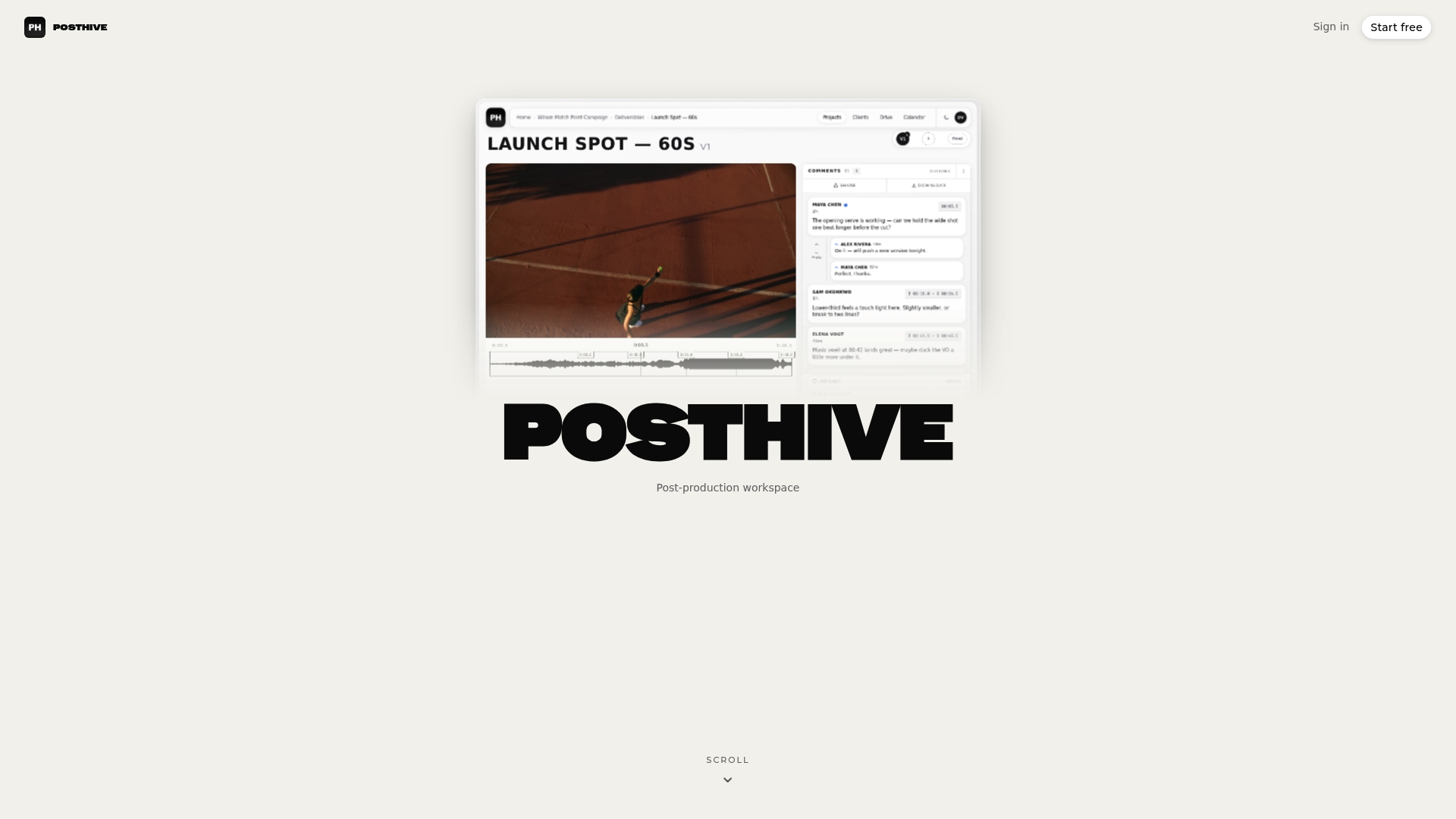
This is the reason post-production teams adopt a dedicated workspace. Posthive is a cloud-based post-production workspace that combines project management, version control, task and deadline tracking, review tools, client feedback and approval tracking, file storage and sharing, transcription and translation workflows, and secure media delivery. Because versions, feedback and approvals live with the files, the administrative layer of your metadata is built as you work, not reconstructed at the end. The same applies to the way deliverables reach the client; the preview-to-master delivery workflow shows how that handoff is structured.
Perspective
Most teams think of metadata as a labelling chore that happens after the edit. We think of it as a by-product of good process. If versions, comments, approvals and deadlines are captured where the work happens, half of your administrative metadata exists the day the project closes, and nobody had to type it.
That is how we built Posthive. Clients keep ownership of their deliverables and their versions, every plan includes unlimited free seats so editors, producers and clients can all be in the same place without anyone counting licenses, and the project, the review and the delivery sit in one platform. Plugins for NLEs and Google Calendar integration keep the editing room and the schedule connected to it.
Our advice is to keep the schema small, keep the rights fields mandatory and keep status in the workspace. Do those three things and your library stays findable long after the project team has moved on.
Lorenz
Using Posthive for video asset metadata
If your team is tired of reconciling file names, spreadsheets and email threads, Posthive keeps versions, tasks, deadlines, reviews and approvals in a single workspace. Every plan includes unlimited free seats, so adding clients and collaborators does not add cost per person. The Pro plan is $49 per month and the Enterprise plan is $99 per month, with details on the pricing page. You can also see the whole platform on the Posthive homepage.
For teams that manage many projects at once, our guide to video project management for team leads shows how the same structure scales across a slate.
Common metadata mistakes to avoid
- Too many fields. Every extra field lowers the chance that the important ones get filled in. Cut anything nobody has searched by in three months.
- Free text where a list belongs. It guarantees inconsistent spellings.
- Status stored in file names. Names like “final_FINAL_v2” are metadata in disguise, and they fail because nobody updates them reliably. Use a version field and a status field.
- Rights added at publication. By then the person who knew the answer may be gone.
- No backup of the metadata. Descriptions and approvals are as valuable as the footage. Include them in your backup routine so the archive is searchable, not just intact.
- Trusting platform re-uploads. Many sites rewrite or remove embedded values on upload, so your master and your workspace record must remain the reference.
A one-page checklist for your schema
Before the next project starts, confirm each point:
- The schema has no more than about 15 fields, each with a definition and an owner.
- Technical fields are read from the file, never typed.
- Asset type, status, language and rights category are dropdowns.
- Rights holder, license scope and release status are mandatory at ingest.
- Each export has a version identifier, and feedback is attached to that version.
- Permanent values are embedded in the master at delivery.
- Metadata is included in backups and archives.
If you can tick all seven, you have a metadata practice that will hold up under deadline pressure, which is the only test that matters.
FAQ
What is the difference between video metadata and EXIF data?
EXIF is a metadata format designed mainly for still photos, covering camera settings, date and location. Video files use their own container-level and XMP-style fields for things like codec, timecode, title and rights, so a photo-oriented viewer will show only part of what a video holds. For production work, plan around the three layers: technical, descriptive and administrative.
How many metadata fields does a video asset need?
Most teams do well with 12 to 15 fields: a handful of technical ones read automatically, a few descriptive ones such as title, type, language and keywords, and the administrative ones for project, version, status and rights. Add a field only when someone will search or filter by it. A short schema that is filled in beats a long one that is not.
Should metadata be embedded in the file or stored separately?
Both, for different jobs. Embed values that never change, such as the owner, copyright and title, so they travel with every copy. Keep values that change during production, such as status, comments and approvals, in the project workspace linked to the file, so they are always current.
What metadata schema should I use for video?
Start from an existing standard rather than inventing names. The IPTC Video Metadata Hub, EBUCore and Dublin Core all provide established field names. Choose one as your reference, keep only the fields you need, and document each one on a single page so every editor fills them the same way.
Sources
- IPTC Video Metadata Hub
- EBU Core metadata set
- Dublin Core terms
- Adobe XMP format
- Practical file naming guide