Share Large Video Files Without Losing an Ounce of Quality
Share Large Video Files Without Losing an Ounce of Quality

The fastest reliable way to share large video files is a dedicated transfer service that sends your original file, byte for byte, with resumable uploads and a password-protected link. Skip compression, skip email, skip zip folders. For a one-off client delivery, upload the raw master to a browser-based transfer tool and send the link separately from the password. For teams sending finals every week, that same habit stops scaling fast, which is why production shops increasingly route deliveries through a workspace built for it, like Posthive.
Here’s the short version of what actually works, depending on what you’re moving and who’s on the other end:
- One-off delivery to a client or collaborator: browser-based transfer service, resumable upload, expiring link.
- Ongoing team access to a shared project: cloud storage link (Drive, OneDrive, Dropbox) inside a shared folder.
- Single recipient, no third-party server involved: peer-to-peer transfer, direct device to device.
- Multi-hundred-gigabyte archive or terrible upload speed: physical drive, shipped.
Pro Tip: Never zip a video file before sending it. Video is already compressed data, so wrapping it in a .zip typically adds size instead of removing it. A how-to guide on sending large video files makes this point directly: send the original bytes, don’t re-encode, and don’t bother archiving.
Key Takeaways
The fastest reliable way to share large video files at full quality is a resumable, password-protected transfer of the original file, with a media workspace like Posthive replacing that manual process once deliveries become routine.
| Point | Details |
|---|---|
| Match method to scenario | Use browser transfer for one-off deliveries, cloud storage for team collaboration, and shipped drives for archives over a few hundred gigabytes. |
| Never compress video before sending | Zipping or re-encoding a video file typically adds size and risks quality loss instead of saving space. |
| Check security basics first | Confirm password protection, link expiry, and encryption in transit and at rest before sending anything sensitive. |
| Resumable uploads matter above 10 GB | A dropped connection without chunked upload support means starting the entire transfer over. |
| Upgrade when deliveries become routine | Posthive adds version control, delivery logs, and approval tracking for teams sending finished work on a regular cadence. |
Table of Contents
- Quick Methods to Share Large Video Files and When to Use Each
- How to Pick the Right Delivery Method for Your File
- How to Send a Large Video File From Your Browser, Step by Step
- Why Production Teams Need More Than a Transfer Link
- Fixing the Most Common Large Video Transfer Problems
- What Actually Happens When Deliverables Go Wrong
- Deliver Finished Work Without the Follow-Up Headaches
- Where to Verify Limits and Platform-Specific Details
- Frequently Asked Questions
- Sources
Quick Methods to Share Large Video Files and When to Use Each
There isn’t one right way to move a big video file. There’s a right way for your specific situation, and the variable that matters most is who’s receiving it and what they’ll do with it once it lands.
Browser-based transfer services work best for quick, one-time handoffs. You upload the file, get a link, send it, and the recipient downloads it. No account required on either end, no folder structure to maintain, no ongoing storage commitment. This is the default for delivering a finished cut to a client who doesn’t need to touch your project files again.
Cloud storage share links — Google Drive, OneDrive, Dropbox — make more sense when multiple people need repeated access over time. A team editing across three time zones benefits from a shared folder more than a one-time link, because everyone can pull the latest version whenever they need it. The tradeoff: free tiers often reprocess or generate previews of uploaded video differently than the source file, and link expiry isn’t always built in on the free plan.
Peer-to-peer transfers move the file directly between two devices without routing it through a third-party server for long-term storage. That’s appealing when a client has confidentiality concerns about a video sitting on someone else’s cloud, even temporarily. The catch is that both parties typically need to be online simultaneously for the transfer to complete.
Physical drive shipping still beats every online method for genuinely enormous payloads. If you’re moving a 400 GB project archive and your upload speed tops out at 20 Mbps, the math doesn’t favor the internet. A drive in a padded mailer, insured and tracked, often arrives faster and cheaper than a multi-day upload.
| Method | Best for | Tradeoff |
|---|---|---|
| Browser transfer service | One-time client deliveries | Free tiers often cap around 3–25 GB |
| Cloud storage link | Team collaboration, shared access | Less control over link expiry on free plans |
| Peer-to-peer transfer | Single recipient, no cloud storage | Both parties need to be online at once |
| Physical drive shipping | Multi-hundred-GB archives | Shipping time, cost of drive and courier |
Free tiers on most transfer tools cap out somewhere between 3 GB and 25 GB, according to WeTransfer’s own resource on sending large video files, with paid plans removing the cap and adding password protection plus non-expiring links. Storage-focused services follow a similar pattern. Storage.to, for instance, advertises uploads up to 25 GB on its free tier with resumable chunked uploads and no transcoding of the source file.
How to Pick the Right Delivery Method for Your File
The method you choose should follow directly from three things: how big the file is, how sensitive the content is, and how many times it needs to move.
A 40 GB uncompressed master destined for one client, once, is a different problem than a 2 GB proxy that six stakeholders need to review and comment on over two weeks. Treating both the same way, usually by defaulting to whatever tool you used last time, is how teams end up with broken links, expired downloads, and clients emailing “can you resend this?” three days before a deadline.
Run through this checklist before you pick a method:
- How big is the file, and does the recipient need the original or a compressed proxy? If they’re color grading or re-editing, they need the original bytes. If they’re approving a rough cut, a smaller preview file saves everyone time.
- How many people need access, and for how long? One recipient favors a transfer link. A rotating team favors shared cloud storage.
- Is there an NDA or confidentiality requirement? If so, confirm the transfer method encrypts data in transit and at rest, and that you can set the link to expire or require a password.
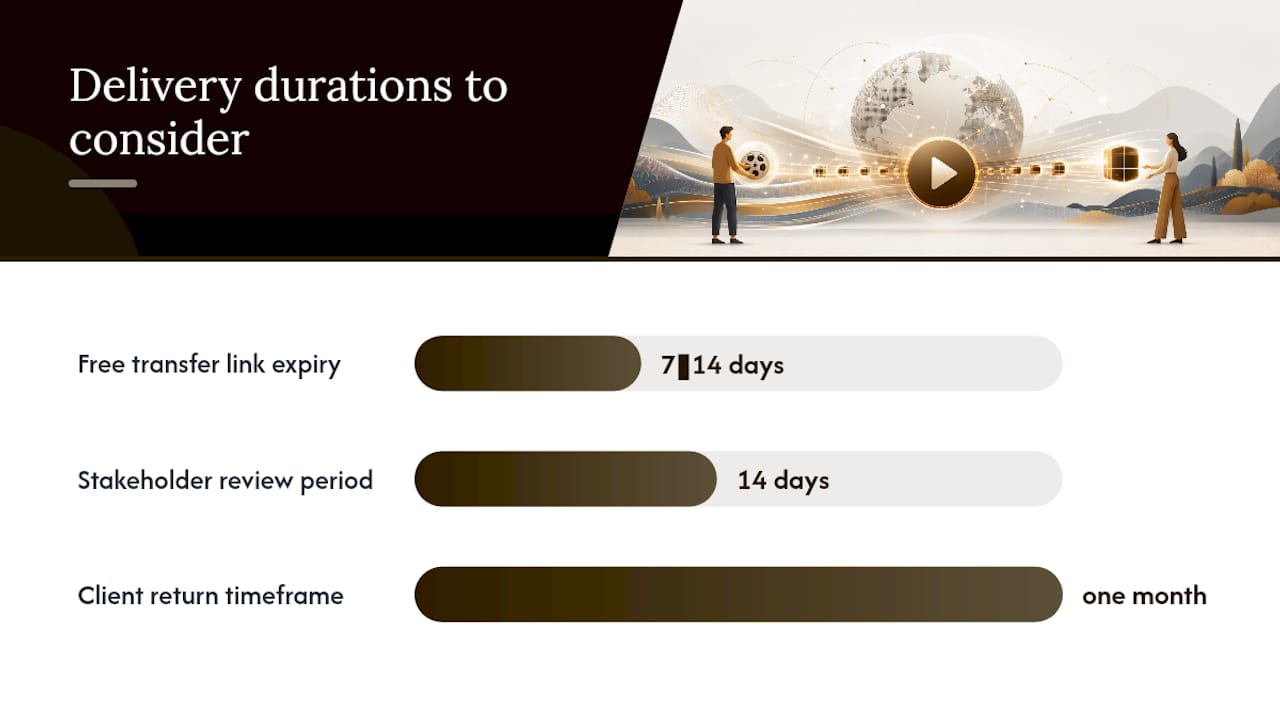
- Will this file need to be re-downloaded weeks later? Most free transfer links expire in 7 to 14 days. If the client might come back for it in a month, you need persistent storage, not a disposable link.
- Is this a repeat delivery or a one-off? If you’re sending finals to the same three clients every month, a manual link-and-password workflow starts costing real time. That’s the point where a managed workspace pays for itself.
A few red flags mean you’ve outgrown the free consumer tools. No encryption at rest listed anywhere in the provider’s help docs. Single-use links that expire the moment the recipient downloads once, which breaks if they need the file on a second device. If you’re hitting any of these regularly, it’s a sign to move to a paid or professional-grade delivery service, as insight from WeTransfer’s professional-use guidance suggests: professionals tend to prefer paid tools specifically because free consumer options usually skip long-term file management and delivery confirmation.
How to Send a Large Video File From Your Browser, Step by Step
The exact interface will vary by service, but the workflow is nearly identical across every reputable browser-based transfer tool. Here’s the sequence that avoids the most common mistakes.
Before you upload:
- Rename the file with a clear, dated convention (
ProjectName_Final_v3_2026-03-12.mp4), so nobody downstream confuses it with an earlier cut. - Include a short README or manifest if you’re sending more than one file, noting which is the master and which are supporting assets.
- Confirm the codec and container match what the recipient’s system expects. A ProRes file dropped on someone running Windows without the right codec pack is a support call waiting to happen.
During upload:
- Use a wired Ethernet connection instead of Wi-Fi if you have the option. Upload speeds on residential Wi-Fi can fluctuate enough to trigger failed chunks on very large files.
- Confirm the service uses chunked, resumable uploads before you start a transfer over 10 GB. Several providers, including Filemail and dedicated large-file services, build resumable chunking into the upload process specifically so a dropped connection doesn’t force a full restart.
- Let the upload run uninterrupted. Closing the browser tab mid-transfer is still the single most common cause of “the link never worked” complaints.
When you share:
- Set link permissions: password protection and an expiry window matched to how long the recipient realistically needs.
- Send the download link and the password through separate channels. Email the link, text the password. This one habit closes off most casual interception risk.
After you send:
- Ask the service for a delivery confirmation or download log if the transfer matters commercially. Most consumer tools don’t offer this by default.
- For anything mission-critical, request a checksum or file hash from the recipient once downloaded, confirming the file that arrived matches the file you sent, bit for bit.
Pro Tip: If you’re sending the same type of deliverable weekly, a dropped connection isn’t a rare inconvenience, it’s a recurring cost. Chunked resumable uploads matter more than raw upload speed for files above 20 GB, because the odds of a multi-hour transfer surviving without a single hiccup drop the longer it runs.
Why Production Teams Need More Than a Transfer Link
A single transfer link works fine for a single delivery. It falls apart the moment you’re managing five active projects, three rounds of revisions each, and a client who wants to know which version they’re looking at without asking you directly.
That’s the gap a media-focused workspace closes. Production teams generally need five things that a plain transfer tool doesn’t provide on its own: version history so nobody delivers an outdated cut by mistake, delivery logs that confirm a client actually opened the file, link expiry and password controls set per delivery rather than manually each time, task and approval tracking tied to the actual asset, and enough storage that a project doesn’t vanish once a download link times out.
Point solutions solve one problem each. A transfer service moves the file. A messaging app confirms someone saw it. A spreadsheet tracks whether they approved it. Stitching three tools together for every single deliverable is exactly the kind of manual overhead that quietly eats a freelancer’s Friday afternoon.
A workspace built around post-production, rather than generic file storage, keeps version, task, and delivery history attached to the same file instead of scattered across three apps. That single source of truth is what turns “which cut did we send them?” from a recurring headache into a non-issue.
Here’s what that looks like in practice with Posthive: you upload the final master, tag it as v3, generate a secure link with a password and a two-week expiry, and send it. The client opens it, and the delivery log confirms exactly when. Once they approve, that approval is recorded against that specific version, so if a revision request comes in later referencing “the version from last Tuesday,” you know precisely which file that is without digging through email threads.
Pro Tip: If you deliver finished work to clients on any regular cadence, more than once a month, count how many minutes each delivery costs you in link generation, password creation, and manually confirming receipt. Multiply by 12. That number is usually the argument for a workflow tool that does it automatically.
Fixing the Most Common Large Video Transfer Problems
Most transfer failures trace back to one of four causes, and each has a specific fix rather than a vague “try again.”
Upload keeps failing partway through. Confirm the service supports resumable, chunked uploads before you commit to it for anything over 10 GB. If it doesn’t, switch to a wired connection, and if the file is genuinely massive, consider splitting it into parts using your editing software’s export settings rather than a generic file splitter, which can corrupt video containers.

Transfer is painfully slow. Check your actual upload bandwidth, not your download speed. Most home internet plans are asymmetric, with upload speeds a fraction of download. Pause other bandwidth-heavy activity on the network. Some transfer tools parallelize the upload into multiple simultaneous streams, which can meaningfully cut total time on a large file.
Recipient can’t open or preview the file. This is usually a platform limitation, not a transfer failure. Some services cap preview generation at a certain resolution or file size, so the recipient sees a broken thumbnail even though the download itself works fine. Confirm they’re downloading rather than trying to stream a preview directly in the browser.
Recipient hits a permission or expiry wall. Double-check the link hasn’t expired and that you didn’t accidentally set it to single-use. This is the single most common support request across transfer services, and it’s entirely avoidable by confirming link settings before you hit send, not after the client complains.
| Problem | Likely cause | Fix |
|---|---|---|
| Upload stalls repeatedly | No resumable upload support | Switch to a service with chunked uploads; use Ethernet |
| Transfer takes hours | Limited upload bandwidth | Check actual upload speed; pause other network traffic |
| Recipient sees broken preview | Platform preview limits | Confirm they download rather than stream in-browser |
| Link says expired or used | Expiry or single-use setting | Reset link settings and confirm before resending |
Pro Tip: If a single file consistently exceeds 100 GB or your upload speed makes even resumable uploads impractical, stop fighting the internet. Ship a drive. It’s not a workaround, it’s often genuinely the faster option once you account for real-world upload speeds.
What Actually Happens When Deliverables Go Wrong
Most of the horror stories about lost footage or blown deadlines aren’t really about transfer technology at all. They’re about process gaps: nobody confirmed the file was actually opened, nobody knew which version was final, and nobody had a record of what was approved when a client came back three weeks later claiming they never signed off.
Every method discussed here, from a $0 transfer link to a shipped drive, solves the “get the bytes from A to B” problem reasonably well. What none of them solve on their own is the accountability problem: proving what was sent, when, to whom, and whether it was the right version. That’s not a knock on transfer tools; it’s simply outside what they’re built to do.
The conventional advice treats large file sharing as purely a technical hurdle: pick a tool, upload, done. The remaining 20%, version tracking, approval records, and confirming delivery, is where actual production time gets lost, and it’s the part most guides skip entirely because it’s less quotable than “just use a transfer link.”
For teams weighing whether to bring production in-house versus outsourcing it, file delivery reliability is often an underrated factor in that decision. A freelancer or agency that can prove exactly when a client received and approved a file has a real operational edge over one relying on “I definitely sent that link” in a group chat.
Deliver Finished Work Without the Follow-Up Headaches
Posthive gives production teams what a plain transfer link can’t: version history, delivery logs, and approval tracking attached to the same file you’re sending, not scattered across three separate apps. If you’re a freelancer or agency sending finals to the same clients on a regular basis, that difference shows up in fewer “which version was this?” emails and fewer unconfirmed deliveries.

Posthive suits creative teams, production companies, and freelancers who deliver video work often enough that a manual link-password-confirmation routine starts costing real hours. Upload your master, tag the version, generate a secure link with password and expiry controls, and get a delivery record the moment your client opens it, all inside one workspace instead of stitched together across transfer tools, spreadsheets, and email. If your next delivery is happening this week, start with Posthive and see whether it changes how much time you spend confirming your work actually landed.
Where to Verify Limits and Platform-Specific Details
Transfer limits and platform behavior change often enough that it’s worth checking a provider’s own documentation before a deadline, not after a failed upload.
- The Perkoon guide on sending large video files covers why avoiding compression matters and compares peer-to-peer, cloud, and shipped-drive delivery in more depth.
- Swarmify’s breakdown of sending versus hosting is worth reading if you’re unsure whether your recipient needs a downloadable file or a playable, analytics-tracked host.
- Check your transfer provider’s own help pages for current free-tier size caps before you commit to a method. These limits shift, and marketing pages don’t always reflect the latest numbers.
- If you’re deciding between in-house delivery workflows and outsourcing production entirely, a small-business perspective on production approaches offers useful context on where that tradeoff tends to land.
Frequently Asked Questions
What’s the best way to share videos over 1GB without losing quality? Use a browser-based transfer service that sends the original file without re-encoding it. Avoid zipping the file, since video is already compressed and archiving it rarely reduces size. For files consistently over 10 GB, confirm the service supports resumable uploads before you start.
Can I send large video files through email? Standard email attachments cap out well below what most video files require, usually around 25 MB depending on the provider, so email isn’t viable for anything beyond a short clip. A transfer link or cloud storage share is the standard workaround.
Is it safe to share large video files online? It’s safe when the service encrypts data in transit and at rest, and when you add password protection and a link expiry window rather than leaving a public link open indefinitely. Always confirm you have the right to share the content, particularly with copyrighted footage or client material covered by an NDA.
What’s the difference between sending and hosting a video? Sending moves a file from one party to another for download, typically a one-time handoff. Hosting keeps the video available for repeated playback, often with analytics on who watched it and for how long. Choose a transfer tool for handoffs and a hosting platform for anything meant to be viewed repeatedly.
When should I use a production workspace instead of a basic transfer link? Once you’re delivering finished work to clients on a recurring basis and need to track which version was sent, whether it was opened, and whether it was approved, a basic link stops being enough. That’s the point where a workspace like Posthive, built around version control and delivery tracking, starts saving real time.
Sources
- How to Send Large Video Files in 2026 (No Compression) · Perkoon