Stop Marker Drift with Timecode Comments: 4 Rules Editors Use
Stop Marker Drift with Timecode Comments: 4 Rules Editors Use

Timecode comments attach notes to an exact HH:MM:SS:FF moment, or a selected range, so editors and collaborators can act on precise frames or ranges. They power editorial feedback, audio cues, color notes, and chapter markers. To work across tools, they depend on matching timecode format and frame rate between the review platform and the editing timeline.
TL;DR:
- Use single-frame comments for precise issues like cuts, noise, or color matches, ensuring they pin to the exact frame with the correct frame rate.
- Match the timecode format and frame rate, especially between SMPTE standards and drop-frame notation, to prevent misaligned comments post-export.
- Confirm comments are anchored and clearly labeled by area before sending or importing to maintain clarity and reduce revision cycles.
- Export and import markers in formats like FCPXML with matched frame rates and offset checks to preserve timing accuracy across tools.
- Pin comments to specific sequence versions and include frame rate details in all notes to ensure feedback stays aligned with the correct edit iteration.
Table of Contents
- How timecode comments work: frames, ranges, and anchors
- Timecode formats editors must know: SMPTE, frame rates, and drop-frame notation
- Practical workflows for collecting timestamped feedback
- Export, import, and interoperability between review tools and NLEs
- Best practices for team reviews: naming, status, and versioning rules
- Putting it into practice with Posthive: tracking, versioning, and marker exports
- A practitioner’s view on making timecode comments actually work
- Why Posthive helps teams collect and act on timecode comments
- FAQ
- Sources
- Standards and format docs to consult
How timecode comments work: frames, ranges, and anchors
A single-frame comment locks onto one exact frame, written as HH:MM:SS:FF. That precision matters when the note is about something that happens in an instant: a click in the audio, a flash frame, a cut that lands a beat early. Sound designers and colorists lean on frame-accurate comments because a note that says “around 14 seconds” is useless when the problem is a single frame of noise.
A range-based comment covers a start point and a duration instead of one instant. These suit notes about pacing, a scene that drags, or a color look that needs adjusting across a whole sequence. The review tool records a start timecode and a length, so the comment effectively spans two points on the timeline rather than one.
Most review platforms also distinguish anchored comments from floating notes. An anchored comment is tied to the timecode itself: clicking it jumps the playhead to that exact frame or range. A floating note sits outside the timeline, useful for general feedback but disconnected from any specific moment.
- Use single-frame comments for cut points, sound glitches, and anything a colorist needs to match exactly.
- Use range comments for pacing notes, scene selection, or a color grade that applies across several seconds.
- Confirm the comment is anchored, not floating, before sending a cut for review.
Timecode formats editors must know: SMPTE, frame rates, and drop-frame notation
Every timecode comment rests on a shared format. SMPTE timecode labels individual frames using HH:MM:SS:FF and is defined in the SMPTE 12M standard, which is why review tools and NLEs can trade timecodes without ambiguity.
Common frame rates supported under SMPTE timecode include typical values used in professional video formats, according to the SMPTE timecode reference. A comment timestamped at 00:01:12:15 means something different at 24fps than it does at 29.97fps, so the frame rate attached to a comment has to match the sequence it describes.
Drop-frame (DF) and non-drop (NDF) notation solve a related problem. DF timecode uses semicolons (HH;MM;SS;FF) instead of colons to show that it reconciles the 29.97fps NTSC rate with real wall-clock time. NDF timecode counts frames without that adjustment. Mixing the two in the same project, or misreading a semicolon as a colon, is a common source of comments landing on the wrong frame after export.

Practical workflows for collecting timestamped feedback
Collecting usable timecode comments comes down to a few repeatable habits during review, whether the session is live or asynchronous, as explained in detail by Post-Production Video Editing.
- Pause the playhead at the exact frame, then type the note immediately so the comment anchors to that timecode rather than a few frames later.
- For a range, mark the in and out points first, then write the note so the comment captures the full duration instead of a single instant.
- Label the comment by area (edit, audio, color, graphics) so collaborators can filter and triage faster.
- Before sending the cut-out, confirm the sequence frame rate matches what the review tool displays.
A live review session benefits from short, action-oriented comments since the editor is watching in real time. Asynchronous review needs more context in each note, since the person reading it later has no memory of the conversation. Either way, prepare for export by keeping comments clean enough to drop into a CSV of markers or an FCPXML file without rewriting them first. If timecodes look off after import, check the source frame rate before assuming the comment itself is wrong.
Pro Tip: Write the area tag and timecode first, then the action, so a scan of the comment list reads like a punch list instead of a transcript.
Export, import, and interoperability between review tools and NLEs
Moving comments out of a review tool and into an editing timeline is where most timecode accuracy gets lost, usually from a format mismatch rather than a bad note.
A CSV export typically needs a timecode column, a duration column (for ranges), a note or description column, and a status column, formatted so the receiving NLE can map each row to a marker. The FCPXML reference from Apple documents marker attributes including tcStart, duration, value, and completed status, which is why FCPXML preserves more than a plain CSV: it keeps the comment’s task metadata intact when the project moves between applications.
Underlying both formats is a timing system built on rational time. According to the FCPXML format reference, FCPXML expresses frame positions as fractions, such as 1001/24000s for 23.976fps, and includes a tcFormat flag for DF or NDF alongside a tcStart value that maps the media’s time origin.
- Confirm the sequence frame rate in the export matches the frame rate in the receiving project before importing.
- Check tcStart alignment: an offset here shifts every marker by the same amount, even when individual timecodes look correct.
- When a CSV import lands a frame or two off, the fix is almost always a frame-rate mismatch, not a bad timestamp.
Best practices for team reviews: naming, status, and versioning rules
A consistent comment structure removes most of the ambiguity that causes extra revision rounds. A simple template works well: [Area]: short action, timecode. For example, “Color: skin tone too warm, 00:14:22:03.”
- Tag every comment with an area (edit, audio, color, graphics) before anything else.
- Track status with a completed flag or a status column (Approved, In progress, Done) in a spreadsheet or project tool.
- Pin every comment set to a specific sequence version, because a comment made on v3 rarely lines up on v5.
- Record the export frame rate in the comment header, not just in the project settings.
Pro Tip: Include the version number and frame rate directly in the comment batch header, so anyone opening the file months later knows exactly what it was written against.
Putting it into practice with Posthive: tracking, versioning, and marker exports
Posthive ties timecode comments to the version they were written against, so review notes stay attached to the right cut instead of drifting after a new export. A typical loop looks like this: collect comments during review, attach each one to a task, export markers to the NLE, then mark the task complete once the fix lands. Posthive’s version control and task tracking features support this directly, and pinning comments to a version plus a consistent export frame rate keeps marker exports accurate across rounds.

A practitioner’s view on making timecode comments actually work
Most revision cycles waste time on format, not feedback. Adopt one rule set now: tag by area, pin to a version, state the frame rate in every comment batch. That alone cuts a surprising share of back-and-forth before it starts.
— Lorenz
Why Posthive helps teams collect and act on timecode comments
Posthive gives creative teams a place to collect timecode comments, attach them to tasks, and export markers without losing version history along the way. Review notes, version pinning, and marker exports live in one workspace instead of scattered across spreadsheets and email threads.
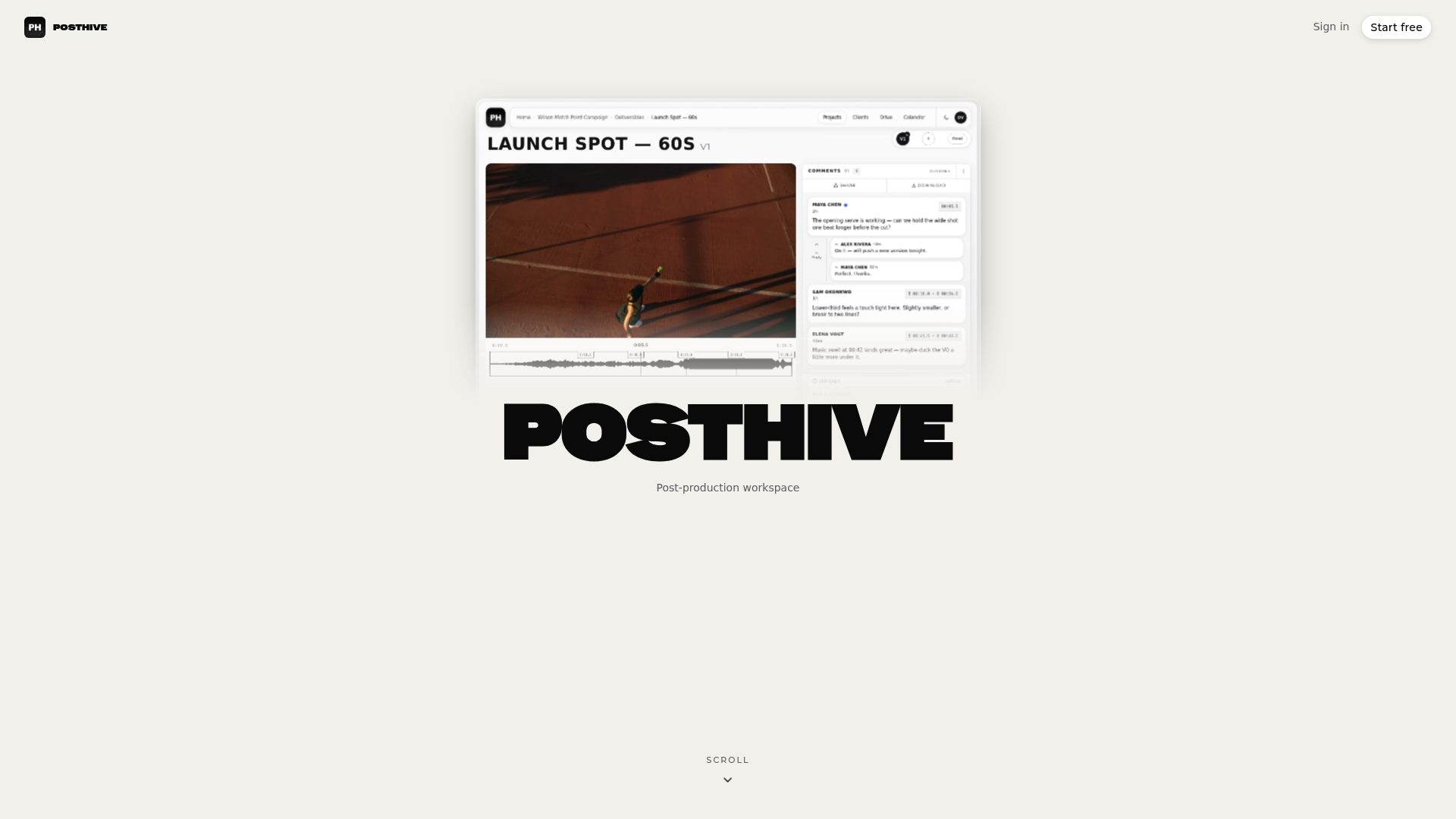
- Attach review comments directly to tasks and track status through to completion.
- Pin comment sets to a sequence version so feedback never gets applied to the wrong cut.
- Export markers for NLE import while keeping the project’s version history intact.
Posthive plans include unlimited free seats, so clients and collaborators can join a review without additional per-editor fees. Check the Pro and Enterprise plans or look at the productivity features built around version control and task tracking to see how it fits a review workflow.
FAQ
How do I put timestamps in comments?
Pause the playhead at the exact frame or mark an in and out point for a range, then write the note so it anchors to that HH:MM:SS:FF timecode. Most review tools and NLEs capture the timecode automatically when the comment is created at that position.
What is the purpose of timecode?
Timecode gives every frame of video or audio a unique, unambiguous address in the format HH:MM:SS:FF, defined under the SMPTE timecode standard. It lets editors, sound designers, and colorists reference the same exact moment across different tools and exports.
How do I add a timecode?
A timecode is typically generated automatically by the camera, recorder, or editing software based on the project’s frame rate, and review tools capture it the moment a comment is placed on the timeline. For manual entry, type the hours, minutes, seconds, and frame number directly into the comment field in HH:MM:SS:FF format.
How do I read a timecode?
Read a timecode left to right as hours, minutes, seconds, and frames, so 00:14:22:03 means 14 minutes, 22 seconds, and 3 frames into the sequence. A semicolon instead of a colon before the frame count signals drop-frame notation rather than non-drop.
Sources
- SMPTE timecode — Wikipedia
- FCPXML reference — Apple Developer
- FCPXML format reference — FCPBridge (GitHub)
- Video Chapters - YouTube Help
Standards and format docs to consult
- SMPTE timecode — Wikipedia
- FCPXML reference — Apple Developer
- FCPXML format reference — FCPBridge (GitHub)
- Video Chapters - YouTube Help