Editors: Turn Timecoded Video Comments Into NLE Markers in One Import
Editors: Turn Timecoded Video Comments Into NLE Markers in One Import

Timecoded comments, also called timestamped comments, attach text feedback to a specific moment in a video rather than the file as a whole. YouTube, Google Drive, and workspace video players such as Clipchamp all support them: you pause the video or type an HH:MM:SS timestamp, then post the comment against that exact point. The rest of the review process, sorting, exporting, and turning notes into cuts, depends on how you organize those comments afterward.
TL;DR:
- Most platforms automatically convert typed timecodes into clickable links that jump to specific video moments, but manual typing can lead to formatting errors.
- Using timestamp ranges instead of single points reduces ambiguity when comments refer to actions spanning several seconds.
- Exporting comments as timeline markers requires matching project settings and frame rates for accurate placement in professional editing software.
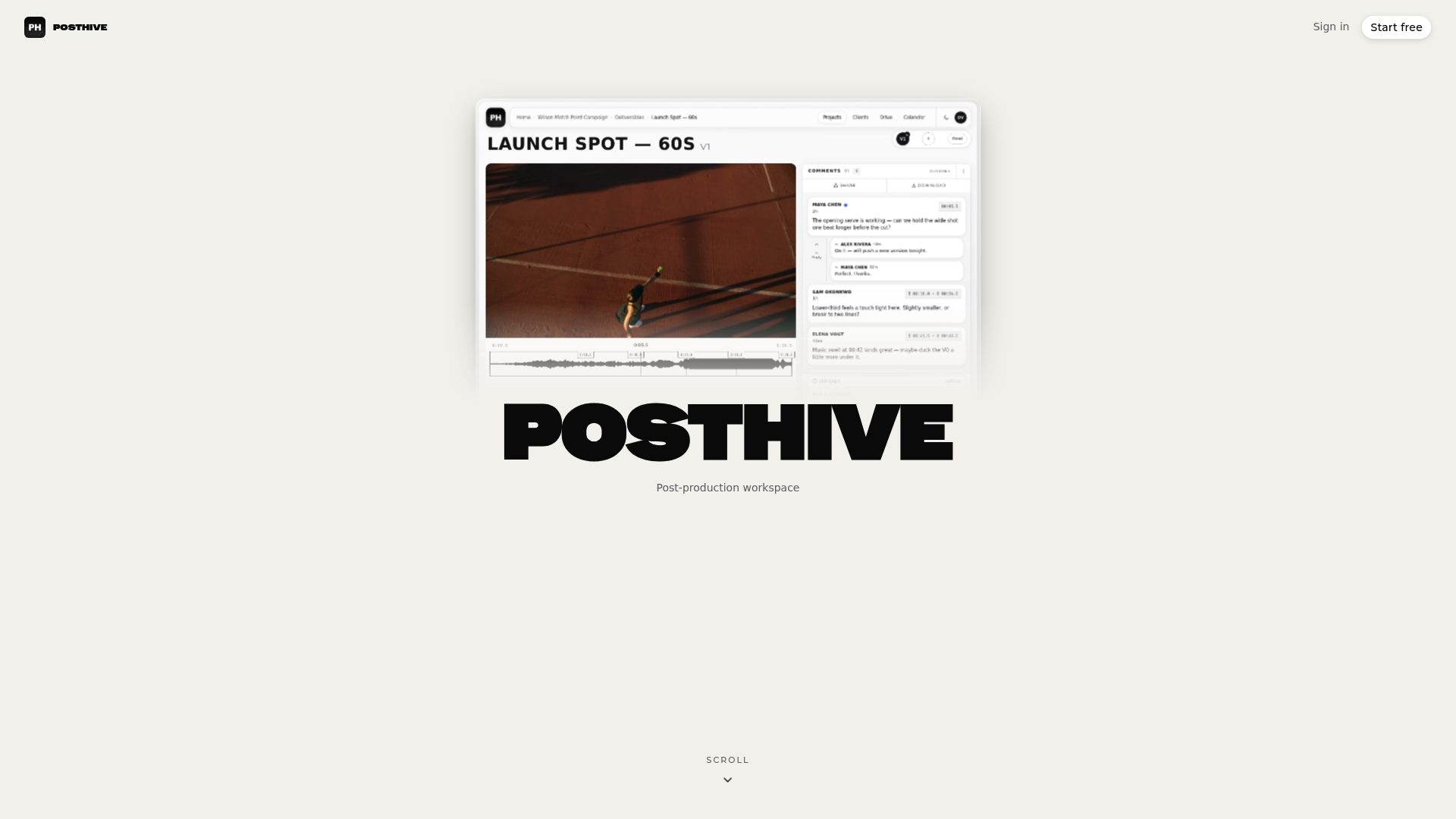
- Centralized review tools like Posthive attach comments to specific versions, making feedback clearer and preventing outdated notes on new cuts.
- Light-weight tools or extensions can help auto-stamp timecodes during review, but may face limitations with cross-origin restrictions and comment visibility.
Table of Contents
- How to add timecoded comments on YouTube, Google Drive, and workspace tools
- Writing and organizing timecoded feedback so it gets fixed
- Exporting timecoded comments into Premiere, Resolve, or Final Cut
- Lightweight tools for timecoded comments without a review platform
- Where Posthive fits around a timecoded review pass
- A quick review pass from note to fixed cut
- Turning platform comments into a full review workflow with Posthive
- Where to check the exact platform steps
- Sources
- FAQ
How to add timecoded comments on YouTube, Google Drive, and workspace tools
Each platform handles timestamped comments a little differently, but the core action is the same: mark a moment, then write about it.
On YouTube:
- Play the video and pause at the moment you want to reference, or note the time shown in the scrubber.
- Type the time exactly as displayed, such as 1:30 or 1:02:15, inside your comment text.
- YouTube automatically converts that text into a clickable link that jumps viewers to the moment, though this feature does not currently work on YouTube Shorts. Clicking a timestamp can also isolate the comment thread and generate a shareable link in the address bar.
On Google Drive, the process is more visual. Pause or scrub to the exact frame in the web player, click Comment, and choose the timestamped option rather than a general file comment. The Drive video player then displays a small indicator on the timeline showing exactly where each comment lands, so reviewers scanning the scrubber can see feedback density at a glance without opening every note.
Workspace-style tools such as Clipchamp go a step further. Reviewers can choose between a single timestamp or a time range when the feedback spans several seconds, tag specific teammates with @mentions, and drop markers directly on the timeline. According to Clipchamp’s help documentation, posted markers open the related comment thread and identify who wrote it right on the seek bar.
A few practical habits make this faster regardless of platform:
- Pause rather than scrub when you need frame-accurate feedback, since scrubbing on a slow connection can land a few frames off.
- Use the platform’s native timestamp button instead of typing times manually when one is available, since manual entry is where formatting errors creep in.
Writing and organizing timecoded feedback so it gets fixed
A timestamp only helps if the comment attached to it is specific enough to act on without a follow-up question.
- State the desired change, not just the problem: “cut 0.5 seconds here” beats “this feels slow.”
- Reference the exact time and, when relevant, the version number so editors working across cuts know which file the note applies to.
- Group related moments in one comment with multiple timestamps rather than posting five separate notes for the same recurring issue, an approach YouTube’s own timestamp guidance also recommends for viewer navigation.
- Use time ranges instead of single-frame timestamps when the note concerns an action that unfolds over several seconds. Air’s help documentation notes that ranges reduce ambiguity compared with pinning one instant.
Threading matters as much as wording. Use @mentions to assign a comment to the person responsible, and reply in the thread instead of posting a new comment when a note needs clarification, which keeps the timeline from filling up with duplicates. Before handing a project to an editor, sort or filter comments by timecode order, by reviewer, or by resolved status, then export a clean master list so nothing gets missed in a scroll-heavy comment feed.
Pro Tip: Resolve comments as you fix them rather than in a batch at the end. An unresolved comment count that never drops is a common source of missed notes on tight deadlines.
Exporting timecoded comments into Premiere, Resolve, or Final Cut
Once feedback is finalized, exporting it as timeline markers saves the manual work of retyping every note into an NLE.
- CSV exports work for simple timestamp and comment-text pairs, useful when you just need a reference list.
- Generic XML and FCPXML carry marker data, including color and duration, into Premiere Pro, DaVinci Resolve, and Final Cut Pro directly, according to PremiumBeat’s breakdown of XML workflows.
- Before importing, confirm the project frame rate and timecode base, drop-frame versus non-drop-frame, match the source media, since a mismatch shifts every marker off its intended point.
This step pays off most during a final approval pass or a handoff between editors, when a client’s scattered feedback needs to become concrete timeline work in one import instead of a long transcription session. Turning comments into markers this way also fits naturally with tracking video versions across a project, since each round of exported markers can be tied to the version it was reviewed against.
Lightweight tools for timecoded comments without a review platform
Not every project runs through a dedicated review tool, and sometimes a quick fix beats setting one up for a single video.
- Browser extensions and small open-source tools can auto-stamp the current paused time straight into a comment box, removing the manual typing error that causes mismatched timestamps, an approach used in projects like VidMark, which adds Frame.io-style commenting to other players.
- A useful checklist for any lightweight tool: auto-stamp on pause, color-coded markers on the timeline, and export to text or CSV when you need to move notes elsewhere.
- Watch for caveats: some extensions run into cross-origin restrictions on embedded players, comment visibility can differ between mobile and desktop, and not every tool syncs comments back to the original file.
Standalone timestamp extractor tools can also scan an existing comment section and group timestamps automatically, which helps when viewer feedback on a published video needs to become an index of key moments rather than a scroll-through read.
Where Posthive fits around a timecoded review pass
Comments tied to versions cut down on the duplicate notes that pile up when reviewers mark up an outdated cut. Auto captions make moments searchable by spoken word, not just timestamp, which speeds up finding the comment that matches a specific line. In practice, a comment thread that maps cleanly to a version and a caption becomes a task an editor can act on without re-watching the whole file.

A quick review pass from note to fixed cut
A reviewer pauses at each issue, types an @mention for the editor, and keeps each note to one action and one timestamp. The editor triages by timecode order, exports markers if the platform supports it, and closes each comment once the fix lands in the timeline. A project manager then checks the exported marker list against the final cut to confirm every assigned note was addressed before the file ships.
— Lorenz
Turning platform comments into a full review workflow with Posthive
YouTube and Google Drive handle basic timestamped comments well, but neither ties those notes to a version history, exports them as ready-to-import markers, or keeps client feedback behind a secure link. Posthive centralizes that layer: comments stay attached to the specific version they were left on, auto captions make spoken moments searchable alongside the timestamp, and markers export in a format ready for your NLE instead of a scattered comment feed.
| What you get | Where it helps |
|---|---|
| Comments tied to versions | Stops reviewers marking up an outdated cut |
| Auto captions | Makes spoken moments searchable, not just timestamped |
| Export-ready markers | Cuts manual re-entry when moving notes into an NLE |
| Secure share links | Keeps client review private before release |
Posthive’s plans include features that allow clients and collaborators to join a review without extra per-editor cost. Secure sharing for client review rounds works the same way as password-protected video links, keeping unreleased cuts private during approval. Teams running recurring review cycles can compare Pro and Enterprise plans and start with the tier that matches their storage and export needs.
Where to check the exact platform steps
- Clipchamp’s comment help page covers timestamp versus range comments and mentions.
- Google Drive’s help center details timestamped comments and timeline indicators.
- Google Workspace’s update blog announced timestamped Drive comments in August 2026.
- Voclify’s guide to YouTube comment strategy explains why timestamps help viewers find key moments.
Sources
- Store and play videos in Google Drive - Computer - Google Drive Help
- How to Add Timestamps to Your YouTube Comments (and Why You Should)
- Add comments to a video - Clipchamp help
FAQ
How do I put a timecode in a YouTube comment?
Type the time exactly as it appears in the player, such as 1:30 or 1:02:15, anywhere in your comment text. YouTube automatically turns that text into a clickable link that jumps to that moment, though this does not currently work on YouTube Shorts.
What is a timecode in a video?
A timecode is the exact time position within a video, usually shown as hours, minutes, and seconds. It lets reviewers, editors, and viewers point to one specific frame or moment instead of describing it in words.
How do I add a comment to a video?
On most platforms, pause or scrub to the moment you want to reference, then use the comment button to post feedback tied to that spot. Google Drive’s video player lets you choose between a timestamped comment and a general file-level comment when you do this.
How do I pin a time to a YouTube comment?
Write the timestamp using the same format shown in the video player, such as 1:30, inside your comment box before posting. YouTube converts it into a clickable link automatically, and clicking that link can also generate a shareable address showing that exact comment.
Can I export timecoded comments into my video editor?
Yes, many review tools let you export comments as CSV, XML, or FCPXML files that import directly into Premiere Pro, DaVinci Resolve, or Final Cut Pro as timeline markers, according to PremiumBeat’s XML workflow guide. Before importing, check that the project’s frame rate and timecode base match the source media so markers land on the right frame.