Client Upload Portals for Creative Teams: Quarantine Before Access
Client Upload Portals for Creative Teams: Quarantine Before Access

Use a tracked client upload portal that quarantines every file until it has been scanned, and let large files go straight to cloud storage through presigned uploads. That can help make file collection more auditable and secure while keeping the process convenient for clients. We built Posthive for creative teams, so deliverables stay with the client and versions stay clear.
TL;DR:
- Validate file contents through magic bytes, not extensions; rename uploads, cap sizes, require authorization, and log uploader, timestamp, file hash, and scan result.
- For large media, presigned cloud uploads keep files off application servers; use uploads through your server only when inspection control outweighs added bandwidth and risk.
- Use a simple request for a few small files; recurring clients, large transfers, version changes, or audit needs justify a full portal.
- Connect approved files to project storage and review tools, preserve earlier versions instead of overwriting them, and keep clients’ ownership of deliverables.
- Compare storage, downloads, scanning, API use, support, retention, and overage fees; check whether extra client seats cost more, then model both normal and peak months.
Table of Contents
- What should a client upload portal do for your team?
- Which security practices should every upload flow follow?
- How do you set up a secure client upload portal?
- How should a portal connect to your production tools?
- What does a client upload portal cost?
- What do we bring to client uploads at Posthive?
- How long does a client upload take from start to finish?
- When is a full portal worth it versus a simple file request?
- Where can you see this working in Posthive?
- FAQ
- Sources
What should a client upload portal do for your team?
A good portal replaces the email chain and the half-forgotten shared folder with one place where clients send files and you can see what arrived, when, and from whom. Look for these capabilities:
- Secure, expiring upload links, or authenticated client accounts
- Request tracking, with a status and an owner for each item you asked for
- Automatic file organization, so uploads land in the right project and folder
- Version control, so a revised file never overwrites the approved one
- Media preview, so you can check a clip before downloading it
- Reliable handling of very large files, including resumable transfers
Different teams lean on different features. Production companies and agencies juggle complex handoffs with many contributors, so request tracking and versioning matter most. Freelancers need a clear, professional way to receive footage and brand assets. Accounting and HR teams collect sensitive documents, where access control and logs matter more than previews.
Portals can make deadlines more visible, keep a record of uploads, and make it easier to identify the current version than email and shared folders. Reviewers on G2 note that tools built for a specific workflow tend to beat generic portals because they cut tool fragmentation.
Which security practices should every upload flow follow?
Treat every uploaded file as hostile until proven otherwise. A key rule is quarantine-and-scan: mark each upload “pending” and keep it inaccessible to staff and other users until an automated scanner returns “clean”. AppMaster recommends this asynchronous pattern, with the interface showing the pending state so clients know what is happening.
Around that core, put these controls in place:
- Validate content, not names. OWASP warns that checking extensions alone is insufficient. Verify magic bytes, and keep uploads outside the webroot.
- Limit and rename. Cap file size and filename length, restrict characters, and replace user filenames with application-generated ones, as the OWASP File Upload Cheat Sheet advises.
- Require authorization for every upload endpoint, even when you issue anonymous links.
- Strip active content. Multiscanning across several antivirus engines plus Content Disarm and Reconstruct (CDR) removes macros and similar payloads while keeping business files usable, as OPSWAT describes.
- Log everything: timestamps, uploader identity, file hash and scan result. This audit trail settles disputes and supports compliance.
Why it matters: OWASP’s community guidance lists risks from unrestricted uploads that include full system takeover, so a file field is never “just a form”.
If you want to test your own setup, our walkthrough on media file security you can test in an afternoon is a practical start.
How do you set up a secure client upload portal?
You have two main patterns. With presigned direct-to-cloud uploads, the browser sends files straight to object storage using a short-lived signed URL, so your application servers stay out of the data path. AWS documents this approach, along with S3 Transfer Acceleration for global performance. It scales better and keeps untrusted content away from your servers. With server-proxied uploads, files pass through your own application first. You get more control over inspection and rules, but you carry the bandwidth and the risk. For most creative teams moving large media files, presigned uploads are the better default.
Here is a build checklist you can hand to an engineer or product owner:
- Design an object key pattern that separates clients, projects and upload status.
- Create presign endpoints, or proxy routes if you chose that pattern.
- Add authentication, with optional anonymous links that expire.
- Enqueue each completed upload for asynchronous scanning.
- Show clear pending and clean states in the interface.
- Set retention and backup policies for approved files.
- Monitor scan queue length, set rate limits, and add retries.
Pro Tip: Give clients an upload receipt with the filename, size, time and scan status, so “did it go through?” never becomes a support ticket.
On the interface side, show progress bars, write plain error messages, and give guidance for large video files, such as keeping the tab open or using resumable transfers. Our guide on sharing large video files covers the practical details. Finally, plan a support path for blocked uploads, because a false positive on a client’s deadline day needs a fast human answer.

How should a portal connect to your production tools?
A portal that sits alone creates rework. Connect it to the tools your team already uses:
- Cloud storage: approved files flow to the project’s storage without manual copying.
- NLE plugins: editors pull client assets into the timeline directly and push cuts back for review.
- Review and approval tools: feedback and sign-off live next to the file they refer to.
- Calendar and task trackers: deadlines for each requested item show up where the team already looks.
The workflow matters as much as the connections. The client should keep ownership of their deliverables, with each new version stored beside the old one instead of replacing it. That makes handoffs clean and removes arguments about which file was approved. Our post on media sharing permissions explains how permissions protect that chain of ownership.
Automated reminders help too. When a client’s request is overdue, a nudge goes out without anyone chasing by hand, which keeps delivery dates intact. Agencies such as Hook Digital show how many handoffs a single video project involves, which is exactly where tracked requests save time.
What does a client upload portal cost?
Prices vary widely, but the cost drivers are consistent:
- Storage, billed per gigabyte per month
- Egress and bandwidth when files are downloaded
- Per-file processing, such as scanning and CDR
- API usage, if you integrate programmatically
- Support tiers
When comparing vendors, check which scan quotas are included, what the retention policy is, what overage rates apply, and whether clients or extra “seats” are charged. Per-seat pricing quietly punishes you for inviting more people.
To estimate a monthly bill, multiply your expected uploads per month by the average file size to get gigabytes, then apply the storage rate, add the egress you expect from downloads, and add the per-file processing fee times your file count. Run it for a normal month and a crunch month, and you will see whether a plan holds up.
What do we bring to client uploads at Posthive?
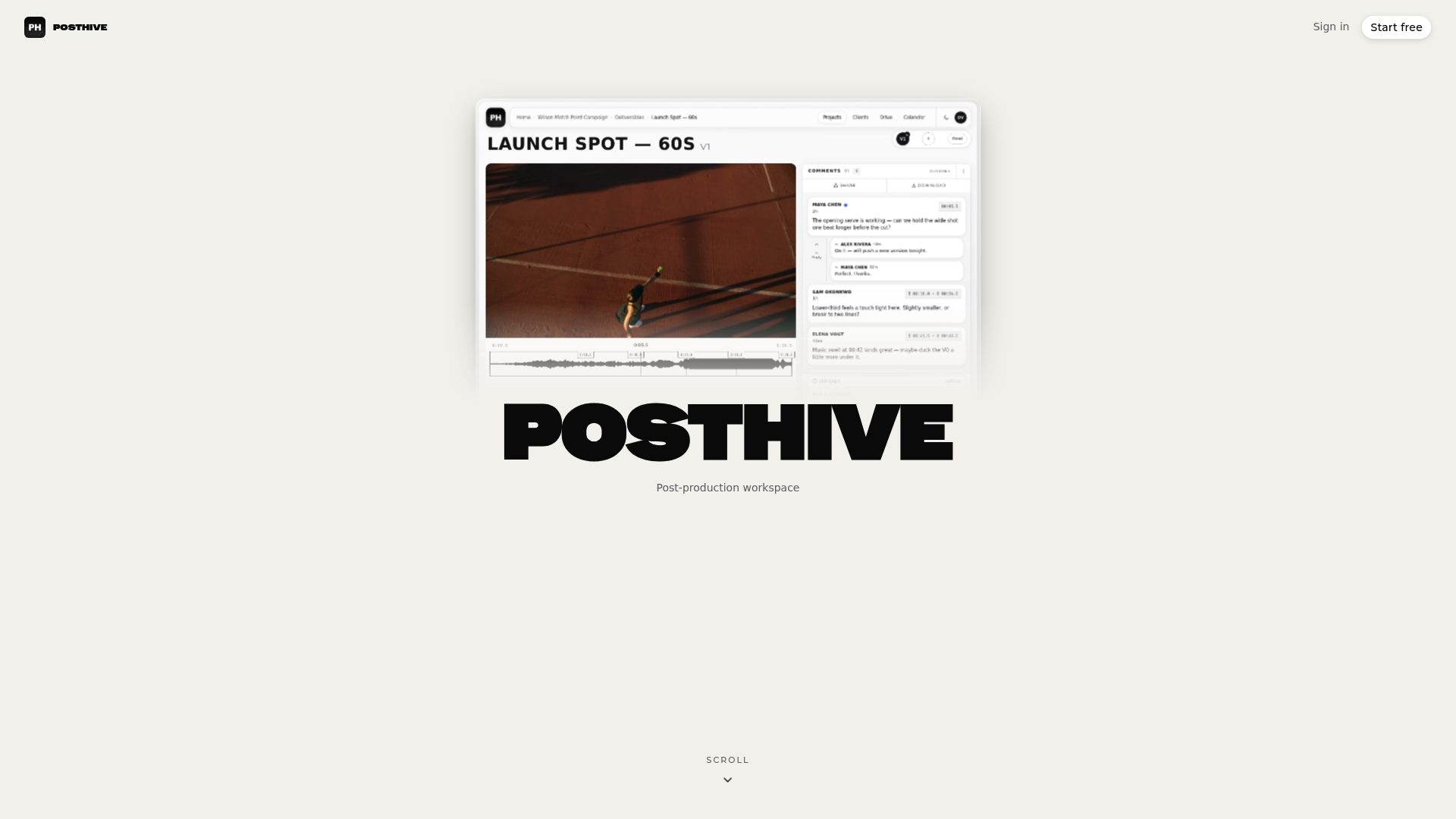
Posthive is presented as a post-production workspace, and the checklist above describes needs such a product can be designed to address. A portal can support version control, client ownership of deliverables, and review alongside the files. These are capabilities to look for when comparing a portal with a set of separate tools.
Unclear versions and missing records can create friction for teams, alongside technical challenges. A portal that tracks requests and preserves versions can help reduce that friction.
How long does a client upload take from start to finish?
The honest answer is that the transfer itself is usually the shortest step. A typical flow looks like this, and the real time varies with file size and the client’s connection:
- Initiation: you create the request and the client receives a link. This takes minutes, and the client may take hours or days to act on it.
- Authentication: the client opens the link or signs in. This takes seconds.
- Transfer: the file moves to storage. Small documents finish almost instantly, while large video masters depend on bandwidth, which is why presigned uploads and resumable transfers help.
- Quarantine and scanning: the file stays “pending” while automated scans run. Scans for ordinary documents are quick, while very large media files take longer.
- Release: once the file is marked clean, it becomes visible to your team and the request status updates.
- Confirmation: the client gets a receipt, and reminders stop.
Plan around the slowest human step, not the slowest machine step. Reminders and clear pending states cut the long waits that come from clients forgetting or doubting whether an upload worked.
When is a full portal worth it versus a simple file request?
A lightweight file request is enough for a one-off handoff of a few small files. Once clients return repeatedly, files get large, or you need an audit trail, invest in a portal. If you expect repeated client interactions and multiple versions, choose the portal early, because retrofitting version control later costs far more than starting with it.
— Lorenz
Where can you see this working in Posthive?
If you want a ready workflow instead of building one, you can compare Posthive’s upload, version-control, and deliverable-management features. Test the real upload flow with a large file, try the integrations you rely on, and see how storage is handled. Compare our Pro and Enterprise plans to find your fit, or look at our productivity features to see how projects and versions fit together. You can start from the Posthive homepage and run your next client handoff through it.
FAQ
What is the safest way to accept client file uploads?
Quarantine every upload as “pending” and scan it before anyone can open it. Combine that with content validation, server-side limits and authenticated links. Storing files outside the webroot or in separate cloud storage keeps uploaded content from executing on your servers.
Should uploads go direct to cloud storage or through my server?
Direct-to-cloud presigned uploads usually perform better and keep untrusted files off your application servers. Server-proxied uploads give you more control over inspection but add load and risk. For large media files, most teams choose presigned uploads.
How do I stop clients from uploading dangerous files?
Validate file headers instead of trusting extensions, restrict allowed types, and cap size and filename length. Scan every file before release, and consider CDR for documents that may contain macros.
What should a client upload portal log?
Record the upload time, uploader identity, file hash and scan result. This audit trail resolves disputes about what was sent and when, and it supports compliance reviews.
Sources
- Virus scanning for file uploads: architecture options for apps | AppMaster
- Secure File Uploads - MetaDefender for File Uploads - OPSWAT
- WSTG - Latest | OWASP Web Security Testing Guide