Google Calendar Sync: Fix Mobile Issues or Build API Updates
Google Calendar Sync: Fix Mobile Issues or Build API Updates

Sign into the same Google account on every device and use the Google Calendar app for two-way sync. If you only need a read-only feed in another app, use the calendar’s Secret address (iCal) under Integrate calendar. Outlook desktop needs a third-party connector for two-way editing, and developers can use the Calendar API’s events.watch method for near-real-time updates.
TL;DR:
- Imported iCal feeds may take 12 to 24 hours to refresh, and anyone with the Secret address can read calendar events.
- On mobile, check the calendar’s own Sync toggle and device account sync, then confirm events belong to a Google calendar and storage remains available.
- Apple Calendar supports editing in both directions when you add your Google account directly, but some Google features will not appear there.
- Company IT policies can block Outlook add ins or external feeds, so ask an administrator if a connector will not install before troubleshooting further.
- Developers must renew push notification channels at least every seven days and treat each notification as a prompt to fetch changed events, not event data.
Table of Contents
- How Google Calendar sync works: account sync vs. iCal feeds
- How to sync Google Calendar on Android and iOS
- How to view Google Calendar in Outlook and Apple Calendar
- How developers get near-real-time Google Calendar sync
- A checklist for fixing Google Calendar syncing issues
- What to know about security and privacy when syncing
- Limits and best practices for syncing large volumes of events
- How sync frequency affects performance, and how to tune it
- How Google Calendar sync fits into Posthive projects and tasks
- Why reliable calendar sync matters for production teams
- Calendar integration inside a production workspace
- FAQ
- Sources
How Google Calendar sync works: account sync vs. iCal feeds
Google gives you two ways to move calendar data around, and they behave very differently. Pick the wrong one and you will wonder why edits vanish or updates arrive a day late.
- Account-based sync: Any app that supports Google sign-in gets read and write access, so changes you make in one place show up in the others quickly.
- iCal/ICS Secret address: This is a one-way feed. The receiving app can display your events but cannot change them.
- Refresh timing for feeds: Imported iCal feeds update on an indeterminate cycle, often between 12 and 24 hours, so a new event may not appear right away.
- Desktop client limits: Some desktop apps can only show the read-only feed. Two-way editing there usually needs a connector.
If you need to edit events from more than one place, choose account sync. If you only need to see your schedule, the feed is simpler and safer.
How to sync Google Calendar on Android and iOS
Most mobile sync problems come down to a few toggles. Work through them in this order:
- Install or update the Google Calendar app and sign in with the Google account that owns the events.
- In the app, open Menu, then Settings, then select the calendar and confirm its Sync toggle is on. This toggle is set per calendar.
- On your device, open Settings, then Accounts, choose your Google account, tap Account sync, and make sure Calendar is switched on.
- Back in the app, use Menu, then Refresh to force a new check.
- Check free storage. Google Support notes that a full device can stop the Calendar app from syncing.
Pro Tip: Clear the Calendar app’s data only as a last resort, after trying other troubleshooting steps.
On iPhone, the same logic applies: add your Google account under Settings, Calendar, Accounts, and turn Calendars on so your events show in the built-in app too.
How to view Google Calendar in Outlook and Apple Calendar
Desktop apps give you two routes, and each has trade-offs.
- One-way view: In Google Calendar, open the calendar’s settings and copy the Secret address in iCal format. Then add it as an Internet calendar in Outlook, or subscribe to it in Apple Calendar. Treat that address like a password, because anyone holding it can read your events.
- Apple Calendar two-way sync: You can add your Google account directly for editing in both directions, though some Google-specific features will not appear in Apple Calendar.
- Outlook desktop: Microsoft does not support native two-way sync with Google Calendar. If you need to edit from both sides, you need a third-party connector, such as a commercial sync utility or an open-source tool.
- Corporate restrictions: Company IT policies often block add-ins and external feeds. If a connector fails to install, ask your administrator before assuming the setup is wrong. Sharing problems on the Microsoft side are a separate matter, and Outlook sharing checks cover the usual culprits.
How developers get near-real-time Google Calendar sync
If you are building an integration, polling wastes quota and arrives late. The Google Calendar API’s events.watch method lets your app subscribe to changes through a push notification channel delivered to a webhook endpoint, and updates generally arrive within seconds.
- Channel lifetime: Channels expire after a maximum of seven days. Build automatic renewal so notifications never lapse.
- Event filtering: You can filter event types such as focusTime, outOfOffice and workingLocation in events.watch and events.list requests, which cuts noise.
- Minimal scopes: Request only the OAuth scopes you need, and avoid broader access than necessary.
- Token handling: Store refresh tokens encrypted at rest, and rotate credentials on a schedule.
Pro Tip: Treat a push notification as a signal to fetch changes, not as the data itself. Your handler should respond fast, then pull the updated events.
A checklist for fixing Google Calendar syncing issues
Run these steps in order. Many sync problems can be resolved this way.
- Confirm the event was created in a Google-account calendar, not a local or phone-only one. Local events never sync.
- Check that the calendar is visible in the app and its Sync toggle is on.
- Verify account sync in your device settings, confirm free storage, then use Refresh and update the app.
- Clear Calendar storage, after backing up any events you created locally.
- Remove your Google account from the device and add it again.
Why storage matters: Full device storage automatically stops the Calendar app from syncing, and it often fails without any visible error.
What to know about security and privacy when syncing
Every sync connection is a door into your schedule, so it helps to know who holds a key.
Start with the Secret address. It needs no sign-in, which is why it works in so many apps, and also why you should never post it in a shared document or a public channel. If you suspect it leaked, check your calendar settings for options to reset the address. Anyone who subscribed will then need the new one.
For account-based sync, review which apps have access to your Google account from time to time and remove the ones you no longer use. A forgotten connector with write access can change or delete events without you noticing.
Event details matter too. A calendar entry can include meeting links, dial-in codes, locations and attendee names. When you share a feed with a client or a vendor, create a separate calendar that holds only what they need rather than exposing your primary one.
On a shared or work device, sign out of your Google account when you are done, and use a screen lock on any phone that syncs your calendar. For developers, the same discipline applies: minimal scopes, encrypted token storage and regular credential rotation keep a small integration from becoming a liability.

Limits and best practices for syncing large volumes of events
A calendar with a modest number of events may sync smoothly. Large calendars, especially those with recurring events and many exceptions, can be more challenging, with symptoms such as slow loading, partial updates and feeds that seem to lag.
The first habit is to split by purpose. Instead of one giant calendar, keep separate ones for deadlines, review sessions and personal time. Smaller calendars sync faster, can be toggled on or off per device, and can be shared with the right people only.
Second, archive old events. If you have years of history you never open, export them and clear the calendar. Fewer items means less to compare on every sync.
Third, be careful with recurring series. A recurring event with many edited instances can require the sync engine to track each exception. When a series changes a lot, consider ending it and starting a new one.
For developers, avoid pulling the full event list on every change. Fetch only what changed, page through results rather than requesting everything at once, and use the event type filters to skip entries you do not need.
Finally, remember that feed subscriptions refresh on their own schedule. If a large calendar must stay current in another tool, account sync or an API integration is more dependable than an iCal feed.

How sync frequency affects performance, and how to tune it
Faster is not always better. Every sync check uses battery, data and server quota, so the goal is the right speed for the job.
On a phone, the Calendar app syncs in the background when it detects changes, and a manual Refresh is there for the moments you cannot wait. If you refresh constantly, the underlying problem is usually a setting, not speed. Revisit the toggles from the mobile section rather than tapping Refresh repeatedly.
If battery life matters, reduce the number of synced calendars. Each calendar you keep switched on adds to the work, so turn off the ones you rarely read, like a holiday calendar you never check.
For feed subscriptions, you cannot change the refresh cycle, since Google controls it. If a 12 to 24 hour delay hurts, switch that app to account-based sync.
For developers, push channels beat polling by a wide margin. A webhook that fires when something changes can use fewer requests than frequent polling and deliver updates faster. If you must poll as a fallback, use a sensible interval and back off when nothing changes. Also batch your reads so a burst of edits triggers fewer fetches.
How Google Calendar sync fits into Posthive projects and tasks
Calendar sync matters most when deadlines live in the same place as the work. In our workspace, you connect Google Calendar so review sessions, delivery dates and task deadlines show up where your team already tracks versions and feedback, instead of living in a separate tab that someone forgets to update.
In practice, that means a due date on a task can appear on your calendar, and a scheduled client review sits next to the cut it refers to. Your producer sees the same dates as your editor, and nobody builds a schedule from memory. We describe the broader approach in our calendar integration workflow guide, and our post-production calendar template shows how to structure a timeline with folder rules.
The sync basics from this article still apply. Sign in with the right Google account, check that the calendar is visible and its Sync toggle is on, and keep an eye on storage. Because the connection runs through your account, the same security habits matter: review connected apps and keep your Secret address private.
You can see how our calendar integration and related tools work on our productivity page, and our blog covers more workflow topics for creative teams.
Why reliable calendar sync matters for production teams
In post-production, a missed review is rarely about carelessness. It is usually a calendar that showed the wrong time on one person’s phone. When sync is dependable, handoffs stay predictable, reviews start on time and deadlines stop slipping quietly. Keeping events next to the tasks they belong to also cuts the context switching that causes scheduling mistakes.
— Lorenz
Calendar integration inside a production workspace
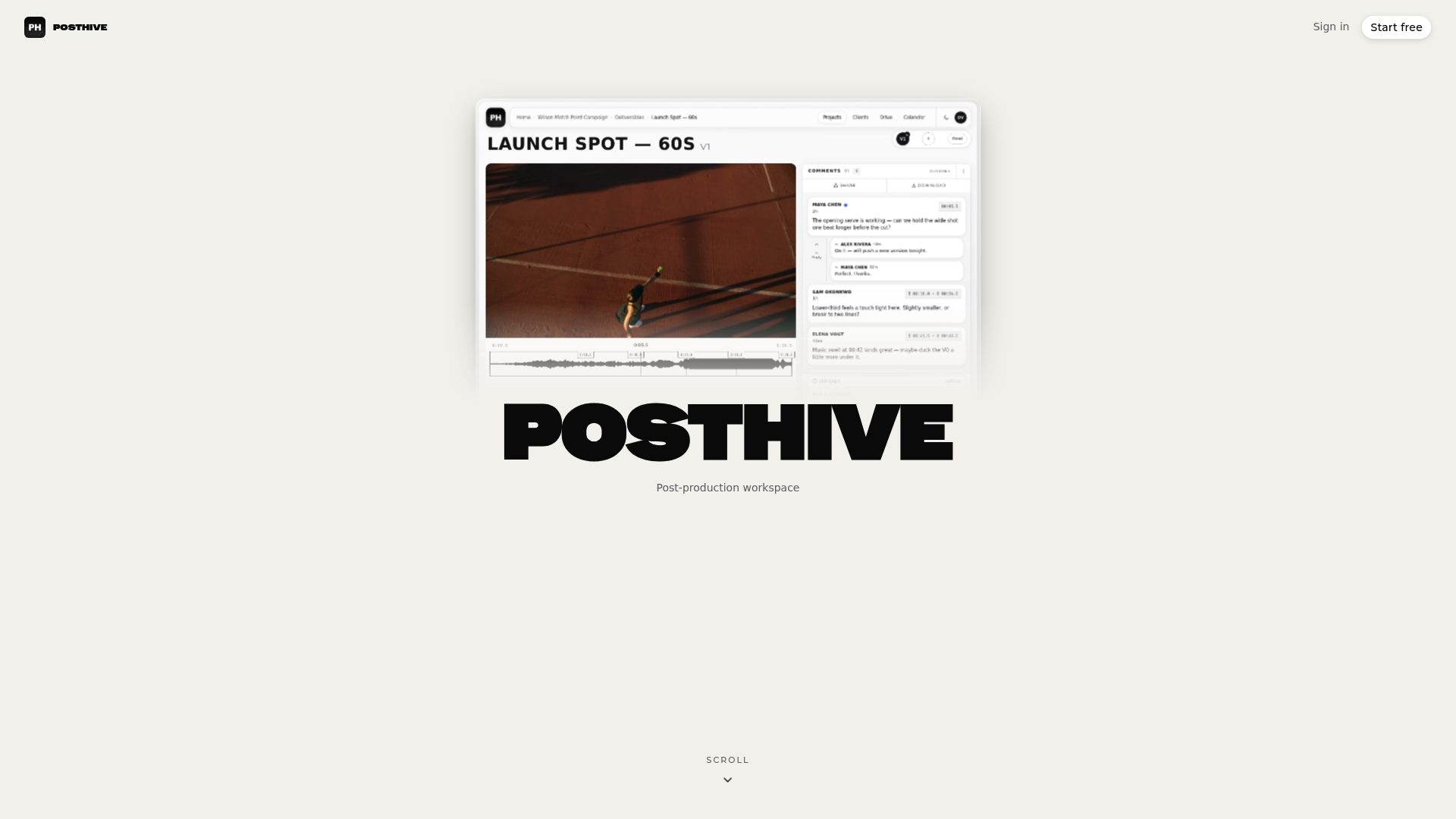
If you would rather not stitch together a calendar, a task list and a review tool, we built calendar integration into our production workspace. Deadlines and review sessions sit beside tasks, versions and client feedback, so your team works from one schedule.
Take a look at our pricing page to see whether a unified workspace removes calendar friction for your team, or start from our workspace structure overview.
FAQ
Why isn’t my Google Calendar syncing across devices?
The most common causes are a disabled Sync toggle, account sync turned off in device settings, or events saved to a local calendar. Check each in that order, then refresh the app and confirm you have free storage.
How do I force Google Calendar to sync?
In the Google Calendar app, open Menu and choose Refresh. If that does nothing, confirm Calendar is enabled under your Google account’s sync settings on the device, then try again.
Why aren’t all my calendars showing up in Google Calendar?
A calendar may be hidden in the app’s settings, or its Sync toggle may be off. Open Settings, select the calendar, and turn Sync on so it appears in your list.
Can I sync one Google Calendar with another?
Yes, in two ways. You can share a calendar with the other account to give it read or edit access, or add a calendar’s Secret address as an imported feed, which is read-only and refreshes on Google’s schedule.