4K Footage Storage: Three Shoot Scenarios for Production Teams
4K Footage Storage: Three Shoot Scenarios for Production Teams

The fastest way to size 4K footage storage is bitrate math: multiply your camera’s recording bitrate in Mbps by 0.45 to get decimal GB per hour, then multiply that by hours recorded and camera count. “4K” alone tells you almost nothing, since codec and frame rate swing results by 10x or more. Once you have a raw total, add proxies, cache, and at least two backup copies before you buy a single drive.
TL;DR:
- At 100 Mbps, a 1TB drive holds about 22 hours, but at 400 Mbps it holds roughly five, so check the camera’s recording mode.
- V30 cards generally handle 4K/30p footage compressed across groups of frames, while 4K/60p or intraframe recording calls for V60 or V90.
- A ProRes 422 HQ shoot lasting six hours produces about 2,034 GB of originals alone, before proxies, cache, exports, or backup copies.
- Long GOP footage saves card space but can strain editing systems; intraframe proxies ease playback, while teams sharing media may need a 10GbE NAS.
- Keep one verified copy locally and another offsite; cloud storage suits backups better than active projects when uploads of hundreds of gigabytes take hours.
Table of Contents
- Quick conversions and on-set rules of thumb
- How codecs and capture modes change storage needs
- Choosing SD cards and recorders that keep up
- Sizing storage for editing: originals, proxies, cache, and backups
- Drive, NAS, 10GbE, and cloud options for 4K workflows
- Three concrete shoot scenarios with step-by-step math
- Where a collaborative post-production workspace helps storage workflows
- Strategies for organizing and labeling footage for efficient retrieval
- Recommended backup workflows and redundancy strategies
- Impact of codec choice on storage and editing performance
- Cloud storage costs, speed, and security for 4K footage
- Managing metadata for collaboration and version control
- A practical take on storage tradeoffs
- Posthive: workflow-first platform for teams handling storage-heavy projects
- FAQ
- Sources
Quick conversions and on-set rules of thumb
The math behind 4K footage storage is simpler than it looks, but one detail trips people up constantly: drive manufacturers sell storage in decimal gigabytes (1,000 MB), while some software reports gibibytes (1,024 MB). That gap explains why a “1TB” card never quite holds what the math promises. The 0.45 multiplier already accounts for the decimal GB convention, so stick with it for planning.
Here’s the conversion at common bitrates, using GB/hour ≈ Mbps × 0.45:
- 50 Mbps: about 22.5 GB per hour
- 100 Mbps: about 45 GB per hour
- 200 Mbps: about 90 GB per hour
- 400 Mbps: about 180 GB per hour
- 600 Mbps: about 270 GB per hour
At 100 Mbps, a 128GB card holds roughly 2.8 hours, a 256GB card about 5.6 hours, a 512GB card about 11.3 hours, and a 1TB card about 22 hours. At 400 Mbps those same cards drop to under an hour, 2.5 hours, 5 hours, and 10 hours respectively.
How codecs and capture modes change storage needs
Bitrate, not resolution, drives file size, and nothing illustrates that better than a single codec family. Apple ProRes data rates for 4K/24p span a huge range depending on which variant you choose:
- ProRes 422 Proxy: about 70 GB per hour
- ProRes 422 LT: about 157 GB per hour
- ProRes 422: about 226 GB per hour
- ProRes 422 HQ: about 339 GB per hour
- ProRes 4444: about 509 GB per hour
- ProRes 4444 XQ: about 764 GB per hour
Statistic: Sony’s ILME-FX6 specifications list XAVC-I 4K max bitrates of 600 Mbps at 59.94p and 300 Mbps at 29.97p, which convert to roughly 270 GB/hour and 135 GB/hour. The same camera body can demand wildly different storage depending on the frame rate and mode you choose.
ProRes and XAVC-I are intraframe codecs: every frame is a complete image, which makes scrubbing and multistream playback smoother but inflates file size. Long-GOP formats like H.265 compress across groups of frames, shrinking storage at the cost of heavier decode work during editing. Treat every number here as an estimate rather than a guarantee, since variable bitrate encoding and busy, detailed scenes push real-world files above the stated average.
Choosing SD cards and recorders that keep up
Card speed labels are confusing by design, so the SD Association’s Video Speed Class system exists specifically to remove the guesswork. V30, V60, and V90 ratings guarantee minimum sustained write speeds of 30, 60, and 90 MB/s, and V60/V90 cards typically require UHS-II hardware to hit those numbers.
- Match card class to capture mode: 4K/30p long-GOP footage generally clears comfortably on a V30 card, while 4K/60p XAVC-I or ProRes capture needs V60 or V90 to avoid dropped frames.
- Convert bitrate to minutes per card before you shoot: a 256GB V90 card at 400 Mbps holds roughly 71 minutes, while the same card at 100 Mbps stretches past 5 hours.
- Reformat cards in-camera before each shoot day, verify footage with checksums during offload, and retire any card that throws write errors even once.
Pro Tip: Buy sustained write speed for your highest bitrate mode, not your most common one, since the moment you forget to switch settings is the moment a slower card drops frames.
Sizing storage for editing: originals, proxies, cache, and backups
Raw footage is only part of the number you need. A realistic project budget includes original camera files multiplied by camera count, proxies or optimized media for editing, cache and preview renders, motion graphics elements, final exports, and every retained version along the way.
- Originals: bitrate-based GB/hour × hours × number of cameras
- Proxies/optimized media: often 5 to 15% of original size, but budget it explicitly rather than assuming
- Cache, previews, and renders: varies by software, but rarely trivial on 4K timelines
- Retained versions: count every cut you plan to keep, not just the final export
Once you have that active total, divide it by 0.8 to preserve roughly 20% free space on your working drive, since full drives slow down and risk corruption. Backups are separate math entirely: the recommended minimum is two verified copies, one local and one offsite or in the cloud, and neither substitutes for the other.
| Project element | What to include | Sizing approach |
|---|---|---|
| Originals | Camera files × camera count | Bitrate × 0.45 × hours |
| Workspace | Active edit drive | Active need ÷ 0.8 |
| Backup copies | Local + offsite/cloud | Minimum two full copies |
A cloud post-production workspace can cut down on redundant local copies of deliverables and project metadata, but it only replaces a backup when its recovery guarantees match your team’s actual risk tolerance, which is worth checking before you rely on it as your only copy.
Drive, NAS, 10GbE, and cloud options for 4K workflows
Active edit storage needs sustained throughput more than raw capacity. NVMe and SSD RAID arrays handle high-bitrate ProRes or XAVC-I timelines without stuttering, since low latency matters as much as headline speed when you’re scrubbing multicam footage.
Shared editing across a team changes the calculation. A NAS connected over 10GbE becomes the practical choice once more than one editor needs simultaneous access to the same media, and it’s generally more cost-effective per terabyte than an all-SSD array at scale.
Archiving is a different problem from editing, and treating it the same way wastes money. Nearline HDD arrays, LTO tape, and cloud cold storage all trade a lower cost per terabyte for slower restore times, so the right choice depends on how often you expect to touch the footage again.
When comparing hardware options, weigh these factors together rather than picking on price alone:
- Throughput: can it sustain your highest bitrate without dropped frames during playback?
- IOPS and latency: do multiple editors or streams bog down performance?
- Cost per terabyte: does the price make sense for how long you’ll keep the data?
- Redundancy: does a single drive failure risk the whole archive?
Three concrete shoot scenarios with step-by-step math
Real numbers make the formula concrete. Here are three common shoots worked through from camera settings to final storage total.
- Single-camera run-and-gun, 4K/30p H.265 at 100 Mbps, 8 hours of footage: 8 × 45 GB equals 360 GB of originals. Add a 10% proxy allowance (about 36 GB) and a 20% workspace margin, and the active drive needs roughly 475 GB, plus two full backup copies at 360 GB each.
- Two-camera interview at 100 Mbps per camera, 3 hours each: 2 cameras × 3 hours × 45 GB equals 270 GB of originals. With proxies and a 20% margin, the workspace runs close to 355 GB, and the archive needs 270 GB duplicated twice.
- ProRes 422 HQ cinema day, 6 hours at 339 GB/hour: that’s 2,034 GB of originals alone. Fast NVMe storage becomes mandatory here, not optional, and the backup footprint triples the total working volume.
| Scenario | Bitrate | Hours | Original total | Workspace (with margin) |
|---|---|---|---|---|
| Run-and-gun, 1 camera | 100 Mbps | 8 | 360 GB | ~475 GB |
| Interview, 2 cameras | 100 Mbps each | 3 each | 270 GB | ~355 GB |
| ProRes HQ cinema | 339 GB/hour | 6 | 2,034 GB | ~2,035 GB |
Where a collaborative post-production workspace helps storage workflows
Storage math gets harder when multiple editors touch the same project. A cloud-based workspace with version control and task tracking helps teams see which files are final, which cache and preview data is safe to delete, and what still needs an offsite copy before it can be cleared from local drives.
Strategies for organizing and labeling footage for efficient retrieval
A consistent folder structure saves more editing time than almost any other habit on a 4K shoot. Set it up before the first card comes off the camera, not after footage starts piling up.
Organize by shoot date, camera, and scene or setup rather than by vague descriptions like “final” or “good takes.” A structure such as 2026-03-12_CamA_Scene 3 sorts predictably and survives a growing project without renaming chaos.
Clear folder hierarchies and naming conventions matter most once a project passes a few hundred clips, which happens faster than most teams expect on a multicam shoot. Label proxies and optimized media separately from originals, ideally in parallel folder trees that mirror the camera structure, so nobody mistakes a proxy for a master file during delivery.
Avoid renaming camera-original files directly. Keep the camera’s native file name intact and layer metadata or a sidecar naming scheme on top, since renaming originals breaks the link between footage and its embedded camera data, including timecode and lens metadata that editors rely on for syncing multicam angles.
Build in a retrieval test before it matters: pick a random clip from week one of a project and see how long it takes to find it. If it takes more than a minute, the structure needs work before the project grows further.
Recommended backup workflows and redundancy strategies
The two-copy minimum is the baseline, not the ceiling, for protecting 4K originals that can’t be reshot. One copy lives on a local drive for fast access during editing, and a second lives offsite or in the cloud, physically separated from the first so a single fire, theft, or drive failure can’t take out both.
Verify footage during offload, not after. Running a checksum comparison between the camera card and the destination drive catches silent corruption before the card gets reformatted and the only copy is gone.
Treat backups as time-sensitive, not a weekend chore. Offload and verify the same day footage is captured, especially on multi-day shoots where a card failure on day three could erase irreplaceable coverage from days one and two.
For long-term archive, a third copy on cold storage, whether tape or cloud, adds protection against the kind of slow degradation that active drives experience over years of use. Power reliability matters here too: a mid-shoot drive failure during offload is often a power interruption problem as much as a hardware one, so field charging setups that keep laptops and external drives running matter more than they get credit for.
Retention policy belongs in writing, not memory. Decide upfront how long originals, proxies, and final exports each get kept, since storage costs compound quietly when nobody ever deletes anything.

Impact of codec choice on storage and editing performance
Codec choice is a tradeoff between file size and editing smoothness, and getting it wrong in either direction costs time or money. Intraframe codecs like ProRes and XAVC-I store every frame independently, which means scrubbing, multicam syncing, and effects rendering all run faster because the editing software never has to reconstruct frames from neighboring data.
Long-GOP codecs like H.265 compress across groups of frames, cutting file size dramatically, sometimes by more than half compared to an equivalent intraframe format. The cost shows up during editing: decoding long-GOP footage takes more processing power, and older or less powerful editing systems can stutter on 4K long-GOP timelines even when the same system handles ProRes smoothly.
The practical move for most teams is shooting long-GOP in camera to save card space, then transcoding to an intraframe proxy codec for editing. This adds a transcoding step and temporary storage for proxies, but it keeps the edit responsive without blowing up the original capture budget. Teams cutting multicam or VFX-heavy projects often skip this tradeoff entirely and shoot intraframe from the start, accepting the larger card and drive footprint in exchange for a smoother edit from day one.
Cloud storage costs, speed, and security for 4K footage
Cloud storage solves the offsite backup problem, but three factors determine whether it’s practical for 4K-scale media: cost, transfer speed, and security.
Cost scales directly with volume, and 4K footage accumulates volume fast. A single ProRes HQ shoot day can exceed 2,000 GB, which makes cloud storage a better fit for final deliverables and verified backups than for every proxy and cache file generated during editing.
Upload speed is often the real bottleneck, not storage pricing. Uploading hundreds of gigabytes over a typical connection can take hours, so many teams reserve cloud storage for completed, verified footage rather than actively growing project files, and physically ship drives when timelines are tight.
Security matters most during client delivery, where encrypted transfer and access-controlled links protect unreleased footage from exposure. A secure preview-to-master delivery workflow lets clients review lower-resolution previews before the full-resolution master ever leaves controlled storage, reducing the window where sensitive footage sits in transit.
Managing metadata for collaboration and version control
Metadata is what turns a folder of clips into a project a team can actually work with together. Camera metadata, including timecode, lens data, and recording mode, should stay attached to original files, which is one more reason not to rename camera originals directly.
Production metadata, like scene and take numbers, shot descriptions, and approval status, needs a consistent home, whether that’s a shared spreadsheet, editing software bins, or a dedicated project management tool. The goal is that any editor on the team can open the project and know instantly which version is current without asking.
Version control built for media files rather than adapted from software development tools handles large binary files more gracefully than generic file-sync tools, which often struggle to track meaningful differences between large video file versions.
Client approval status deserves its own metadata layer entirely. Tracking which version a client signed off on, and when, prevents the common and costly mistake of delivering an earlier cut after notes were already given on a later one.
A practical take on storage tradeoffs
Plan for your highest likely bitrate, not your average one, and keep two verified copies before you call a shoot finished. Prioritize throughput over raw terabytes the moment more than one editor touches the same footage.
— Lorenz
Posthive: workflow-first platform for teams handling storage-heavy projects
Storage math solves half the problem. The other half is knowing which version is current, who approved it, and where the master actually lives, which is where version tracking and cloud connectivity save real time across a team.
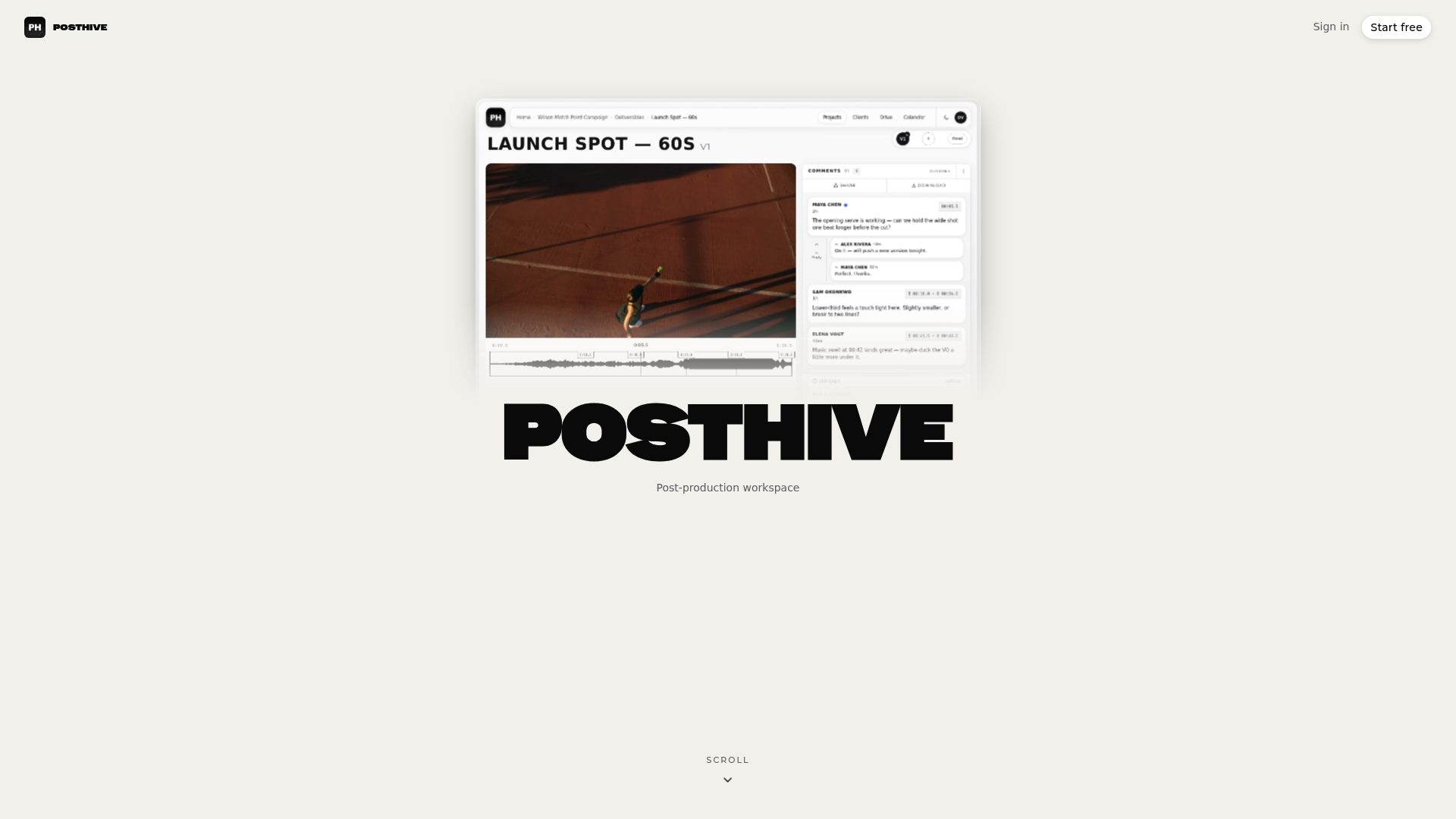
We built the platform so clients keep ownership of their deliverables while every team member works from the same verified version, with task tracking and secure delivery built into one place instead of scattered across drives and chat threads. Check Pro and Enterprise plans to see which fits your production’s storage and collaboration needs.
FAQ
How many hours of 4K footage can 1TB hold?
At 100 Mbps, a 1TB drive holds about 22 hours of 4K footage, using the GB/hour ≈ Mbps × 0.45 conversion. At a higher bitrate like 400 Mbps, the same drive holds closer to 5 hours, so the answer depends entirely on your camera’s recording mode.
Is a 256GB SD card enough for 4K video?
It depends on bitrate: a 256GB card holds roughly 5.6 hours at 100 Mbps but under an hour and a half at 400 Mbps. Check your camera’s actual recording bitrate and match the card’s Video Speed Class before relying on capacity alone.
Is 4K the same as 1920x1080?
No. 4K refers to 3840×2160 or 4096×2160 resolution, while 1920×1080 is Full HD, a much lower pixel count that produces smaller files at the same bitrate.
What SD card do you need for 4K video?
Choose a card by Video Speed Class rather than headline speed: V30 typically handles 4K/30p long-GOP footage, while 4K/60p or intraframe codecs like XAVC-I need V60 or V90 for guaranteed sustained writes. Check your camera’s recording mode bitrate first, since the required class changes with frame rate and codec.
Sources
- Video editing storage calculator (The Pro Toolkit)
- Apple ProRes (white paper)
- Speed Class - SD Association
- ILME-FX6V Specifications | Sony USA